Archive for July, 2009

App of the Day: OpenWithAdd

Have a problem registering an application with a file type? Selecting the application in the open with dialog box not working? That was my frustration with my Windows 7 install… until I found this cool application: OpenWithAdd

OpenWithAdd screenshot

To register a file type with an application:

  1. Open OpenWithAdd and select the application
  2. Click "Register"
  3. Go to Explorer, right click your file > Open with > Choose default program… (the application you added should now also be listed in the Open with submenu)
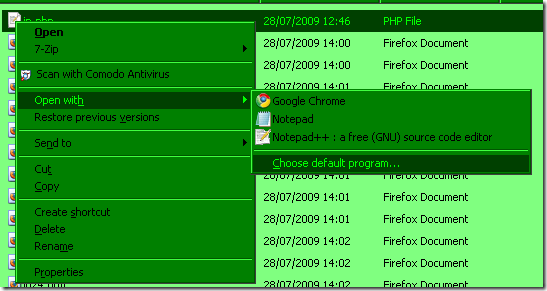
    Screenshot: Right click file > Open With > Choose default program...
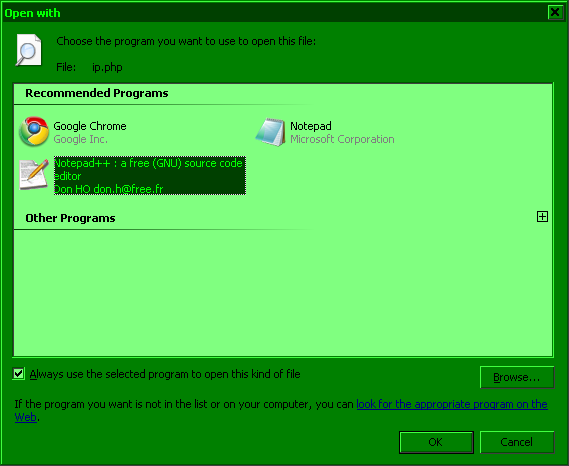
  4. Select the program, check "Always use the selected program to open this kind of file" and click "OK"
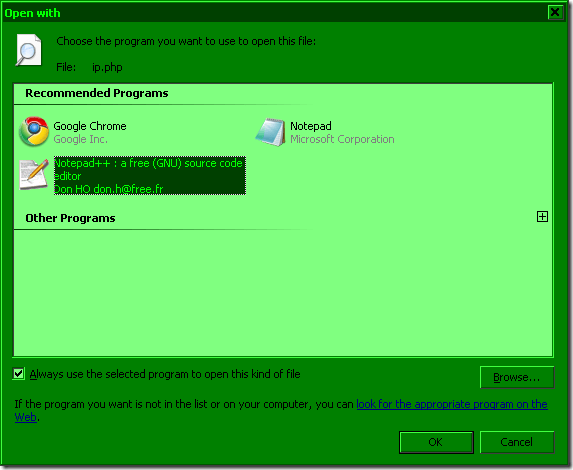
    Screenshot: Select application > check 'Always use the selected program to open this kidn of file' > click 'OK'

Source: Vista: Cannot associate file with program, Default Programs problem

Kudos to the developer for making the application portable, just unzip and run!

Deleting Windows Services

In the process of installing MySQL I ran into a few errors leaving me with an added service that didn’t work. So now had to remove it:

In a command prompt (Start > Run > type "cmd", enter), type the following:

sc delete serviceName

Notes:

  • Ensure you use the Service Name, not the Display Name, i.e. in the

    Service Name vs Display Name
  • Ensure the service is stopped
    • Go to Service listing. This can be done in the following ways:
    • Start > Run > type "services.msc", enter

      or
    • Right click "My Computer" (XP) or "Computer" (Vista onwards)

      > Manage > Services and Applications (in left pane) > Services
  • Find the service and stop it
  • This was done on Windows 7 RC, thus item names may differ in XP / Vista


    Categories

    Twitter Feed

    Creative Commons

    del.icio.us Bookmarks