Broken PhoneGap 3.0.0 Installation and Documentation

// TLDR – start

  • Phonegap 3.0.0 documentation is broken.
  • Download the project template
  • replace your www folder with that in the project template
  • Use “phonegap local build ios”
  • Xcode project files in platforms/ios/HelloWorld.xcodeproj

// TLDR – end

So I go to install Phonegap for while playing around with developing on iOS and find that they have yet again changed their process of installation and setting up projects. While that annoys me somewhat, what really annoys me is that the installation and documentation is broken.

Firstly the following command from the documentation (http://docs.phonegap.com/en/3.0.0/guide_cli_index.md.html#The%20Command-line%20Interface)

$ phonegap create hello com.example.hello HelloWorld

Gives me an error

[error] downloaded www assets in /Users/thewheat/.cordova/lib/www/phonegap/3.0.0/www does not contain index.html, or www subdir with index.html

and it just created a few empty folders

$ ls hello/*
hello/merges:

hello/platforms:

hello/plugins:

hello/www:

Thinking it was just some weird error, I just continued on to the iOS documentation (http://docs.phonegap.com/en/edge/guide_platforms_ios_index.md.html#iOS%20Platform%20Guide_open_a_project_in_the_sdk)

$ cordova create hello com.example.hello "HelloWorld"
$ cd hello
$ cordova platform add ios
$ cordova prepare              # or "cordova build"

This still references “cordova” which was the name of the utility in the previous version before they renamed it to “phonegap”. I changed into the directory and ran the next command which gave the following error

$ cordova platform add ios
-bash: cordova: command not found

Changing it to “phonegap” doesn’t work either

$ phonegap platform add ios
[error] 'platform add ios' is not a phonegap command. See 'phonegap help'

But at least it gave some instruction on what to do. Following that I figured I has to run

$ phonegap local build ios

But alas, more errors

[phonegap] adding the iOS platform...
fs.js:413
 return binding.open(pathModule._makeLong(path), stringToFlags(flags), mode);
 ^
Error: ENOENT, no such file or directory '/Users/thewheat/Dropbox/projects/ios/hello/www/config.xml'
 at Object.fs.openSync (fs.js:413:18)
 at Object.fs.readFileSync (fs.js:270:15)
 at Object.config_parser (/usr/local/lib/node_modules/phonegap/node_modules/cordova/src/config_parser.js:24:45)
 at Object.platform (/usr/local/lib/node_modules/phonegap/node_modules/cordova/src/platform.js:64:15)
 at LocalBuildCommand.module.exports.addPlatform (/usr/local/lib/node_modules/phonegap/lib/phonegap/local.build.js:153:13)
 at LocalBuildCommand.execute (/usr/local/lib/node_modules/phonegap/lib/phonegap/local.build.js:95:32)
 at LocalBuildCommand.run (/usr/local/lib/node_modules/phonegap/lib/phonegap/local.build.js:70:10)
 at Object.build (/usr/local/lib/node_modules/phonegap/lib/phonegap/util/command.js:28:25)
 at CLI.module.exports (/usr/local/lib/node_modules/phonegap/lib/cli/local.build.js:34:20)
 at CLI.module.exports [as argv] (/usr/local/lib/node_modules/phonegap/lib/cli/argv.js:66:17)

I figured, that I had to manually download the template project structure  (https://codeload.github.com/phonegap/phonegap-app-hello-world/tar.gz/3.0.0), extract it, and replace my project’s “www” folder with that in the template.

$ rm -rf www
$ cp -r ~/Downloads/phonegap-app-hello-world-3.0.0/www .

And now finally it compiles!

$ phonegap local build ios
[phonegap] adding the iOS platform...
[phonegap] compiling iOS...
[phonegap] successfully compiled iOS app

And to open it up in Xcode and finally run the app

$ open platforms/ios/HelloWorld.xcodeproj

Perhaps the node install was corrupted due to something on my computer? But broken documentation such as this really annoys me: a person trying to learn a new tool / library wants to test and play around with it, not debug broken installation guidelines.

(On a sidenote: at least there are some guidelines, there are projects that I’ve seen that don’t give a ‘quick start’ example and assumes you know how to use the tool, which is another peeve of mine)

A Message to Brunei Website Owners – Do you value money or people?

Step 1: Build website
Step 2: Fill page will ads
Step 3: ????
Step 4: Profit?!?!?!

My main issue is ads that seem to fill many Bruneian websites. I understand the need to make money, but when I see multiple and obtrusive ad spots all over your page, it really turns me off. To me, it conveys that you value the money from your advertisers more than you value my experience (as a customer / viewer) on your site. I’m sure everybody is familiar with one of the biggest offenders in Brunei which is BruDirect. Going to the page and I’m greeted with 4 huge ads and no content. I’m not sure how everybody else feels about it, but I for one tend to boycott these sites by not going to them.

I would also like to raise the question as to why so many Brunei websites do this and if there are any globally popular websites that do the same kind of obtrusive ad marketing. I personally can’t name any (perhaps because if I did run into it, I probably boycotting it =p). But either way, I would like to know your thoughts on this matter and, if you would be so kind, do answer the questions below and leave your reply in the comments. Add any additional remarks or comments as you wish.

  1. Do you find ad filled pages in Brudirect ok?
  2. Do you find them annoying?
  3. Do you still read the website?
  4. If you find them annoying and still read the website, why do you put up with it?
  5. How many ads is too much?

Note: I started this post several days back when I ran into a new website (can’t remember the exact URL) that had all those "Your-ad-here" spaces which seemed to litter the page. I’m not against ads as a whole, just website owners who seem it is best to fill the page with all of them. I took some time to let this post sit here so I can simmer down with my utter disdain for the act of ads littering a page. Maybe I’m too idealistic, maybe I just want a better experience when viewing websites or maybe I’m full of it. Let me know in the comments.

Microsoft Office Phone Activation Fail. Proxy server WIN!

So as I recently got a new family desktop I was setting things up and had to install Microsoft Office. I bought a copy of Microsoft office earlier this year and thus proceeded to do the activation. I proceeded with the phone activation and spoke my Installation code for verification. It could not recognize the third group of numbers. Very well. Fine. I will just type it in. Same problem! In my frustration I tweeted that this is why people pirate software. Make a legitimate user feel like a prisoner enough times and they will want to run away and pirate.

Installation Code not recognized:

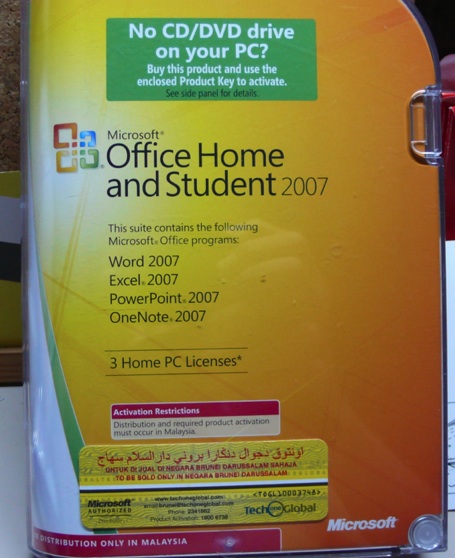
Product in question: Microsoft Office 2007. Note the activation restrictions: “Distribution and required product activation must occur in Malaysia”

Luckily the sorry does not end there with me cursing Microsoft and product activation. On the box it does say that activation must occur in Malaysia. So I Googled for a Malaysian proxy, configured Internet Explorers to user a proxy (Tools > Internet Options > Connections > LAN Settings > Proxy server) and tried online activation and viola! Activated without any other problems.

Australian Housing Scam

As my wife is looking for accommodation in Australia she showed me an ad that seemed a bit too good to be true: rent was much lower than any other accommodation within the area (suspicion #1). The person insisted that they not go through the real estate website but to email them directly (suspicion #2). On emailing the person in charge the following email was received:

Hello,
First of all I want to thank you for your reply. I really appreciate you took the time to answer me. I am the owner of the apartment located 500/408 Lonsdale Street, Melbourne, Vic 3000. It is still available for rent for $190 p/w including utilities for as long as you need. The apartment is in the best conditions, it is newly furnished and equipped with all the dependencies. I bought the apartment in 2007 and I lived there with my pet until last month when I received a promotion and needed to move to Padova / Italy.

In the apartment you will find a dishwasher, a refrigerator, a freezer, a washing machine, a dryer, an iron, , an oven, a toaster, a coffee maker, vacuum cleaner, a big screen TV, cable TV with the basic access, ADSL internet and Wi-Fi access. Also the apartment is near the public transportation, a shopping mall, a gym, and other facilities. There are no problems if you have any pets, as long as you clean up after them. The apartment has a parking space for one car. I have spent a great amount of money refurnishing the apartment and my request is that you treat it like it was your own. I am not interested to make a lot of money from the rent as I am interested to find a tenant that will take good care of the property until my return(minimum lease period, 3 months).

My contract here in Italy expires in October 2013.

Because I had to move to Italy so soon I didn’t had the time to find a trustworthy agent, I had to take the apartment keys with me. I had a real bad experience with the renting agents from the area with my previous home. I can’t come to show you the apartment and I don’t have any friends in the area to send the keys. I found an alternate solution in order to close the transaction safe for the both of us, it is an international delivery solution called Express Metrix (I will pay for a 2 days delivery),they will provide assistance in handling the payment and delivery of the Keys and Lease Agreement.With this procedure you will be able to check the apartment before I receive the payment.

Let me know how this sounds to you.

Looking forward to your answer.

Best regards,

Milda Stoehr.

After Googling this search phrase “I received a promotion and needed to move to” and found the following 3 links:

  1. Suspicious Housing
  2. Apartment Rental Scam
  3. Beware of new rental share accommodation scams (see comments for some scams)

This is probably a bogus escrow scam and I hope this will help inform people of these scams and to be wary of dealings with people online. While it seems to be Australian focused, a friend mentioned that there is a similar thing in Canada and probably in other countries as well. It’s sad to see people to resort to such tactics but we all need to be vigilant.

Have a great week and stay safe people!

My OS X Issues

So I recently got a 13″ Macbook Pro and after month with it as my full time operating system, here are my issues with the Mac OS X as a heavily keyboard dependent user who has been in a Windows and Linux (Ubuntu/Debian) world for many years.

Command + Tab Application Switcher

One of the things apparent to me when I used a Mac previously was that when you Command + Tab (Mac’s version of Window’s Alt+Tab) to switch between open applications, it won’t show all the current windows open, just the applications. So, for instance, if you have 3 Finder windows open, when I Command + Tab I will only see one icon as show below.

3 Finder windows, 1 Finder icon in the application switcher
3 finders 1 icon

I can see the rationale for this as it doesn’t clutter the application switcher screen but I personally do not like it. There is a way to switch between multiple windows of the same program (Alt + `)(Command + `) which is good that it is accessible but still the inconvenience of having to switch to the application before switching to the right window. This is detrimental to my workflow and productivity on a Mac. I guess to combat this, expose was created for window selection. Expose nicely lays out all open windows on one screen for the user to select and bring to the foreground, and it is even keyboard accessible. However it is not as efficient as alt+tabbing on Windows because each time expose launches, you would have to search for the correct window on the screen before clicking it and proceeding. Witch solves this problem but it will cost you (€9.95) and I’m actually surprised at how few people want this option (current score is: -21).

Expose in action on 3 Finder windows:
expose finder

Finder

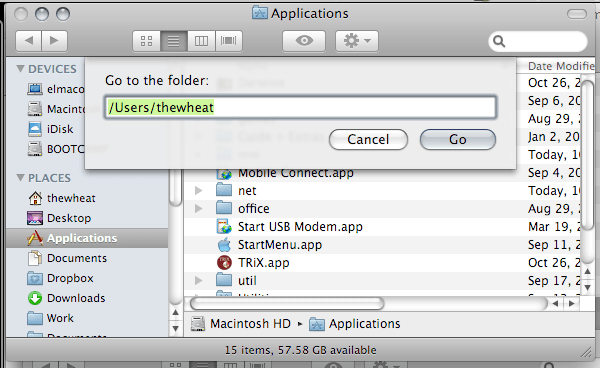
Finder is the equivalent to Window’s Explorer used for file management. One thing that became apparent to me when moving between OS’s is that OS X likes to create hidden files on USB drives and these files are never show in Finder. You simply can’t show hidden files in Finder. I also like to go to the folders by typing in the location using the address bar in Windows. This is something I also cannot do easily with Finder: the “Go To Folder…” dialog box has no auto complete and just does not offer the flexibility of a address bar where I can type and search on the fly.

OS X’s “Go to the folder” dialog instead of an address bar
finder go to folder

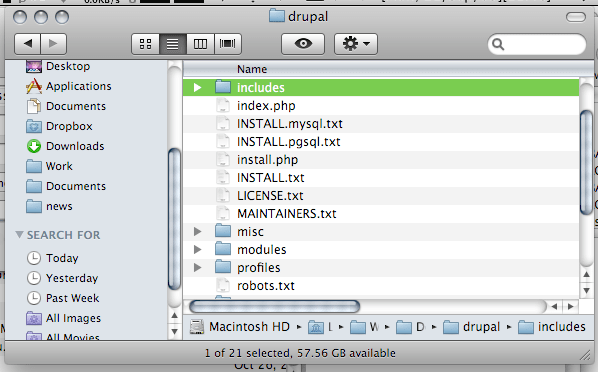
In Finder you cannot list directories first. Thus if you’re trying to access a folder that is deep in your folder hierarchy, you are just searching the sub directories of a folder, you will find yourself searching for the folder among the files. There really needs to be an option for this.

Folders sorted together with files instead of before
finder folders and files mixed

Cut and Paste
No copy and paste but cut and paste. Yes there is cut and paste in a text editor but there is none for file management in Finder. This is a big deal for me as I will use cut and paste very heavily in file management as it allows me to do all my file management via the keyboard. With Finder you’re forced to use the mouse to move files by dragging the folders into the necessary location. This ends up to be a huge time waster. It seems some 3rd party file managers (Path Finder and RAGE Macintosh Explorer) do implement cut and paste feature but if you cut files and forget to paste them (or you interrupt your cut with a copy and paste elsewhere) you can lose the files you previously cut. Windows and Linux has had cut & paste for years and here is Mac OS X without it. I find that hard to believe and also that only now in Snow Leopard you can restore your (accidentally) deleted file to the original location.

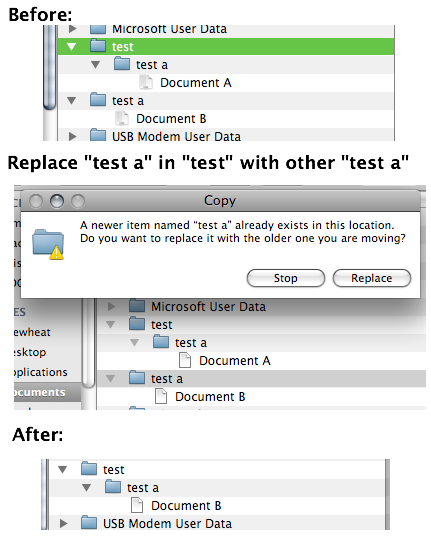
Replace not Merge
Take note that if you have 2 folders (A and B) of the same name and try to replace one folder with the other (drag folder A to folder B’s enclosing folder) do take note that it will replace folder B with folder A and not merge the 2 folders into one. Thus any files in folder B will be lost. This is very important and I can forsee a lot of cursing and swearing if this concept is not understood. For the record Windows merges the 2 folders giving the user with a folder containing files from both of the folders.
finder replace not merge

Menu Bar

So on a Mac the Menu Bar is always on the top and menu items change dynamically based on which application is currently in focus. The problem here is that you have to select the application first before being able to access any menu. So if you have another application window besides the current window you are using you cannot just access the menu item of the other window, you will have to click on the other window, move your mouse back up to the top of the screen where the menu bar is and file the item. Another time waster. You also cannot navigate menu items like you can in Windows. In Windows you can simply press the Alt key and menu bar is selected and thus you can use the navigation keys to move around the menu. Quick and simple. You can even use shortcuts to access menu items by pressing the key for the letter underlined in the menu. While you can place focus on the Menu bar in OS X using an awkward shortcut of Ctrl + F2 (am trying to find a way to mimic the single button Alt keypress in Windows) , there is no possible quick navigation of the menus.

On the right side of the menu bar there are icons/text that act as shortcuts to certain fuctions (e.g. wireless, bluetooth, volume control) or just for information display. The problem is that some programs have enough menu items to hide some of these icons and there is no way to view these icons in the hidden state. The only way around this is to remove functionality/information from the menu bar itself, preventing me from using it the way I want to. Windows has a feature to hide system tray icons and there is a toggle button to show them all. OS X needs a feature like this.

Menu bar in Mail – hiding some icons

menu bar mail
Menu bar in Finder – revealing hidden icons
menu bar finder

Window Menu

In Windows you can access the window menu by pressing Alt + Space. You can do things like maximize, minimize, restore and close the current window. You can even resize and move the window just by using the keyboard. That is just great and helps productivity. For OS X there is no window menu. You have to use the mouse to move and resize the window. Worse yet you can only resize the window my using the resizer in the bottom right of the window; you can’t resize from any other corner, ONLY the bottom right. I found that Afloat allows moving and resizing windows via the mouse as well as “always on top” and transparency features that I get with Compiz in Linux.

Zoom / (Smart) Maximize

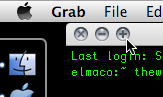
In Windows the title bar has 3 buttons: minimize, maximize and close. In OS X you also have 3 buttons (on the left rather than the right), close, minimize to dock (-) button and zoom (+) button. Zoom does a ‘smart’ maximize that maximizes the window to occupy the optimal space, not the full screen. I can see that makes sense because when you maximize windows sometimes you get a lot of whitespace or useless space, but the issue with this is that it is inconsistent between applications and gets frustrating at times. So I found RightZoom that makes the Zoom button do a maximize like Windows and better still adds a shortcut to this.

OS X’s zoom button: love it or hate it
zoom button

Home and End

If you work with any kind of text in Windows I believe the Home and End buttons are your friends as they are mine. It seems these friends have had a change of heart in the Mac world. I’m using a standard (Windows) keyboard with and when I press the Home / End buttons they bring me to the start / end of the document I’m editing instead of the start / end of the line that I’m used to. I know there is the Command + Left / Command + Right to do this but call me lazy if I think an extra button to press too much inconvenience. Thankfully I found DoubleCommand which allows the Home and End keys to work as I expect them to.

Inaccessible window/dialog box that float on top

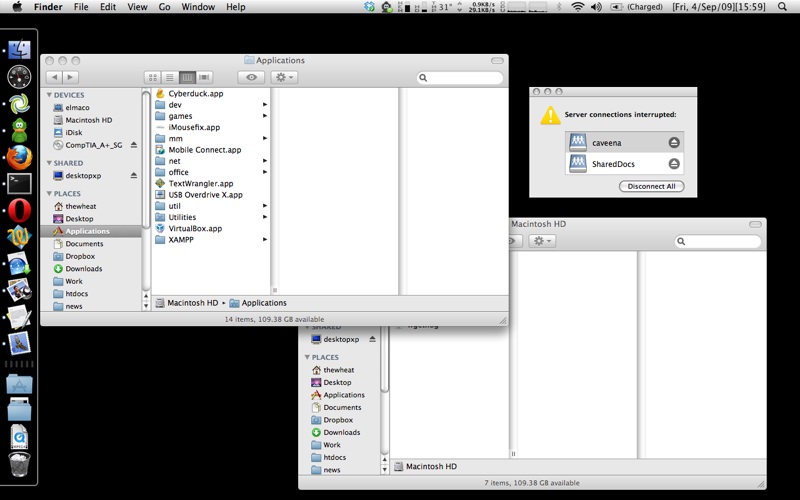
I found that there are some windows/dialog boxes that cannot be accessed via the keyboard application switcher (Command + Tab) or window switcher (Command + `). Open TextEdit (though I think it works in all applications), in the Menu bar > Help > TextEdit help. The window that appears is now inaccessible by the standard keyboard window selector shortcuts mentioned but can be accessed via expose. The worst part is that the window floats on top of everything you’re doing forcing me to reach for the mouse or find the window in expose. This can also happen if a samba share goes offline and you have it mounted

Mac Help window inaccessible via Witch (which is supposed to show all opened windows)
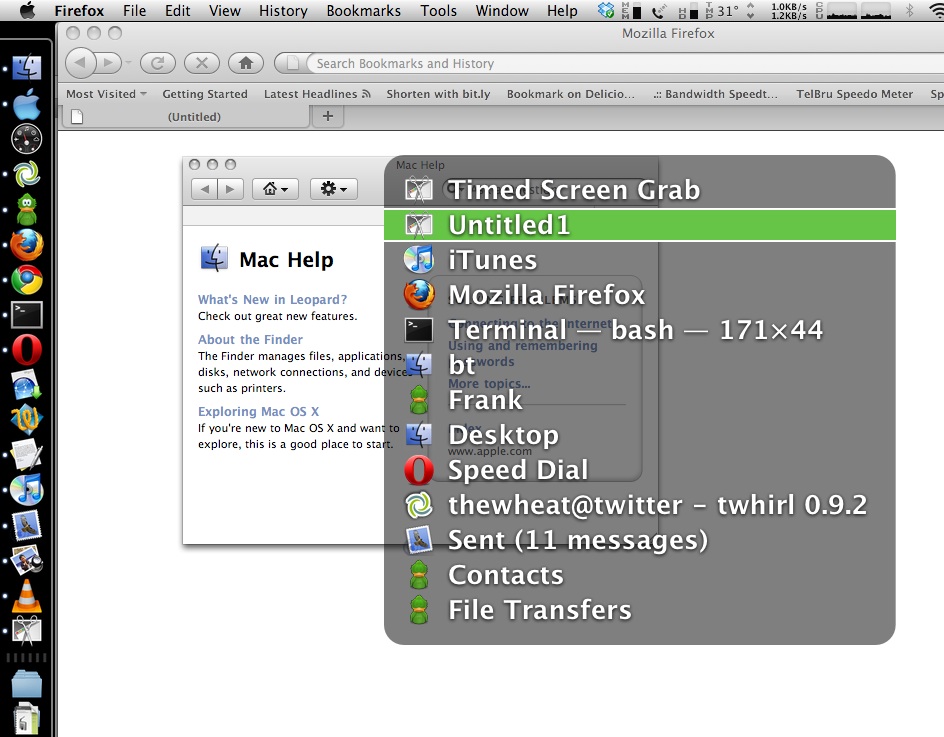
inaccesible help window

Keyboard inaccessible dialog box / help window
no selecteable dialog box same with help filepicture 1

Conclusion

These are my main issues with OS X and there are several other (minor) issues. As you can see there seems to be people with similar situations to mine as there are 3rd party applications developed to overcome these issues. After using a Mac I have realized that Macs jeopardize (my) keyboard skill portability due to the use of the command key instead of ctrl key for many functions and also due to the fact that Apple keyboards have a different layout. I guess the same can be said for long time Mac users in the Windows / Linux world but the fact that Apple not only dictates OS X’s the software but the Apple hardware and both ‘offend’ my quest for keyboard shortcut portability. Just as how Opera changed their new tab shortcut to Ctrl + T from Ctrl + N many version ago for consistency among the other tabbed browsers I can only hope and dream that Apple would give an option to make OS X shortcuts work like they do in Windows.

Pizzas at just $15.00 nett per person?

While dining at Sheraton, head over to Brunei’s only Italian Pizzeria at the Pool Terrace for pizzas at just $15 nett per person
Source (Brudirect)

Sheraton Promotion Flyer
Images taken from tigerlim.blogspot.com

So I had the Pizza promotion with a few friends the other day and we found out the hard way that it happened to be $15 net per pizza. The phrasing did seem a bit strange to me, but I didn’t think that Sheraton, being one of the finer hotels in Brunei, would pull such a scheme, but alas I was wrong. So this is just to show my disdain for the misleading marketing of Sheraton.

On a lighter note, the pizzas were pretty good though the pizza with 4 different types of cheese didn’t have blue cheese.

Powered by ScribeFire.

Days in the life of S60 with a Nokia E51

So recently my sister got me a Nokia E51 (GSM Arena) for my birthday, replacing my Nokia 3110 classic. Well actually it was more of her asking me what phone I want and she gave me the money to buy it.

I’ve been eying the phone for quite a while particularly for the connectivity options (HSDPA, Bluetooth, Wi-Fi) and relatively reasonable price of B$398. Based on the comment count over at shimworld people are/were interested in this phone (I guess the focus is now on the Nokia E71 / E63. A bit over my typical device budget but I guess technology is just expensive, heh.

Most reviews online have mentioned the keypad is pretty good but I beg to differ, I’ve had issues with it, from not recognizing the next button pressed, but especially due to the placement of the backspace button. I vary the way I type on my phone, from the single handed method using my thumb to the 2 handed double thumb method. I found blind typing (I do not use dictionary) very hard, especially for words that utilize 2 letters from a single button, example food (f-o-o-d) which I would typically type by pressing 333,666,down,666. Notice I press the down button on the 4 way navigation keypad so that I can move on to typing the next ‘o’ without having to wait, but due to the placement of the backspace key, I tend to hit it, instead of the down button, leading to frustration. I’ve had to modify my typing habits by using the right button instead of the down button, but also due to the placement of the backspace key, when I do need to use it, I may end up hitting down / 2. Of course this is greatly reduced if I use to hands and if I stare at the phone thus forcing me to uni-task on typing. I think the button are cluttered around the navigation keypad and is a disadvantage for the chubby fingered like myself, you end up pressing the wrong buttons, leading to frustration. The typical complaint of the side rubber buttons (power, record, volume up and down) which are hard to press but that’s mentioned in all reviews and I knew about it but it is a concern.

The rest of my issues (so far) are with the S60 platform / Symbian OS that the E51 runs on, in comparison to my old Nokia 3110 with it’s S40 3rd Edition platform. The E51 runs S60 3rd Edition Feature Pack 1 with the following firmware (as obtained by dialing *#0000#)

220.34.37
20-10-2008
RM-244
Nokia E51(14)

  • No message details for each SMS received: when I put my SIM card into the phone for some reason it did not have the DST SMS centre programmed into the SIM card or the phone couldn’t retrieve it from the SIM card. On a side not it retrieved Singapore’s M1’s SMS centre, as I used my old phone in Singapore and had to configure it as such. Anyway I thought to myself, it’s ok I’ll just go into an SMS I have received and check the message details and the SMS centre will be there. Sadly I was mistaken and I had to go into my old phone check a message there and get the details from that
  • Text functions (copy/cut/paste) not available in all text boxes/input fields: This one really surprised me and is pretty self-explanatory.*Update: 17/Dec/2008: I just realized pressing the * key brings up a menu with the copy/cut options
  • Active standby shortcuts contain a fixed number of applications: On my 3110c I could choose as many applications as I wanted to and the shortcuts could be scrolled left or right
  • No capitalise feature if in middle of word: If you want to capitalise a letter in the middle of the word and you press the case toggle button (#) it will change to all caps instead of (auto change to all caps)
  • No easy tone selection: Just say you want to change your ring tone, and in the ring tone selection it lists ALL the songs available in your memory card and all you can do is scroll up or down one at a time. That’s how the E51 does it. The 3110c had a great work around which was to use the gallery application (which was basically a file manager) and find the tone and in the menu selection there would be a “use tone as..” menu item, then you can select what type of tone to use it for, be it alarm, ring tone, etc. The E51’s file manager has no such thing and the gallery application is now a single list of all media (categorized by Images/Video/Tracks/Sound clips/etc) rather than in a folder hierarchy which makes things much harder to find.
  • Defaults to no alarm when creating meeting: I rather have an unwanted alarm go off than not having any alarm for a meeting, wouldn’t you?
  • Symbol order when pressing the 1 button is different: Why can’t it be consistent? I don’t want to know that to get an apostrophe (‘) on one phone is achieved by pressing the 1 button 5 times while on another phone it is 3 time. There should be consistency among a brand.
  • Cannot insert contact number/name into SMS message: You will have to open the contacts application copy the appropriate information, switch back to the SMS application and paste. Inefficient and troublesome

I am not sure how much of these issues are Nokia issues, S60 (and thus Nokia) issues, Symbian issues or just plain ole too-fussy-lil-me issues. Whichever way it is, they are issues that plague me once and a while and some that plague me day after day. In light to these issues I have to say the 3110c is superior to the E51 when it comes down to usability (but certainly not on functionality) on a day to day use. I have to say the E51 is too thin for taste and the 3110c has a pretty much perfect form factor and keypad, 2 things that will get me every time. Now if Nokia would make an E51 fit into a 3110c case that would be perfect!

Powered by ScribeFire.

A Mac-nificent World?

So the other day I actually took my brother’s Apple iBook G4 (1GHz) out from his cupboard (he did give me permission to use it, so don’t be emptying your sibling’s cupboards looking for things..) and finally tried to use it. He got it the year he left Singapore meaning it is about about 4 years old. I’ve been wanting to get a Mac to explore the OS X world so I thought this would be a good starting point. Mind you I have played with a few MacBooks over the years but nothing long term enough to get the full experience.

Let me start off by saying that Exposé is a fantastic utility which I’ve had the chance to use in Linux thanks to Compiz Fusion or for those technically challenged due to proprietary drivers or just have difficulty getting Compiz Fusion running there is always Komposé. I like the fact that you can zoom in and out using (Cmd+Alt+=) / (Cmd+Alt+-) along with other accessibility options e.g. switch screen to black and white (Cmd+Alt+Ctrl+8), things which Compiz Fusion yet again has copied (piracy is the best form of flattery huh?).

1. New/”New” keys

So those keyboard shortcuts stated above lead to the first problem (aside from the single mouse button): the new and “new” keyboard keys. There is the Apple/Command key that has an Apple icon on the left and ⌘ icon on the right which (for switchers from Windows) would tend to associate with the Windows key. There is the fn key which most laptop notebook users will be familiar with and then the alt/option button: it is the regular alt button next to the ctrl but has the word “option” on it as well so it’s the alt/option button. So as a user trying to find the “right click” that you are so used to in Windows/Linux/BSD you are supposed to hold down one of these buttons and click the mouse button to get the context menu. So which button do you press? My first thoughts would be the fn or Apple key.. How wrong I was; it is the Ctrl key. Then it makes me wonder what happens to selecting files one by one with the mouse since I can no longer Ctrl+left click to select individual files, adding them on to the currently selected group. Now that has moved to Cmd+click. This kind of “remapped” keyboard modifier shortcuts are prevalent in applications as well. For instance in Firefox to create a new tab it is Cmd + T. To cycle through tabs it is still the Ctrl + Tab though. So my fingers (and thus me) are getting frustrated doing the finger dance trying to find the right key combination to achieve what I want.

2. Application switcher does not show all windows/does not restore minimized windows

Cmd+Tab for the windows/application switcher (similar to Alt+Tab for Windows) does NOT show all windows open. For instance if I have only 2 Finder (equivalent to Windows Explorer / Nautilus / Konqueror / any file manager) windows open and I Alt+Tab Cmd+Tab I will only see one icon representing Finder despite having 2 windows of it open. So the alternative to that is to use Exposé, but alas the problem with Exposé is that if you minimize a window it won’t show up in Exposé. So this will make you change your style of work if you tend to minimize your applications. I guess the way OS X discourages you from minimizing applications is the fact that the green + button in the window title bar, which people would think is the “maximize” button isn’t the typical maximize button it is a smart maximize button which expands the window to an optimal size thus in other words it will probably NOT (actually I haven’t seen it ever) expand and do a full screen maximize like in windows (minus the task bar), thus you will be able to see windows in the background which I read/heard somewhere is supposed to help productivity. How true that is, I do not know. But anyway so typically in Windows / Linux I will Alt+Tab through my windows/programs to select the one I want which is something I cannot do in OS X. The alternative is to leave all windows open and just use Exposé. I have to give props to Exposé that it can be navigated through the keyboard as well though, but still the minimized caveat is still an issue. An alternative is to use Cmd+Tab to select the application then Alt+` to select the window (Alt+` cycles through the windows of the same program, e.g. Firefox and the Firefox download window / another Firefox window). Cmd+Tab apparently does not restore minimized windows so you have to go to the “Windows” menu or select the window from the minimized windows section in the dock. Oh the trouble.

3. No easy access to menu bar

I like to be able to access the menu bar of my applications, you know bar on top with all the menu’s typically starting with File, Edit and View. I access them via the Alt+key_letter shortcut (e.g. File: Alt+F, Edit: Alt+E, View: Alt+V), for just Alt to focus on the menu bar and use the cursors/keyboard shortcut to navigate. This could not be done by default or in the usual fashion. When looking online I saw the shortcuts given to access the menu bar was Ctrl+F2 but when I tried it, it didn’t select the menu bar, it just increased the brightness…. I found out one day when I went into the Keyboard & Mouse preferences in System Preferences. Apparently the fn is only for laptopsnotebooks so you have to check an option (Use the F1-F12 keys for custom actions) to force the use fn in order to access the custom actions (in this case increase screen brightness) and after that it worked. I’m pretty sure the default configuration is unchecked because my bro isn’t as much of a keyboard user as I am (got confirmation from Nick that it is unchecked by default). The issue I have is that it highlights the main application menu and thus I can’t do a quick jump to different menus. Also the shortcut (Ctrl+F2 is an uncomfortable one compared to Alt). Be wary of Ctrl+F1 for this toggles this ability without making any notice of it, even in the checkbox setting. Now that is strange. Let me take issue with the checkbox main description as well. It says “Use the F1-F12 keys for custom actions” and in the smaller print “Hold down the Function (Fn) key to perform the custom action of the F1-F12 key.”. It is a bad main description because when I first read it I was like but it already performs the custom action without the box checked so what’s the point of the option. Only then did I read the smaller print and found my answer. Also there should be a “Restore to Default” button in case you mess things too much. This is something I believe all configuration windows (i.e. all applications on all OS’s). On a side note the windows menu shortcut (Alt+Space) is not existent and just have to use Cmd+M to minimize.

4. Enter does not enter folders

Select a folder in Finder and try using the keyboard to enter it. The Enter button which sounds good right? Wrong! Not only does it not enter, it highlights the name in order for you to rename the folder. Cmd+Down is the answer though. I honestly do not get that. Why make the single intuitive keystroke into a strange convoluted 2 button action?

5. Navigating controls in dialog boxes (Firefox)

When I get a password prompt to save the password or a Javascript dialog box in Firefox with buttons, I can NOT press Tab to move from one element to another. This is something of second nature and a great accessibility option. After some searching back in the Keyboard preferences in the Keyboard shortcuts panel there is the “Turn on full keyboard access” which “Turns on full keyboard access to use the tab key, arrow key, and other keys to select buttons, lists, and other items on your screen” and I though to myself “YES! This is it”. But alas it is not. It doesn’t work with Firefox only in Safari (and I take it other native OS X applications). So now if you want to select the non default option you HAVE to use the mouse which is a time consuming.

6. Mouse acceleration

So I know that the previous 5 issues I’ve had were all keyboard related but that is a big deal for me but the next method of user input is the mouse and OS X has my despised foe: mouse acceleration. I have always disliked mouse acceleration because it is not a definite or predictable manner to move the mouse. For those who don’t know what mouse acceleration is, here is a simple scenario. Move your mouse onscreen cursor to the left of the screen. Now move your mouse slowly from the left to the right over a certain distance. Now repeat that but this time moving much quicker. If the mouse cursor is roughly at the same place you probably have acceleration off, but if it is way off, acceleration is on. I’ve hated it ever since I’ve played first person shooter (FPS) games where you need to aim with your mouse and want your mouse movement to be consistent with how the view in game moves. If I move my mouse 5cm on the table I want my cursor to move a fixed distance on screen despite how slow/quick I move my mouse. That gives predictability and thus control of my mouse cursor. Now if you have mouse acceleration on and you have excellent control over your mouse I applaud you for being able to do all the math calculation in your head because I certainly can’t. There simply isn’t a visible option for disabling it aside from going to the terminal and typing the following, after which you need to logout and log back in again for it to take affect.

defaults write .GlobalPreferences com.apple.mouse.scaling -1
defaults write .GlobalPreferences com.apple.trackpad.scaling -1

For some reason when I enable this and when I move the cursor via the trackpad it moves a little bit after it reaches the destination for no apparent reason. It’s hard to explain so I uploaded a video below.


And this annoys the heck out of me because I can’t select items properly as the cursor ‘happily’ moves off the element I was previously hovering over. This could be a hardware issue though, wonder if I can get confirmation of this else where though.

7. Second class citizenship for old systems?

So I admit this is an older machine running 10.3.9 and I have issues with that. Firefox 3 is not available for the older system thus I have to use Firefox 2, thus losing out of all the new features and so forth. Next I wanted to download Quicksilver which is a great application for the Mac and is cloned for Windows in Launchy and for Linux in Gnome-Do / Deskbar / Katapult. The link for the older version which is compatible with 10.3.9 is apparently broken for Firefox 2 though I does work with Safari which is a relief. Imagine trying to get software compatible for your aging system only to be locked out due to the browser not supporting the website the website not supporting the browser. So I guess major releases (10.3 to 10.4 or 10.4 to 10.5) are treated as new operating systems if you come from the Windows world, considering that you have to pay for upgrades as well. Support for the older systems are apparent from the software availability (or lack there of). Thus 10.3 could be equated to Windows ME, 10.4 to Windows XP and 10.5 to Vista. And saying that older systems if you choose not to upgrade or if you can’t upgrade (due to hardware requirements) you are left in the dust. So that means assuming you do not upgrade the OS, Macs have shorter productive life spans than Windows machines because you quickly get software that only works on the new version of the OS.

Conclusion

Strange enough after recording the video above, the iBook got stuck zoomed in. Toggling enabling of zoom (Cmd+Alt+8) twice solved that but it’s strange that it got stuck zoomed in when the times I disable it now, it zooms back out. I guess this G4 doesn’t like me? But honestly I’ve been trying to give it a go but the finger dance trying to find the right key combination just frustrated the heck out of me so I can not recommend getting a Mac for users who use the keyboard like I do. So I deem OS X (based on this old iBook G4) as keyboard unfriendly

P.S. I wonder if the NTFS support is better now, previously when I installed the NTFS read/write driver the transfer speeds were dismal. But for now I guess I’ll stick with Linux and possibly seek Windows audio and video editors as one of the reason for getting a Mac was to look into those applications as well. But on the bright side that means I could possibly buy a new desktop for my current needs (maybe), a netbook, a phone (Nokia E51) and Vista? Ahhh I don’t remember having a wish-list like this before.

Powered by ScribeFire.