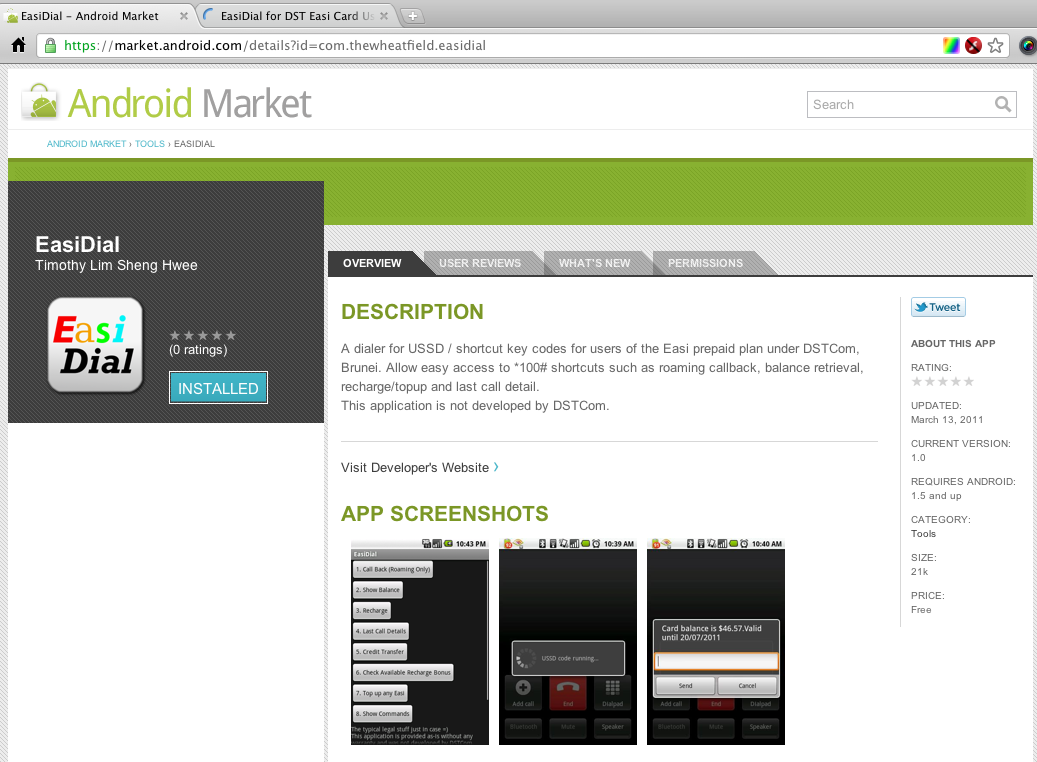
So after much time and effort (mostly making the graphics and trying to read the guidelines) my first Android app, EasiDial, is on the Android Market (or download the apk file). For more into abut EasiDial check out my original post about it. I hope to release more apps as I progress with Android development so stay tuned.
Category: Technology
Brunei’s Mobile Network Code
This stems from a comment by faye. Seems that the phone usually detects the values from the SIM card as my Android phone auto populates the MCC and MNC fields but for some non-mainstream phones these values may need to be manually entered
A Mobile Network Code (MNC) is used in combination with a Mobile Country Code (MCC) (also known as a “MCC / MNC tuple”) to uniquely identify a mobile phone operator/carrier using the GSM, CDMA, iDEN, TETRA and UMTS public land mobile networks and some satellite mobile networks. The ITU-T Recommendation E.212 defines mobile country codes.
The following tables contain the complete list of mobile phone operators. Country information is provided for completeness, though this information is best obtained from theList of mobile country codes page, where ISO 3166-1 country codes are also cross referenced.
The MNC and MCC values within the table are decimal numbers.
Source: Wikipedia

UBDFM’s Interview with Bottlesmoker
For anybody who missed out UBDFM’s evening with Bottlesmoker, I managed to record it as a test of VLC‘s streaming and recording capabilities.
MP3 link (To save: Right Click > Save as)
PS: I had trouble uploading it to Archive.org so it’s hosted on Dropbox for the time being.
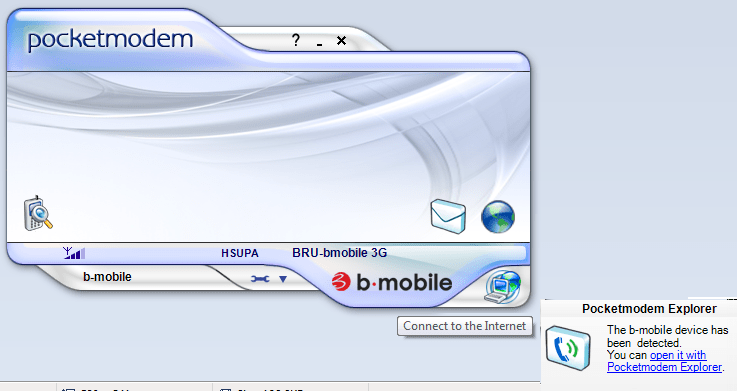
Getting the b-mobile Zoom! Modem to work in 64-bit Windows 7
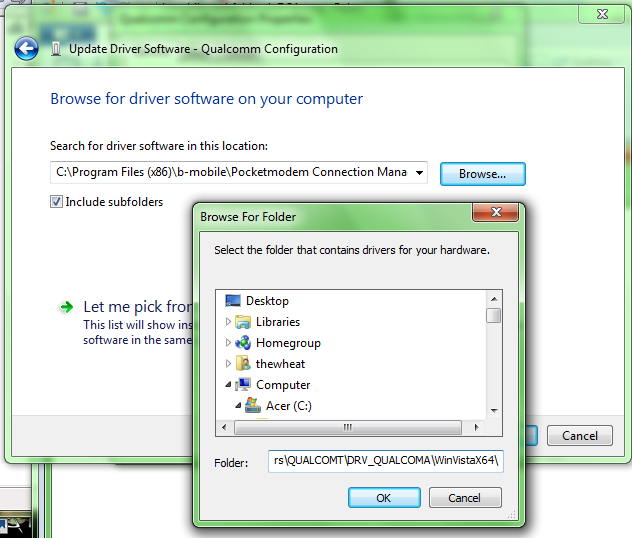
When you connect the b-mobile USB 3G modem (TechFaith Flying Angel) to a 64-bit Windows 7 computer, it does not seem to be detected / the drivers are not installed automatically. The drivers need to be installed manually after installation of the modem software as shown below.
Summary: Use drivers located in “C:Program Files (x86)b-mobilePocketmodem Connection ManagerInstallDriversdriversQUALCOMTDRV_QUALCOMAWinVistaX64”. This worked in 64-bit Windows 7 Home Premium and should work in 32-bit Windows and other Windows 7 versions
Pictorial Installation Guide
- Install Modem Software (SeamlessKeyLauncher.exe in CD drive that shows up when connecting the modem)
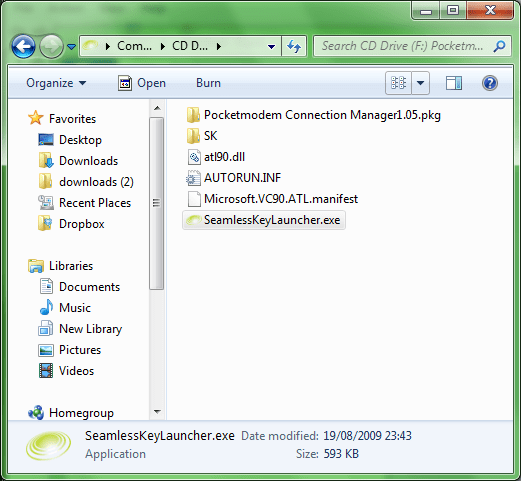
- After installation, go into “Device Manager” (Control Panel > System and Security > System > Device Manager in the side bar)

- Find “Qualcomm Configuration” under “Other devices” and “Mobile Connect” under “Ports (COM & LPT)”.

- Right-click > “Properties” > “Update Driver”

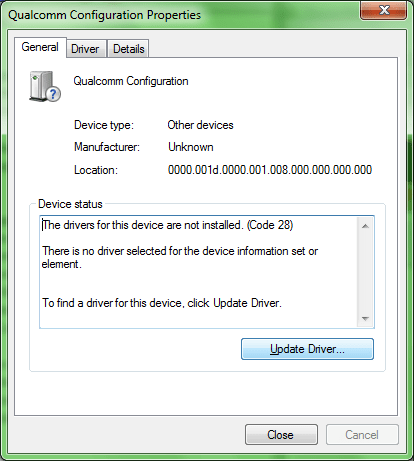
- Select “Browse my computer for driver software: Locate and install driver software manually” and then specify “C:Program Files (x86)b-mobilePocketmodem Connection ManagerInstallDriversdriversQUALCOMTDRV_QUALCOMAWinVistaX64” and click next to install the driver

- Ensure that all unknown devices (I believe there are 3) and everything should work now. Connect to the Internet and be happy


Getting Android to play nice with DST’s Internet and MMS APNs (and bmobile too)
It all started off with a tweet from @marul69:
@thewheat do you have DST mms settings working for Android OS?
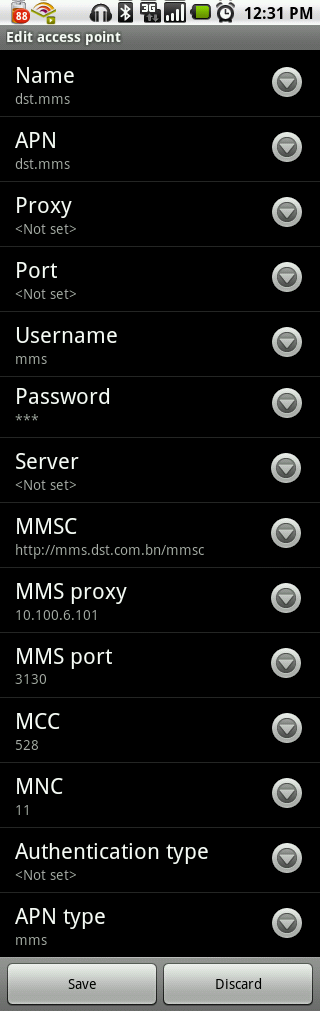
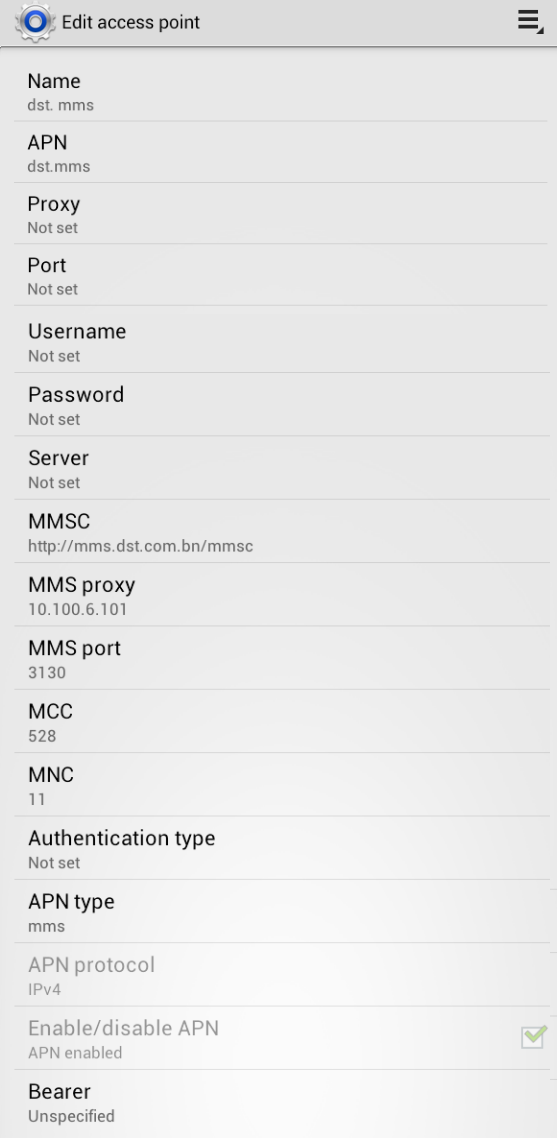
and so begun the quest to get MMS settings working on Android. Several months ago I tried configuring it on my sister’s HTC Desire, but unfortunately that fight was lost many a times. But today, triumphantly and after some fussing around I managed to get it working. Finally. Settings are below
b-mobile users refer here but I can’t guarantee that it works as I’m not in Brunei and don’t have a bmobile line to test
Internet APN:
- Name: dst.internet
- APN: dst.internet
- Proxy: <Not set>
- Port: <Not set>
- Username: <Not set>
- Password: <Not set>
- Server: <Not set>
- MMSC: <Not set>
- MMS proxy: <Not set>
- MMS port: <Not set>
- MCC: 528 (for other carriers this should be different. this value was automatically set by the phone)
- MNC: 11 (for other carriers this should be different. this value was automatically set by the phone)
- Authentication Type: <Not set>
- APN Type: default
MMS APN:
- Name: dst.mms
- APN: dst.mms
- Proxy: <Not set>
- Port: <Not set>
- Username: mms
- Password: mms
- Server: <Not set>
- MMSC: http://mms.dst.com.bn/mmsc
- MMS proxy: 10.100.6.101
- MMS port: 3130
- MCC: 528 (for other carriers this should be different. this value was automatically set by the phone)
- MNC: 11 (for other carriers this should be different. this value was automatically set by the phone)
- Authentication Type: <Not set>
- APN Type: mms
If all goes well, the APN screen will be as shown below, with only the dst.internet APN being selectable with the radio button on the right. This signifies that when mobile data is enabled, it will use dst.internet for Internet access. If APN Type of “mms” is not specified, there will be a radio button next to the dst.mms configuration which needs to be selected in order to send and receive MMSs. The problem with that is, the dst.mms does not provide Internet access so you will not be able to access the Internet unless you manually select dst.internet as the APN which is very inconvenient. This led me to find out the importance of the APN Type value that was found after trying some Googling and landing on Ausdroid’s APN page. So thanks to Ausdroid and hopefully this will help all those having trouble with their Android phone and MMS.

Full screenshot reference of APN configurations:


bmobile
I can’t guarantee these values work as I’m not in Brunei, so please test and let me know in the comments.
Internet APN:
- Name: bmobilewap
- APN: bmobilewap
- Proxy: <Not set>
- Port: <Not set>
- Username: <Not set>
- Password: <Not set>
- Server: <Not set>
- MMSC: <Not set>
- MMS proxy: <Not set>
- MMS port: <Not set>
- Authentication Type: <Not set>
- APN Type: default
MMS APN:
Why I Have and Use 4 Different Browsers
My relationship with web browsers has not been a monogamous one. It used to be with Opera and then Firefox but now I have 4 with me and each serves their purpose. The best part about these browsers is that they are all cross-platform and thus is available on Windows, OS X and Linux (and probably BSD and many other platforms too). I use both Chrome and Chromium for daily surfing with Firefox and Opera for special functions. Each browser has their own pros and cons and below I explain why I use each browser.
Chromium/Chrome

I started migrating to Chrome after the Pwn2own results came out with Chrome being unscathed. For those who don’t trust Google there is always Chromium on which Chrome is based on. Chrome/Chromium are light weight and fast browsers and I love the ability to install add-ons without restarting the browser. Sometimes I segregate general surfing and more private surfing (i.e. requiring user login) into separate browsers just as an added precaution (paranoia). Private surfing will be more for trusted sites thus will less vulnerable to cross-site scripting or other attacks from the browser used for general surfing. However I do find stability is an issue sometimes with tabs randomly locking up and not loading (however the great thing about Chrome is that you can kill an individual tab without the entire browser crashing). Some times I click a link and Chrome seems to just hang there and not load the page. If I try the link in Firefox, it’s fine
+ Security, Light Weight, ability to install add-ons/extensions without browser restart
– Stability and robustness sometimes an issue
Firefox

Firefox is still with be because I find it the most stable but more importantly for the Video DownloadHelper extension. Download embedded Flash videos from YouTube, Vimeo and many more video sites or just embedded videos without having to visit a secondary page. I cannot stress how easy it is to use Video DownloadHelper to get videos off the Internet: it’s great for downloading videos for watching later. This is especially if you have a slower Internet connection as it downloads in the background as opposed to loading in a tab that you can accidentally close or even worse yet, have the video fully loaded only to accidentally click on a link and the video starts loading from 0 when you return (especially annoying with embedded YouTube videos)
+ Stable. Robust. Great add-on/extensions support
– Add-on/extension installation requires a browser restart. Slow to start up
Opera

I have been an Opera user and fan since version 3.21 and when it was still a Shareware application. Though it hasn’t made much impact on desktop browser, it has had a huge impact on mobile browser with Opera Mini. Opera is used when I want to surf on a slower Internet connection or where it’s not very reliable and the reason is Opera Turbo. Basically Opera Turbo is the technology behind Opera Mini but for the desktop: it sends pages to Opera’s servers for compression and optimization. This is great if you’re trying to save money if you pay for the amount of data you download (e.g. on 3G connections). Opera has lots of features built right into the browser and thus means you don’t need to install extra add-ons/extensions like you need in Chrome/Chromium and Firefox. I love the feature to toggle style sheets, image loading and Javascript (among other things) easily at the click of a button. Whenever there is a site that seems to render weirdly on other browsers, I usually load it up in Opera and disable styles so I can read the content. If I want to save precious bits, I turn Opera Turbo on, and disable loading images. Opera even has an e-mail client and webserver (can be used to share files, stream music and even host temporary sites) built into the browser.
+ Opera Turbo & lots of features out of the box (ability to toggle style sheets, Javascript, images)
– Not widely supported as other 2 browsers and has rendering quirks (may not render/show webpages as nicely as other browsers). Slow to start up
HP Veer, Pre 3 and the TouchPad
HP just announced 3 products:
- TouchPad: 9.7″ tablet with phone integration (take calls / send text from the tablet itself) available in summer
- Veer: a credit-card sized phone with portrait slide-out QWERTY keyboard available in early spring
- Pre 3: the successor to the Pre 2 with a bigger and higher resolution screen available in summer
What’s interesting as well is that they announced that webOS is coming to PCs later in the year (probably more for touch based devices). I would have preferred a 7″ tablet but I guess placing it head to head with the iPad in terms of size makes it a direct alternative to the iPad with out the “it’s too small” / “it’s too big” argument for 7″/10″ tablets. Specs seem good, but more importantly we will have to see if developers will jump on yet another mobile platform.
Catch the full event coverage at Engadget. Quick specs of the device listed below
TouchPad

- 9.7-inch XGA capacitive, multitouch screen with a vibrant 18-bit color, 1024×768 resolution display (iPad-like sized and screen resolution)
- 13.7mm thick x 190mm tall x 240mm wide
- 1.6 pounds
- Qualcomm Snapdragon dual-CPU APQ8060 1.2GHz
- Front-facing 1.3-megapixel webcam for live video calling
- webOS 3.0
- Beats Audio technology
- Rechargeable 6300 mAh (typical) battery
- Wi-Fi 802.11 b/g/n
- Bluetooth 2.1+ EDR
- 16/32GB storage
- 1GB RAM (Twice the memory of Pre 2)
- True multitasking
- Touch-to-share (tap phone to ‘transfer’ URL to the phone)
- Flash
- Phone integration (text / call from TouchPad with via Pre 3)
- QuickOffice, Google Docs, Dropbox, and Box.net compatibility. VPN, video calling, wireless printing. Kindle app for webOS
- WiFi version (available in summer) as well as 3G and 4G versions
- More specifications here
Pre 3

- 3.58-inch multitouch screen with a vibrant 24-bit color, 480×800 resolution WVGA display
- webOS 2.2
- 5-megapixel auto-focus camera with LED flash, HD (up to 720p) video recording
- Forward-facing VGA camera
- Wi-Fi router functionality for up to five devices using HP mobile hotspot.
- Qualcomm Snapdragon 8×55 1.4GHz processor
- HSPA+ and EVDO Rev A World Phone
- 802.11 b/g/n
- Bluetooth 2.1+ EDR
- 8/16GB storage
- 512MB RAM (same as Pre 2)
- 1230mAh battery
- Available this summer
- More specifications here
Veer

- 2.6-inch multitouch screen with a vibrant 18-bit color, 320×400 resolution
- Qualcomm MSM7230, 800Mhz
- webOS 2.2
- 5-megapixel camera with extended depth of field, geotagging, and video capture
- Credit card-sized: 15.1mm thick x 84.0mm tall x 54.5mm wide
- Wi-Fi router functionality for up to five devices using HP mobile hotspot.
- Snapdragon 7230/800MHz
- HSDPA 7.2/HSUPA 5.76. Quad-band GSM/EDGE: 850/900/1800/1900. GSM/GPRS/EDGE
- 802.11 b/g
- Bluetooth 2.1 + EDR
- 8GB Storage
- 512MB RAM (Same as Pre 2)
- 910 mAh (non-removable); up to 5.0 hours of talk time or 300 hours of standby time.
- Available in early spring
- More specifications here
What to look out for in an Android device
Android Robot from Google via Wikipedia
Want to get a new Android device / phone? Here are a few things to take note of that should be helpful in making your decision.
CPU & RAM
Sadly I cannot deny that this is true, especially for the lower end of the Android device market. Basically this combination will dictate how smooth the device feels. The 600MHz on the LG Optimus One is fine because it is combined with Android 2.2 and 400+MB of RAM. I think the LG Optimus One is an ideal candidate for base specifications of and Android device. It’s fast enough for the device to have a smooth and fluid appearance. Cheap Android devices may give low end CPUs and low amounts of RAM leading to a sluggish Android experience: thus I would suggest anybody looking at cheap devices to actually test it out to see that it’s not too sluggish for your liking. A lower CPU will cause webpages to render slower as well due to it requiring CPU power to process Javascript or just plain HTML to render the page.
Recommended: at least 600MHz processor w/ 300MB RAM
OS Version
Android 2.2 also known as Froyo is what I would recommend the device to have and ideally have it installed by default. Froyo has been optimized so that it will run faster than Eclair (Android 2.1) on the same hardware. It also has extra features like moving applications to the SD card and also Flash if the hardware supports it.
Recommended: at least Android 2.2
Screen Resolution
I say that an HVGA screen (480×320 resolution) is the minimum resolution you should look at for a phone size device as (1) it provides a better browsing experience by displaying more of the content on screen & (2) there will applications that won’t support lower resolutions. Typically applications that won’t support this resolution will just be games but I feel a better web browsing experience is much more beneficial. Do note that screen size may be important too as a high resolution on a small screen size makes default text pretty small, so it is something to consider. For a 7″ tablet device, I think WVGA (800×480) is sufficient. Higher resolutions typically just make things look crisper and although that is nice, personally I don’t think it really makes much of a difference (I only recently realized that the HTC Desire has a WVGA screen, didn’t really notice it until I found out about Flash specifications that require at least a VGA screen, more on that later).
Recommended: at least HVGA screen (480×320 resolution) for a phone size device & at least WVGA (800×480) for a 7″ tablet size device
Available Phone Storage
This is a very big problem that I outlined here and may be something relegated for only budget devices but it is always something to be aware of. You don’t want a brand new device only to find out you are limited to install a limited amount of applications. I think 1GB would be the ideal amount as currently I’m struggling with my LG Optimus One’s limited 172MB of storage. While I do have 60+ self installed applications (only about 12 games), for a power user I think 500MB should be the minimum.
Recommended: at least 500MB for power users / gamers or 150MB for casual users
Android Market & Google Applications Availability
This is not a big deal for most phones as they typically have the Android Market, but due to Googles requirements not all Android devices can have Google applications and the Market. This means the device will have to use a 3rd party application store (there are several) but they may not offer all that is offered in the official Market. This problem will be mainly seen in tablets. e.g. Archos 70, Archos 101, Toshiba AS 100. There are ways around this, but require the community to provide it. This may work for the Archos devices but may not work for other tablets (e.g. those manufactured in China as seen on Shanzai.com). There are alternative app stores such as SlideME, AndAppStore and AppsLib or you can just download apk’s from GetJar or the developer’s website if available.
Flash Availability
If having Flash is important to you (for the sake of just being able to view certain sites), do take note that there is a minimum hardware requirement for Flash 10.1 on mobile. It requires Android 2.2 and and a hardware vector FPU. For VGA devices: Dedicated Cortex A8 (ARMv7) 550MHz App Processor with Neon for A8. WVGA devices: Dedicated Cortex A8 (ARMv7) 800MHz App Processor.
Battery Life
This is if you want your device to last throughout the day or just for regular use. Lots of the cheap China tablets have pretty bad battery life (~3 hours maximum) and give for a generally bad usability experience of having to be near a power outlet. Do note that WiFi usage is much less power hungry that 3G, so when possible use WiFi. My Optimus One can last the entire day on WiFi and be over 60% of the battery level at 6pm (unplugged at 7am with 100%) but if I’m on 3G it will practically die by 3pm (10+%/hour) (Note: The Optimus One has a 1500mAh battery).
Updates / Firmware Updates
Updates for new Android versions are totally dependent on the manufacturer of the device, so even if Android 2.3 Gingerbread is out now, it won’t come to your device until the handset manufacturer prepares a firmware specifically for that device. There are ways around this by installing custom firmware but that is unsupported by the manufacturer and could be harmful to your device (check out XDA developers, MoDaCo or CyanogenMod for custom firmware). According to this article HTC has the best track record followed by Motorola and Samsung with Dell, LG and Sony having 0%. For the Optimus One, I feel that it doesn’t have to have an update: 2.2 is sufficient and if I have a device with 2.2 being the last update I could live with that.
Launcher / Home Screen
HTC devices come with HTC Sense which is HTC’s custom UI launcher, Samsung has something similar with their TouchWiz UI and Motorala has their Motoblur. While these may be a consideration for some as they have special widgets and features, don’t be let down if your device doesn’t have any of these because Android has many launcher replacements that are just as good, if not better. Popular ones are LauncherPro, ADW Launcher and Go Launcher EX; and what’s best about these launchers is that they can be used on any device, giving you a consistent feel on all devices.
Conclusion
I hope the information helps you decide on a good Android device for you or just informs you a bit more about the Android platform. The Android platform is a good one and offers great things like multi-tasking and notifications which iOS does not have. There are some annoyances or issues I have with Android that makes me wish for a Symbian (S^3) phone due to some extra functionality such as true multi-tasking, but more on that in a future post.
EasiDial for DST Easi Card Users
So yesterday I decided to do some Android development. I wanted to learn the basics of creating and app to be used for the SMARTER app that will be developed shortly. This idea for the app has been in my mind for quite a while and was spurred on when my brother who went on holiday outside Brunei asked me how to make phone calls using Easi when roaming. I knew that you couldn’t just do a normal call but had to dial a special USSD code to dial (the code being *101*Mobile Number#). Now, it’s not a hard thing to do, to jot the short code down but having a dedicated app lets you have some piece of mind knowing that it has what you need to make the call.
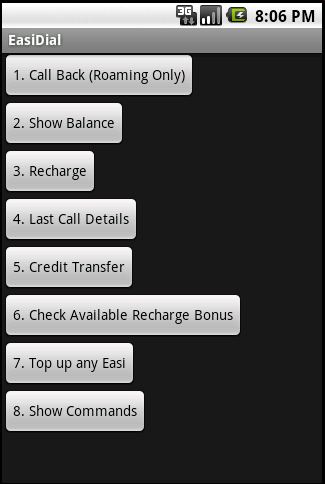
It’s not much: basically all that it is, is a graphical representation of all the *100# code functionality. Note that this is a beta application so there may be some issues. I have yet to try “1. Call Back”, “3. Recharge”, “5. Credit Transfer” and “7. Top up any Easi” but will try do so, in the next coming days to make sure they work. You can downoad the apk file here or get it on the Android Market (computer link)
Making Registration/Questionnaire Forms in Google Docs
Last Saturday a friend asked if it would be possible to have an online registration form for a camp their organizing, so I thought it would be a perfect time to look at Google Docs as I remembered that they had a form creation functionality and I was pleasantly surprised and what I discovered.
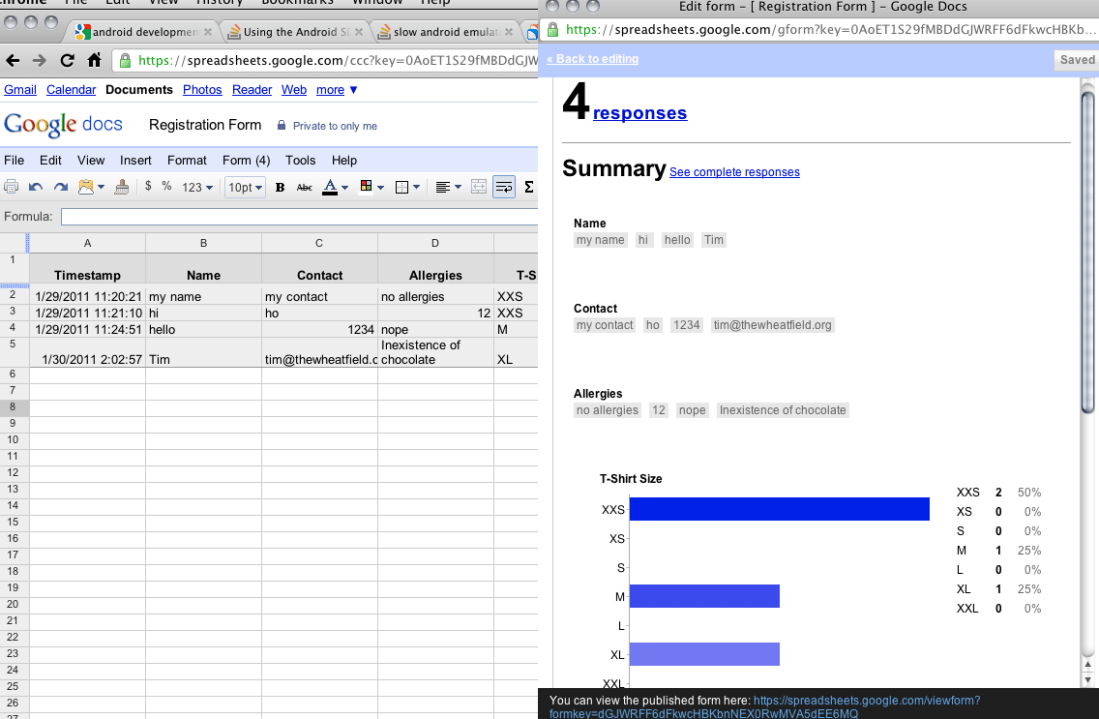
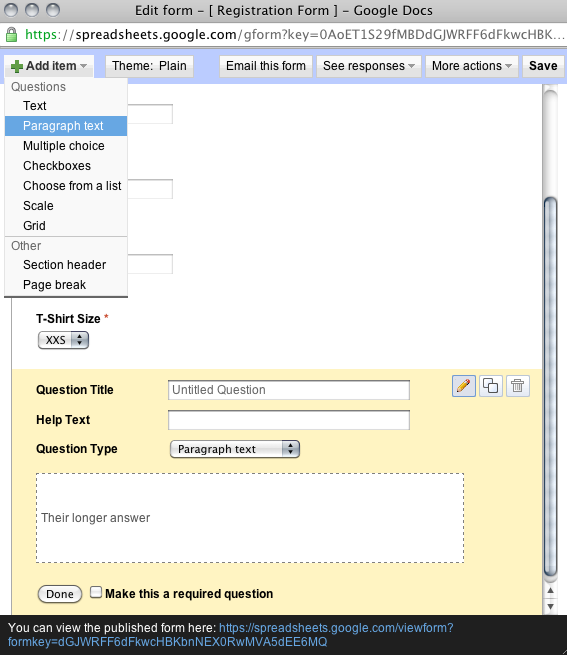
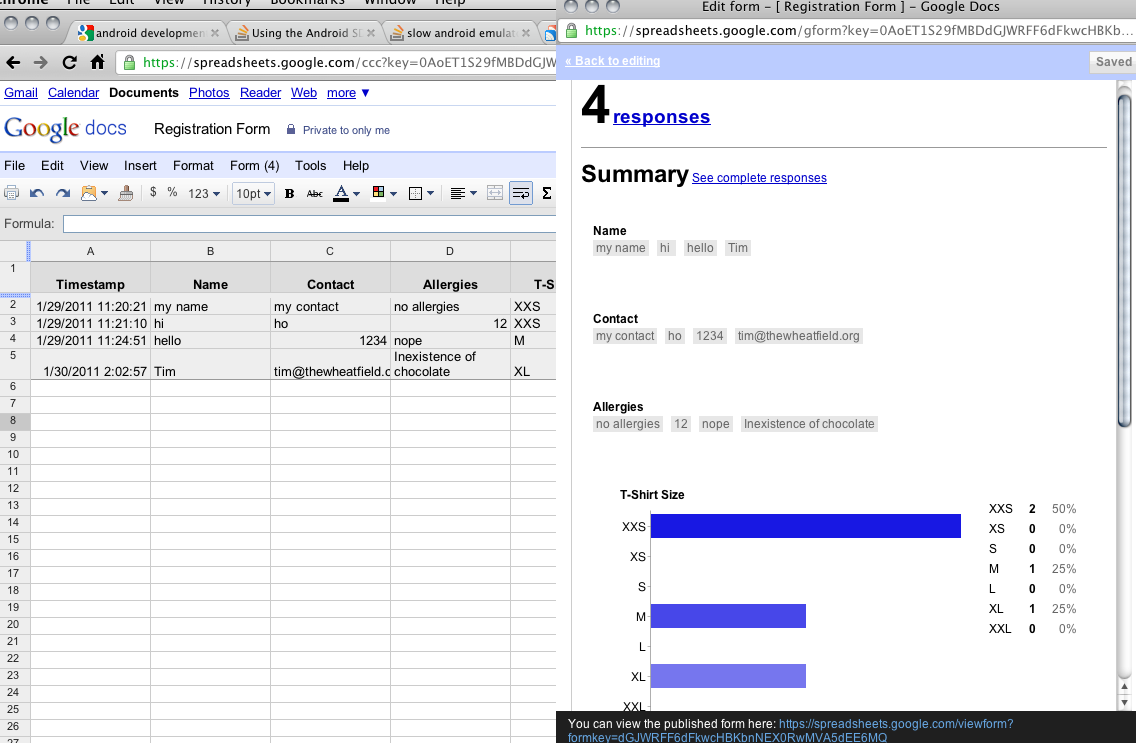
What is great is that Google Docs provides a relatively simple way to create the form and share it online (remember to change the privacy settings to public/not require a sign in if you want the public to answer). Above is a simple form that I came up with in about 5 minutes of playing around with the Form builder: just select the field type from a drop down list (text / multiple choice / checkbox / etc) and enter the question details and mark the field as required if necessary. Drag and drop the fields to arrange their order. Plain and simple yet effective. Now aside from that, you can also choose a theme from their presets although I don’t think you can make any changes/customizations to the theme, but nonetheless a nice option as opposed to a standard white background form. Not only does it generate the form, but all the responses are automatically linked to a spreadsheet and charts are even drawn up based on the the answers to the questions. So if you need a quick registration form / questionnaire all it takes is 10 minutes of your time to generate a simple form and be able to share it with anyone.
Step-by-Step Guide in Creating Forms using Google Docs:
- Sign into Google Docs
- Go to the “Create new” drop down menu and select “Form”
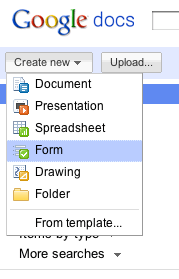
- Create the necessary fields/questions

- Set the proper permissions in the Spreadsheet that gathers the data (In Form Editor: See responses > Spreadsheet. In the Spreadheet: Share > Sharing Settings)

share sharing settings 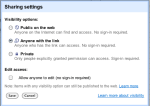
sharing settings - Embed / share the link
- Gather responses / data from people filling in the form
- View responses
 The Wheat Field
