**Updated with new easy way below**
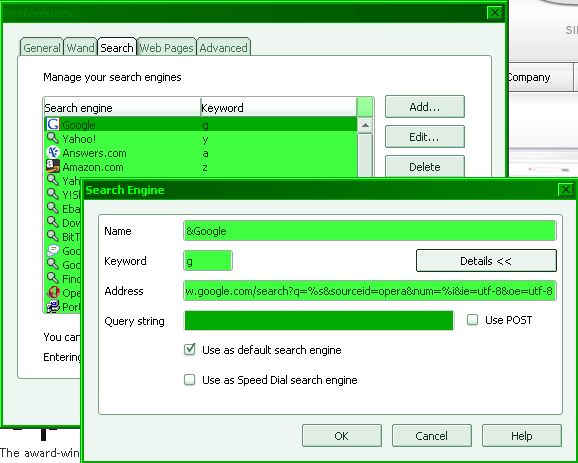
Opera
Preferences > Search
Firefox
- Create .src and icon files and put it on a local server. Example of Google.src:
<search>

	name = "Google search"

	method = "get"

	action = "http://google.com/search"

	>

<input name="q" user="">

</search>
- Create HTML page to load Javascript action to add search engine. Example:
<html>

<script type="text/Javascript">

function addEngine()

{

    if ((typeof window.sidebar == "object") && (typeof window.sidebar.addSearchEngine == "function"))

    {

        window.sidebar.addSearchEngine(

            "http://localhost/google.src",

            "http://localhost/google.png",

            "Google Search",

            "Web" );

	}

    else

    {

        alert("Mozilla M15 or later is required to add a search engine.");

    }

}

addEngine();

</script>

</html>
- Load page and add accordingly
Conclusion
Is it me or is adding a custom search engine for Firefox just way too hard? It took me a good 20 minutes just to get mine to work. I tried not having to use a local server by using relative url’s for the src and icon file but that didn’t work, it just gave me an Install Error: “This search engine isn’t supported by Firefox and can’t be installed”. Yes I know there extra search engines already provided but the issue I had was that the inbuilt Google search was redirected to the Google Brunei search with text in Malay and would not recognize English words to use with the definition feature (where you can click the search word in the top right of the page to find out the definition). So with that I provide Custom Firefox Search Engine page. It’s not much but I may probably add more custom search engines that I use there and begins some what of my Firefox tweaking and stuff.
P.S. Anybody with a better, i.e. easier way of adding a custom search engine to Firefox do let me know thanks.
** Update **
Found a quicker way here: Create Search Shortcuts. Thank you revision3
Basically all you have to do is..
- Right click ANY text box with a button next to it, i.e. a search field
- Select “Add a Keyword for this Search…” (Firefox) / “Create Search…” (Opera)
- Fill in the details name and keyword (Firefox) / just keyword (Opera)
- Click Add / Ok and start using it!


 The Wheat Field