Playing Nice with Filesystems

If you have played around with any 2 of the 3 major operating systems (Windows, OS X and Linux) and start transferring files to and from external hard disk you will probably run into an issue with the type of filesystem you choose for your hard disk. Windows likes NTFS, OS X likes HFS and Linux likes ext. As you can see none of them are the same. Being different is not so much an issue, but being compatible and accessible to all is.

Based on default system settings:

  • NTFS is readable on all operating systems, but not writable on OS X. Most modern Linux distributions can write to NTFS drives
  • HFS is readable on OS X and modern Linux distributions, and not writable on Windows or Linux
  • ext is only readable on Linux and not writable on Windows or OS X.

or to put it based on operating system

  • Windows can only read and write to NTFS, nothing else
  • OS X can read and write to HFS and read NTFS
  • Linux can read and write to ext and NTFS and read HFS

Take note that there is also the older FAT32 filesystem that is fully supported for reading and writing by all operating systems but due to limitations of FAT32, I rather not consider this. Basically the main issues with FAT32 is that the maximum file size is 4GB and the maximum partition size is 32GB (actually Windows can’t format a FAT32 partition greater than 32GB but can read FAT32 partitions of more than 32GB. Use GParted or just filter this Google search to be able to create and format a partition of 32GB). If these are limitations you can deal with, for the sake for interoperability stick with FAT32.

Now to solve the problem of support for each filesystem in each operating system:

NTFS:

  • OS X: NTFS-3G + MacFUSE
  • Linux: NTFS-3G
  • I’ve been using NTFS-3G in Linux for many years and haven’t had any problems with it and so far it’s working well with OS X too
  • On another note if the NTFS drive is not unmounted properly or there are some issues with the file system integrity, it is necessary to use Windows scan disk to rectify the problem. Thus this requires a copy of Windows to fix the filesystem.

ext:

  • Windows: Ext2 Installable File System for Windows
  • OS X: Mac OS X Ext2 filesystem
  • I’ve had issues of only being able to mount an ext2 partition in Linux and it gave a mount error in Windows and OS X and was due to an inode issue as new Linux distributions create the file system with inodes of 256 bytes but Ext2 fs only supports the older version with 128 bytes. And the only solution is to back up the files, and reformat partition with inodes of 128 bytes (-I 128) and restore the files.
  • Filesystem integrity issues should be able to be fixed with “fsck” from a Linux distribution / live CD. The great thing about this is that you can get a Linux distribution for free and this recovery can be done with out any strings attached.

HFS:

  • Windows: MacDrive (US$50, read and write), Paragon HFS for Windows (read only)
  • Linux: Enabling HFS writing in Ubuntu
  • Note: I have not personally tested these so I cannot give first hand experience of how well it works or what issues can be had with this.
  • I believe that HFS+ journal
  • I would believe any filesystem repairs would have to be done in OS X (similar to NTFS and Windows) and if so this enforces that you have OS X at hand, and in order to have OS X you must have Apple hardware or a Hackintosh either way this is very restrictive.

So it is pretty easy to get full read and write support of all 3 default file systems on the 3 major OS’s but there are issues. So far I’m inclined to stick with ext2/ext3 just due to the fact that it has no restrictions in terms of filesystem repair. I’ve had many NTFS issues related to damaged filesystems that required Windows and the inconvenience of taking the drive out of my box to find a Windows box was too much.

Manually editing Quicksilver Trigger Shortcuts (remap log out)

So I managed to disable command + Q to close applications via Quicksilver, but next I wanted to create an easy shortcut to close the application and Command + Shift + Q came to mind. Then I found out it was mapped to logging out of my current OS X session. But as any enthusiast, who want’s to be a rebel and fight against the machine (I honestly loved that bit of Jason Calacanis’ message to Apple Fanboys and Girls), I delved deeper. Knowing that the information had to be stored somewhere on the system I looked for the configuration file and found it at

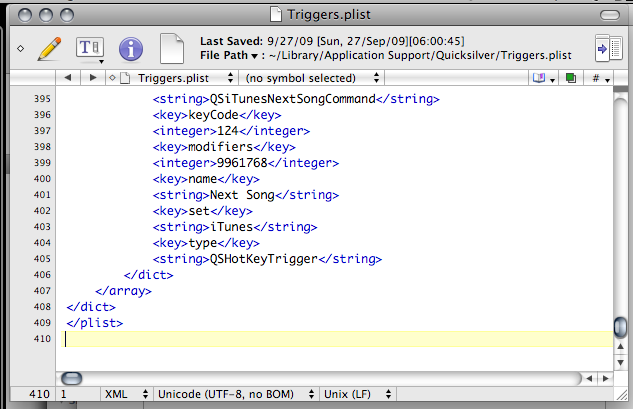
~/Library/Application Support/Quicksilver/Triggers.plist

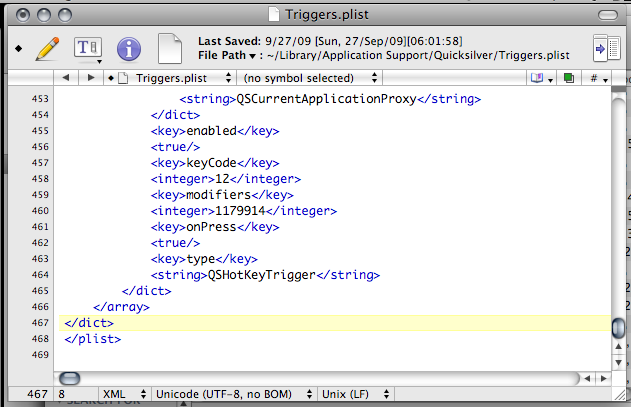
For those unfamiliar with the “~”, it is the home directory of the user, which should be found in Finder’s “Places” section in the sidebar with the name of your user. Open that up in any text editor (TextEdit, nano in Terminal or my current text editor TextWrangler) and add the following before the line that says </array>, then restart Quicksilver


<dict>
    <key>ID</key>
    <string>58C26ADF-2CEB-4E49-A530-B386CEF537FB</string>
    <key>command</key>
    <dict>
        <key>actionID</key>
        <string>AppQuitAction</string>
        <key>directArchive</key>
        <dict>
            <key>class</key>
            <string>QSProxyObject</string>
            <key>data</key>
            <dict>
                <key>qs.proxy</key>
                <dict>
                    <key>icon</key>
                    <string>GenericApplicationIcon</string>
                    <key>name</key>
                    <string>Current Application</string>
                    <key>providerClass</key>
                    <string>QSProcessMonitor</string>
                    <key>types</key>
                    <array>
                        <string>NSFilenamesPboardType</string>
                        <string>qs.process</string>
                    </array>
                </dict>
            </dict>
            <key>properties</key>
            <dict>
                <key>QSObjectChildrenLoadDate</key>
                <real>274987421.89515197</real>
                <key>QSObjectDetails</key>
                <string>Proxy Object</string>
                <key>QSObjectIconName</key>
                <string>GenericApplicationIcon</string>
                <key>QSObjectName</key>
                <string>Current Application</string>
                <key>QSObjectObjectID</key>
                <string>QSCurrentApplicationProxy</string>
                <key>QSObjectType</key>
                <string>qs.proxy</string>
            </dict>
        </dict>
        <key>directID</key>
        <string>QSCurrentApplicationProxy</string>
    </dict>
    <key>enabled</key>
    <true/>
    <key>keyCode</key>
    <integer>12</integer>
    <key>modifiers</key>
    <integer>1179914</integer>
    <key>onPress</key>
    <true/>
    <key>type</key>
    <string>QSHotKeyTrigger</string>
</dict>

Before:
before add

After:
after add

Trigger pane showing Command Shift Q

Alternatively you can add a shortcut to Command + Shift + W, open the configuration file and search for the new command created and changed the keyCode field to 12.

Die Command + Q die

One thing that immediately annoyed me about the Mac was that the shortcut to close the application is Command + Q. This is just way too close to Command + W, the shortcut to close a tab/window. Being fast with the fingers I will tend to press Command + Q at times closing the entire program together with the documents I’m working on / tabs I’m browsing / IMs chats I’m having. Now for some applications there are work arounds, e.g. for Cocoa based applications (e.g. Safari, Mail) you can assign another shortcut to the menu item in the Keyboard Shortcuts tab in the Keyboard & Mouse preference pane

  1. Click on the “+” button
  2. Select the application (e.g. Mail.app)
  3. Type in the quit menu item text in the “Menu Title” field (e.g. for Mail.app it would be “Quit Mail”)
  4. Enter your keyboard shortcut

keyboard shorcuts change cocoa based applications quit shortcut

Now this would be nice to have for all applications but due to the fact that for each application the menu item to close the application is based on the application itself (e.g. Mail = “Quit Mail”, Safari = “Quit Safari”), it is plain to see there is no easy way to cover all applications. Also, as mentioned, it works only for Cocoa applications, so this wont work in applications like Firefox. Also some applications like NeoOffice will still respond to Command + W. So had to search for other alternatives.

For Firefox you can configure Firefox to prompt to confirm closing if there are multiple tabs open and there are probably extension that may help prevent the closing of the browser, but I wanted to find a complete solution. So after much Googling I finally found this blog post on disabling Command + Q with Quicksilver by using triggers.

In Quicksilver’s Triggers page:

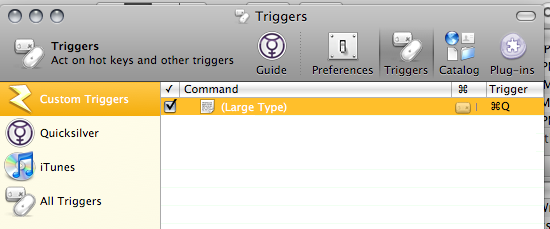
  1. Add a trigger by pressing the “+ button” then selecting “Hotkey” (a new row should be created)
  2. Click the empty space under the “Command” column of the newly created row
  3. In the “Select an item” field, press . to enter text mode and clear any text that appears
  4. In the “Action” field, enter “Large Type”
  5. Leave the “Target” field blank and click save
    trigger command disable quit

  6. Now to create the keyboard shortcut by click the “None” field under the “Trigger” column
  7. A drawer will pop out and in the “Settings” Tab, press the “Edit” button in the “Hot Key” field and press Command + Q
  8. In the “Scope” Tab, ensure it is “Enabled in all applications” (any other option does not seem to work even though I specify the correct applications. possibly a bug)
  9. So now the Command + Q shortcut is disabled as long as this trigger is enabled
    disable command q trigger

So now when you press Command + Q the application no longer closes and gives you an little beep indicating no action is assigned to the shortcut. What if you still want a shortcut to close it? Just add another trigger!

  1. Add new Hotkey trigger
  2. Select an Item: Current Application
  3. Action: Quit
    trigger command quit
  4. Select your appropriate shortcut and be happy =)

So go download Quicksilver. It can do a heck of a lot more than just this with the great plugins it has: resize images, open bookmarks, move files and add. Check out the Lifehackers’ top 10 Quicksilver plugins or the tutorials and start delving into the world of Quicksilver

Jason Calacanis’ Message to Apple Fanboys and Girls

Message to Apple Fanboys and Girls:

We spent 30 years of the industry trying to make an open system, the Internet. Applications. Everything’s open. The reason why there is such colossal growth…. is because of an open platform.

There is no reason why Apple cannot make the iPhone a little more open. And the argument of “Oh we have to make the Apple platform so easy to use that you, the person who paid for the phone, the person who pays for the data plan, is such a smuck that you can’t decide what applications you run and you can’t decide how you use your data minutes.

That is absurd.

You’re a bunch of sellouts to the open Internet and technology. Technologist are supposed to be rebels. We’re supposed to fight against the machine and you guys are a bunch of sellouts and drunk on the Apple kool-aid

You are fighting for the wrong cause. The cause of the mighty and the just is an open platform where everybody can excel. If Steve Jobs wants to keep the whole thing closed, okay fine, ease of use I’m with you. Just a little button on the old iPhone that says “Allow experimental applications unverified by Apple”

Apple fanboys equal technology sellouts

The whole idea was you were supposed to be enabled and freed by the technology,
not constrained. Technology is supposed to be a net benefit to the planet, to society, to freedoms.

Anyway, Steve Jobs is great, I love Steve Jobs. He’s awesome and he does the greatest product in the world and that’s why we, and that’s why this whole thing is an issue is because we actually really care.

While I don’t agree with everything he says, I do be believe that technology should be open and being a Mac user for over a month now I utterly dislike the seemingly “Apple way or the highway” mentality of Apple products. OS X is superior to Windows and Linux in many ways but it also falters against them in other ways. The iPhone has revolutionized the smartphone market and is probably more usable for tasks than other smartphones out there. Why can’t Apple be more open?

Witch for the Mac

Ever want to be able to switch between windows quickly at the flick of a keypress? Yes you can do it with the Command + Tab shortcut that is build into OS X, but the problem is that it shows all applications not all windows open. Luckily there is Witch that fills in the gap.
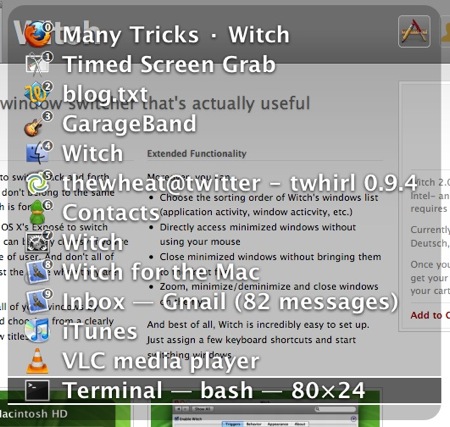
witch keyboard shortcut badges

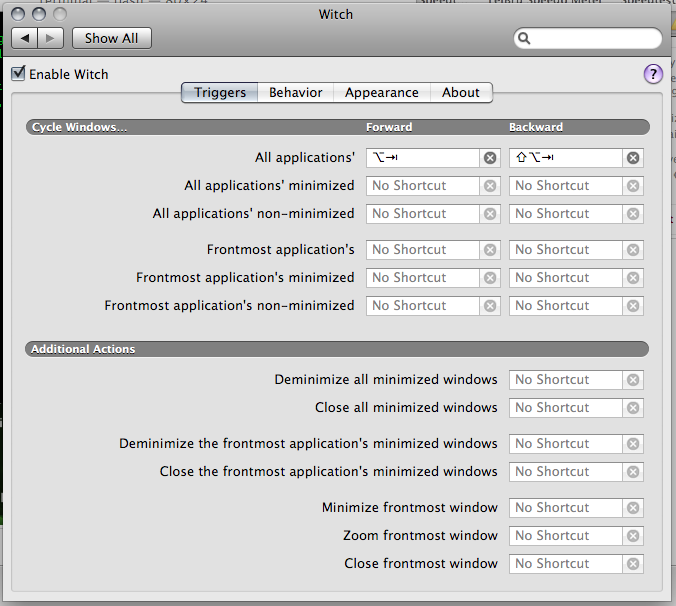
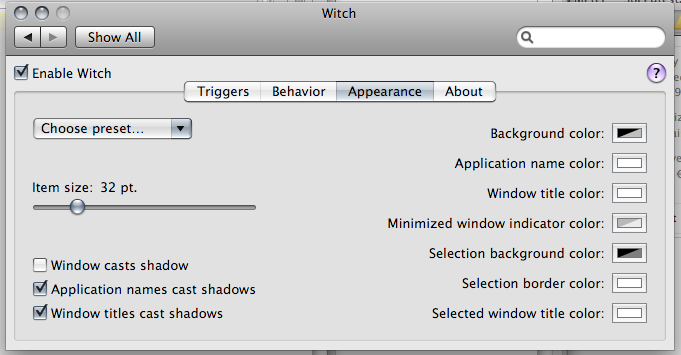
Witch installs as a preference pane in System Preferences and has quite a few configurations shown in the screenshots below. You can configure the shortcut used to activate Witch, however it can’t be remapped to replace the default OS X’s Command + Tab application switcher. Windows can be organized by application or window details (name / launcher / activity order) thus you are not constrained to a single configuration. Shortcut badges, is a nifty feature, as it adds a keyboard shortcut to the Witch menu. A badge with a number will show up next to the application window and show in the screenshot above, and a single number can be pressed to activate the appropriate window: an added shortcut and time saver.

Cons
On the down side, the application costs €9.95 (~US$15 / ~B$21), doesn’t show all windows and performance issues. While the application does not cost that much, it does annoy me that in order to get OS X to work the way I want it to, it seems I have to fork out more money for some application to fix the problem that shouldn’t even be there in the first place. With regards to Witch now showing windows, I notice the help dialog (e.g. Finder > “Mac Help” menu item) and Google Chrome both don’t show up in the Witch menu. I think the Help dialog could be an OS X issue because it is not accessible via default OS X application switcher (Command + Tab) nor through any windows switcher (Command + `). Seems like the Chromium / Chrome issue is known and it’s strange as it does show in Command + Tab. With regards to performance issues, I find that if I don’t use Witch all the time (sometimes I still use Command + Tab), when activating the Witch menu it takes a while to appear and sometimes it doesn’t appear at all.

Verdict

Witch provides a feature that OS X sorely lacks for keyboard users. However due to it not providing full keyboard access to any window in OS X, it defeats the purpose for me to buy it, especially since I use Chrome quite a bit. Maybe the next time around

Preference Pane Screenshots – Triggers
witch pref pane triggers tab

Preference Pane Screenshots – Behavior
witch pref pane behavior tab

Preference Pane Screenshots – Appearance
witch pref pane appearance tab

Update 1: Seems that X11 windows are not recognized either so GIMP users are left out in the cold by Witch too =(

My OS X Issues

So I recently got a 13″ Macbook Pro and after month with it as my full time operating system, here are my issues with the Mac OS X as a heavily keyboard dependent user who has been in a Windows and Linux (Ubuntu/Debian) world for many years.

Command + Tab Application Switcher

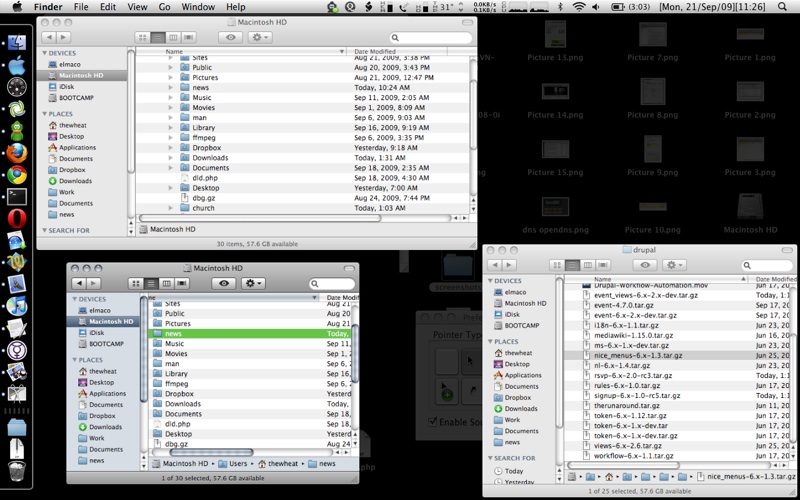
One of the things apparent to me when I used a Mac previously was that when you Command + Tab (Mac’s version of Window’s Alt+Tab) to switch between open applications, it won’t show all the current windows open, just the applications. So, for instance, if you have 3 Finder windows open, when I Command + Tab I will only see one icon as show below.

3 Finder windows, 1 Finder icon in the application switcher
3 finders 1 icon

I can see the rationale for this as it doesn’t clutter the application switcher screen but I personally do not like it. There is a way to switch between multiple windows of the same program (Alt + `)(Command + `) which is good that it is accessible but still the inconvenience of having to switch to the application before switching to the right window. This is detrimental to my workflow and productivity on a Mac. I guess to combat this, expose was created for window selection. Expose nicely lays out all open windows on one screen for the user to select and bring to the foreground, and it is even keyboard accessible. However it is not as efficient as alt+tabbing on Windows because each time expose launches, you would have to search for the correct window on the screen before clicking it and proceeding. Witch solves this problem but it will cost you (€9.95) and I’m actually surprised at how few people want this option (current score is: -21).

Expose in action on 3 Finder windows:
expose finder

Finder

Finder is the equivalent to Window’s Explorer used for file management. One thing that became apparent to me when moving between OS’s is that OS X likes to create hidden files on USB drives and these files are never show in Finder. You simply can’t show hidden files in Finder. I also like to go to the folders by typing in the location using the address bar in Windows. This is something I also cannot do easily with Finder: the “Go To Folder…” dialog box has no auto complete and just does not offer the flexibility of a address bar where I can type and search on the fly.

OS X’s “Go to the folder” dialog instead of an address bar
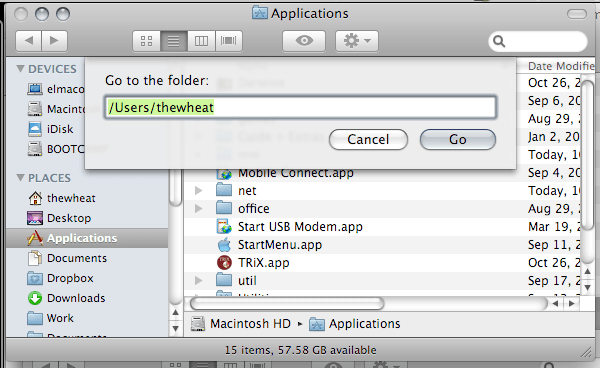
finder go to folder

In Finder you cannot list directories first. Thus if you’re trying to access a folder that is deep in your folder hierarchy, you are just searching the sub directories of a folder, you will find yourself searching for the folder among the files. There really needs to be an option for this.

Folders sorted together with files instead of before
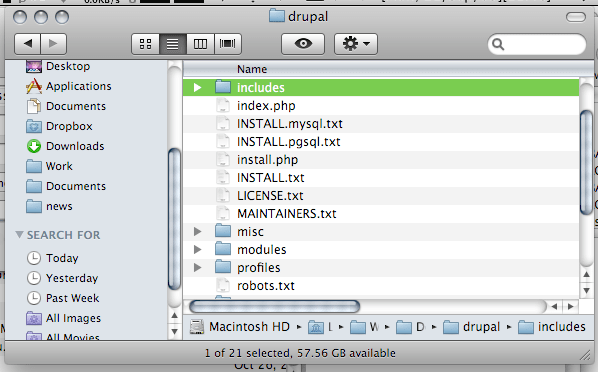
finder folders and files mixed

Cut and Paste
No copy and paste but cut and paste. Yes there is cut and paste in a text editor but there is none for file management in Finder. This is a big deal for me as I will use cut and paste very heavily in file management as it allows me to do all my file management via the keyboard. With Finder you’re forced to use the mouse to move files by dragging the folders into the necessary location. This ends up to be a huge time waster. It seems some 3rd party file managers (Path Finder and RAGE Macintosh Explorer) do implement cut and paste feature but if you cut files and forget to paste them (or you interrupt your cut with a copy and paste elsewhere) you can lose the files you previously cut. Windows and Linux has had cut & paste for years and here is Mac OS X without it. I find that hard to believe and also that only now in Snow Leopard you can restore your (accidentally) deleted file to the original location.

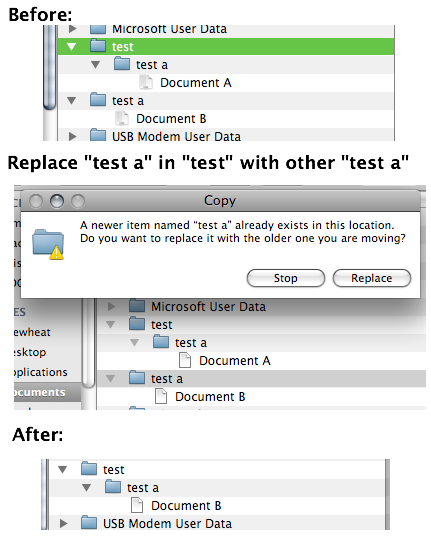
Replace not Merge
Take note that if you have 2 folders (A and B) of the same name and try to replace one folder with the other (drag folder A to folder B’s enclosing folder) do take note that it will replace folder B with folder A and not merge the 2 folders into one. Thus any files in folder B will be lost. This is very important and I can forsee a lot of cursing and swearing if this concept is not understood. For the record Windows merges the 2 folders giving the user with a folder containing files from both of the folders.
finder replace not merge

Menu Bar

So on a Mac the Menu Bar is always on the top and menu items change dynamically based on which application is currently in focus. The problem here is that you have to select the application first before being able to access any menu. So if you have another application window besides the current window you are using you cannot just access the menu item of the other window, you will have to click on the other window, move your mouse back up to the top of the screen where the menu bar is and file the item. Another time waster. You also cannot navigate menu items like you can in Windows. In Windows you can simply press the Alt key and menu bar is selected and thus you can use the navigation keys to move around the menu. Quick and simple. You can even use shortcuts to access menu items by pressing the key for the letter underlined in the menu. While you can place focus on the Menu bar in OS X using an awkward shortcut of Ctrl + F2 (am trying to find a way to mimic the single button Alt keypress in Windows) , there is no possible quick navigation of the menus.

On the right side of the menu bar there are icons/text that act as shortcuts to certain fuctions (e.g. wireless, bluetooth, volume control) or just for information display. The problem is that some programs have enough menu items to hide some of these icons and there is no way to view these icons in the hidden state. The only way around this is to remove functionality/information from the menu bar itself, preventing me from using it the way I want to. Windows has a feature to hide system tray icons and there is a toggle button to show them all. OS X needs a feature like this.

Menu bar in Mail – hiding some icons

menu bar mail
Menu bar in Finder – revealing hidden icons
menu bar finder

Window Menu

In Windows you can access the window menu by pressing Alt + Space. You can do things like maximize, minimize, restore and close the current window. You can even resize and move the window just by using the keyboard. That is just great and helps productivity. For OS X there is no window menu. You have to use the mouse to move and resize the window. Worse yet you can only resize the window my using the resizer in the bottom right of the window; you can’t resize from any other corner, ONLY the bottom right. I found that Afloat allows moving and resizing windows via the mouse as well as “always on top” and transparency features that I get with Compiz in Linux.

Zoom / (Smart) Maximize

In Windows the title bar has 3 buttons: minimize, maximize and close. In OS X you also have 3 buttons (on the left rather than the right), close, minimize to dock (-) button and zoom (+) button. Zoom does a ‘smart’ maximize that maximizes the window to occupy the optimal space, not the full screen. I can see that makes sense because when you maximize windows sometimes you get a lot of whitespace or useless space, but the issue with this is that it is inconsistent between applications and gets frustrating at times. So I found RightZoom that makes the Zoom button do a maximize like Windows and better still adds a shortcut to this.

OS X’s zoom button: love it or hate it
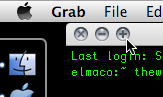
zoom button

Home and End

If you work with any kind of text in Windows I believe the Home and End buttons are your friends as they are mine. It seems these friends have had a change of heart in the Mac world. I’m using a standard (Windows) keyboard with and when I press the Home / End buttons they bring me to the start / end of the document I’m editing instead of the start / end of the line that I’m used to. I know there is the Command + Left / Command + Right to do this but call me lazy if I think an extra button to press too much inconvenience. Thankfully I found DoubleCommand which allows the Home and End keys to work as I expect them to.

Inaccessible window/dialog box that float on top

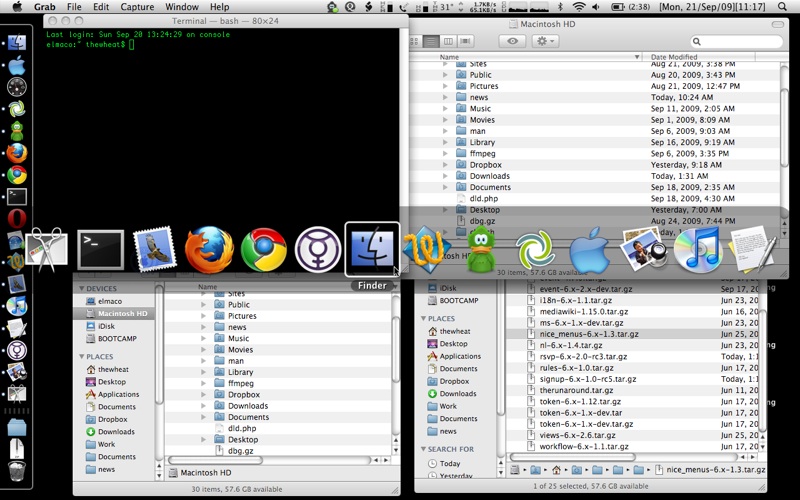
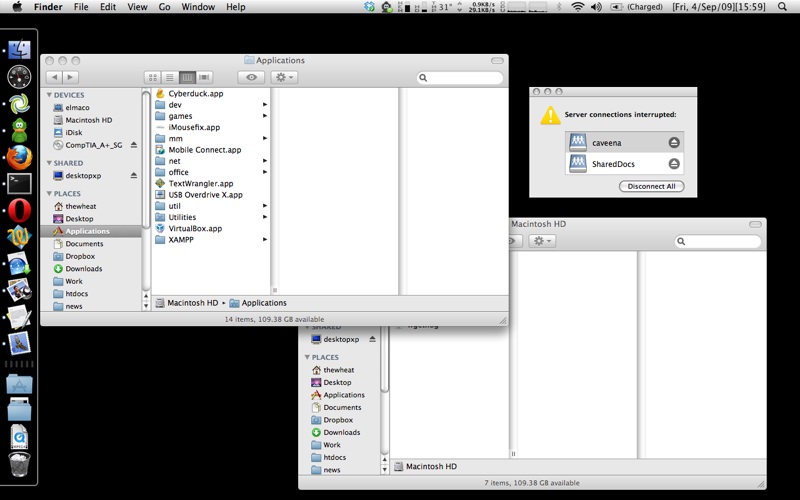
I found that there are some windows/dialog boxes that cannot be accessed via the keyboard application switcher (Command + Tab) or window switcher (Command + `). Open TextEdit (though I think it works in all applications), in the Menu bar > Help > TextEdit help. The window that appears is now inaccessible by the standard keyboard window selector shortcuts mentioned but can be accessed via expose. The worst part is that the window floats on top of everything you’re doing forcing me to reach for the mouse or find the window in expose. This can also happen if a samba share goes offline and you have it mounted

Mac Help window inaccessible via Witch (which is supposed to show all opened windows)
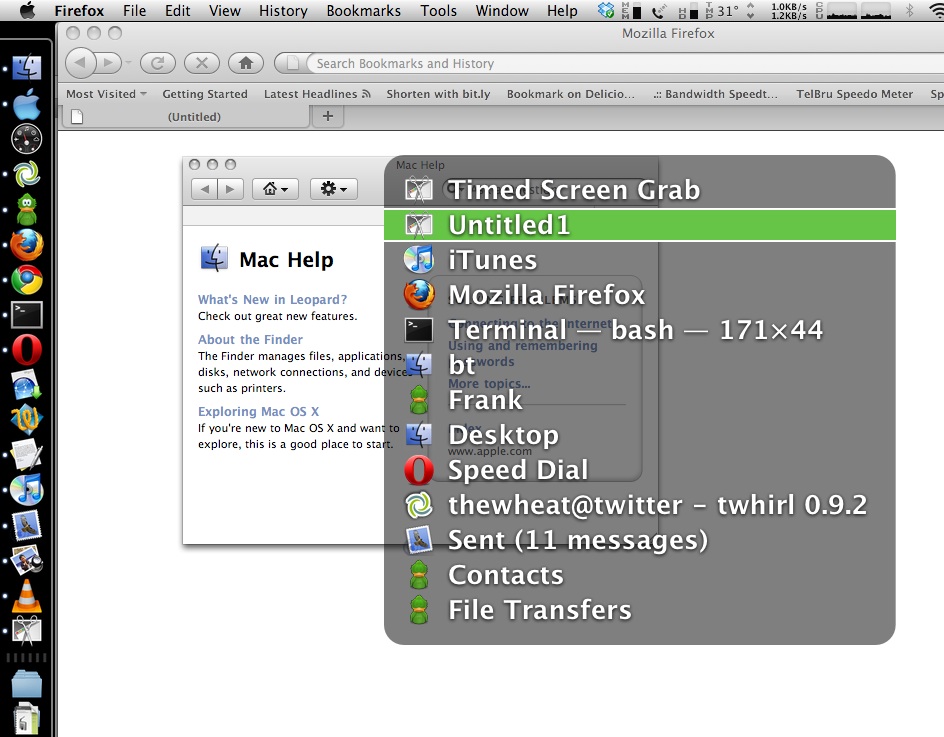
inaccesible help window

Keyboard inaccessible dialog box / help window
no selecteable dialog box same with help filepicture 1

Conclusion

These are my main issues with OS X and there are several other (minor) issues. As you can see there seems to be people with similar situations to mine as there are 3rd party applications developed to overcome these issues. After using a Mac I have realized that Macs jeopardize (my) keyboard skill portability due to the use of the command key instead of ctrl key for many functions and also due to the fact that Apple keyboards have a different layout. I guess the same can be said for long time Mac users in the Windows / Linux world but the fact that Apple not only dictates OS X’s the software but the Apple hardware and both ‘offend’ my quest for keyboard shortcut portability. Just as how Opera changed their new tab shortcut to Ctrl + T from Ctrl + N many version ago for consistency among the other tabbed browsers I can only hope and dream that Apple would give an option to make OS X shortcuts work like they do in Windows.
OS X Snow Leopard in Brunei

Now a Mac user for a week (thanks to the special educator’s discount =D) I knew Snow Leopard was coming and apparently it’s coming sooner than expected, on the 28th of August 2009. So I sent a tweet to AV Electronics asking them for the prices and availability in Brunei and their response was:

  • B$48: Single user
  • B$78: Family Pack (5 Apple computers in one household. Non-commercial use)
  • B$268: Single Mac Box Set (for non-leopard users)
  • B$369: Family Pack Mac Box Set (for non-leopard users)
Snow Leopard Prices in Brunei

Snow Leopard Enhancements and Refinements

Estimated time of arrival 31st August, so go book your copy at AV Electronics
Kiulap: +673 2237650/1
Mall: +673 2456436
Email: info_AT_ave.com.bn

Update 1 [2009/08/28]
So today I got a response from AV Electronic’s Twitter feed that they will have the Up-to-Date program for recent Mac owners. So recent Mac owners (Mac bought on or after 8 June 2009) should be able to get Snow Leopard at an even a greater deal. Currently in Singapore it’s S$18 so here’s hoping it will be like B$20 here.

AV Electronic's response regarding the up to date program

Funny thing though. I personally went to AV Electronics yesterday and ask them if there are any offers for recent Mac owners. And the person told me ‘no’. After that to find out today that they do offer such an offer, it makes me, as a customer, feel cheated of the facts. I would have felt even more cheated had I pre-ordered Snow Leopard at B$48 only to later find out I could have got it for cheaper. It’s not the price but the principle of the matter. Hope AV will work on their inter staff communication on their business activities to help provide customers the better service with accurate information to make the best choice.

A Mac-nificent World?

So the other day I actually took my brother’s Apple iBook G4 (1GHz) out from his cupboard (he did give me permission to use it, so don’t be emptying your sibling’s cupboards looking for things..) and finally tried to use it. He got it the year he left Singapore meaning it is about about 4 years old. I’ve been wanting to get a Mac to explore the OS X world so I thought this would be a good starting point. Mind you I have played with a few MacBooks over the years but nothing long term enough to get the full experience.

Let me start off by saying that Exposé is a fantastic utility which I’ve had the chance to use in Linux thanks to Compiz Fusion or for those technically challenged due to proprietary drivers or just have difficulty getting Compiz Fusion running there is always Komposé. I like the fact that you can zoom in and out using (Cmd+Alt+=) / (Cmd+Alt+-) along with other accessibility options e.g. switch screen to black and white (Cmd+Alt+Ctrl+8), things which Compiz Fusion yet again has copied (piracy is the best form of flattery huh?).

1. New/”New” keys

So those keyboard shortcuts stated above lead to the first problem (aside from the single mouse button): the new and “new” keyboard keys. There is the Apple/Command key that has an Apple icon on the left and ⌘ icon on the right which (for switchers from Windows) would tend to associate with the Windows key. There is the fn key which most laptop notebook users will be familiar with and then the alt/option button: it is the regular alt button next to the ctrl but has the word “option” on it as well so it’s the alt/option button. So as a user trying to find the “right click” that you are so used to in Windows/Linux/BSD you are supposed to hold down one of these buttons and click the mouse button to get the context menu. So which button do you press? My first thoughts would be the fn or Apple key.. How wrong I was; it is the Ctrl key. Then it makes me wonder what happens to selecting files one by one with the mouse since I can no longer Ctrl+left click to select individual files, adding them on to the currently selected group. Now that has moved to Cmd+click. This kind of “remapped” keyboard modifier shortcuts are prevalent in applications as well. For instance in Firefox to create a new tab it is Cmd + T. To cycle through tabs it is still the Ctrl + Tab though. So my fingers (and thus me) are getting frustrated doing the finger dance trying to find the right key combination to achieve what I want.

2. Application switcher does not show all windows/does not restore minimized windows

Cmd+Tab for the windows/application switcher (similar to Alt+Tab for Windows) does NOT show all windows open. For instance if I have only 2 Finder (equivalent to Windows Explorer / Nautilus / Konqueror / any file manager) windows open and I Alt+Tab Cmd+Tab I will only see one icon representing Finder despite having 2 windows of it open. So the alternative to that is to use Exposé, but alas the problem with Exposé is that if you minimize a window it won’t show up in Exposé. So this will make you change your style of work if you tend to minimize your applications. I guess the way OS X discourages you from minimizing applications is the fact that the green + button in the window title bar, which people would think is the “maximize” button isn’t the typical maximize button it is a smart maximize button which expands the window to an optimal size thus in other words it will probably NOT (actually I haven’t seen it ever) expand and do a full screen maximize like in windows (minus the task bar), thus you will be able to see windows in the background which I read/heard somewhere is supposed to help productivity. How true that is, I do not know. But anyway so typically in Windows / Linux I will Alt+Tab through my windows/programs to select the one I want which is something I cannot do in OS X. The alternative is to leave all windows open and just use Exposé. I have to give props to Exposé that it can be navigated through the keyboard as well though, but still the minimized caveat is still an issue. An alternative is to use Cmd+Tab to select the application then Alt+` to select the window (Alt+` cycles through the windows of the same program, e.g. Firefox and the Firefox download window / another Firefox window). Cmd+Tab apparently does not restore minimized windows so you have to go to the “Windows” menu or select the window from the minimized windows section in the dock. Oh the trouble.

3. No easy access to menu bar

I like to be able to access the menu bar of my applications, you know bar on top with all the menu’s typically starting with File, Edit and View. I access them via the Alt+key_letter shortcut (e.g. File: Alt+F, Edit: Alt+E, View: Alt+V), for just Alt to focus on the menu bar and use the cursors/keyboard shortcut to navigate. This could not be done by default or in the usual fashion. When looking online I saw the shortcuts given to access the menu bar was Ctrl+F2 but when I tried it, it didn’t select the menu bar, it just increased the brightness…. I found out one day when I went into the Keyboard & Mouse preferences in System Preferences. Apparently the fn is only for laptopsnotebooks so you have to check an option (Use the F1-F12 keys for custom actions) to force the use fn in order to access the custom actions (in this case increase screen brightness) and after that it worked. I’m pretty sure the default configuration is unchecked because my bro isn’t as much of a keyboard user as I am (got confirmation from Nick that it is unchecked by default). The issue I have is that it highlights the main application menu and thus I can’t do a quick jump to different menus. Also the shortcut (Ctrl+F2 is an uncomfortable one compared to Alt). Be wary of Ctrl+F1 for this toggles this ability without making any notice of it, even in the checkbox setting. Now that is strange. Let me take issue with the checkbox main description as well. It says “Use the F1-F12 keys for custom actions” and in the smaller print “Hold down the Function (Fn) key to perform the custom action of the F1-F12 key.”. It is a bad main description because when I first read it I was like but it already performs the custom action without the box checked so what’s the point of the option. Only then did I read the smaller print and found my answer. Also there should be a “Restore to Default” button in case you mess things too much. This is something I believe all configuration windows (i.e. all applications on all OS’s). On a side note the windows menu shortcut (Alt+Space) is not existent and just have to use Cmd+M to minimize.

4. Enter does not enter folders

Select a folder in Finder and try using the keyboard to enter it. The Enter button which sounds good right? Wrong! Not only does it not enter, it highlights the name in order for you to rename the folder. Cmd+Down is the answer though. I honestly do not get that. Why make the single intuitive keystroke into a strange convoluted 2 button action?

5. Navigating controls in dialog boxes (Firefox)

When I get a password prompt to save the password or a Javascript dialog box in Firefox with buttons, I can NOT press Tab to move from one element to another. This is something of second nature and a great accessibility option. After some searching back in the Keyboard preferences in the Keyboard shortcuts panel there is the “Turn on full keyboard access” which “Turns on full keyboard access to use the tab key, arrow key, and other keys to select buttons, lists, and other items on your screen” and I though to myself “YES! This is it”. But alas it is not. It doesn’t work with Firefox only in Safari (and I take it other native OS X applications). So now if you want to select the non default option you HAVE to use the mouse which is a time consuming.

6. Mouse acceleration

So I know that the previous 5 issues I’ve had were all keyboard related but that is a big deal for me but the next method of user input is the mouse and OS X has my despised foe: mouse acceleration. I have always disliked mouse acceleration because it is not a definite or predictable manner to move the mouse. For those who don’t know what mouse acceleration is, here is a simple scenario. Move your mouse onscreen cursor to the left of the screen. Now move your mouse slowly from the left to the right over a certain distance. Now repeat that but this time moving much quicker. If the mouse cursor is roughly at the same place you probably have acceleration off, but if it is way off, acceleration is on. I’ve hated it ever since I’ve played first person shooter (FPS) games where you need to aim with your mouse and want your mouse movement to be consistent with how the view in game moves. If I move my mouse 5cm on the table I want my cursor to move a fixed distance on screen despite how slow/quick I move my mouse. That gives predictability and thus control of my mouse cursor. Now if you have mouse acceleration on and you have excellent control over your mouse I applaud you for being able to do all the math calculation in your head because I certainly can’t. There simply isn’t a visible option for disabling it aside from going to the terminal and typing the following, after which you need to logout and log back in again for it to take affect.

defaults write .GlobalPreferences com.apple.mouse.scaling -1
defaults write .GlobalPreferences com.apple.trackpad.scaling -1

For some reason when I enable this and when I move the cursor via the trackpad it moves a little bit after it reaches the destination for no apparent reason. It’s hard to explain so I uploaded a video below.


And this annoys the heck out of me because I can’t select items properly as the cursor ‘happily’ moves off the element I was previously hovering over. This could be a hardware issue though, wonder if I can get confirmation of this else where though.

7. Second class citizenship for old systems?

So I admit this is an older machine running 10.3.9 and I have issues with that. Firefox 3 is not available for the older system thus I have to use Firefox 2, thus losing out of all the new features and so forth. Next I wanted to download Quicksilver which is a great application for the Mac and is cloned for Windows in Launchy and for Linux in Gnome-Do / Deskbar / Katapult. The link for the older version which is compatible with 10.3.9 is apparently broken for Firefox 2 though I does work with Safari which is a relief. Imagine trying to get software compatible for your aging system only to be locked out due to the browser not supporting the website the website not supporting the browser. So I guess major releases (10.3 to 10.4 or 10.4 to 10.5) are treated as new operating systems if you come from the Windows world, considering that you have to pay for upgrades as well. Support for the older systems are apparent from the software availability (or lack there of). Thus 10.3 could be equated to Windows ME, 10.4 to Windows XP and 10.5 to Vista. And saying that older systems if you choose not to upgrade or if you can’t upgrade (due to hardware requirements) you are left in the dust. So that means assuming you do not upgrade the OS, Macs have shorter productive life spans than Windows machines because you quickly get software that only works on the new version of the OS.

Conclusion

Strange enough after recording the video above, the iBook got stuck zoomed in. Toggling enabling of zoom (Cmd+Alt+8) twice solved that but it’s strange that it got stuck zoomed in when the times I disable it now, it zooms back out. I guess this G4 doesn’t like me? But honestly I’ve been trying to give it a go but the finger dance trying to find the right key combination just frustrated the heck out of me so I can not recommend getting a Mac for users who use the keyboard like I do. So I deem OS X (based on this old iBook G4) as keyboard unfriendly

P.S. I wonder if the NTFS support is better now, previously when I installed the NTFS read/write driver the transfer speeds were dismal. But for now I guess I’ll stick with Linux and possibly seek Windows audio and video editors as one of the reason for getting a Mac was to look into those applications as well. But on the bright side that means I could possibly buy a new desktop for my current needs (maybe), a netbook, a phone (Nokia E51) and Vista? Ahhh I don’t remember having a wish-list like this before.

Powered by ScribeFire.

Dislike Fruit

While clearing my feeds I found a post regarding the iPod with video and connecting it to a TV. After hearing of the iPod TV Out lockout, where the new iPod classic and nano (the fatty) can no longer output video without a US$49 cable as opposed to a regular cheap video cable (US$5), I was curious. Despite finding out that the post was about the older iPod with video which, is clearly stated in the title (my be the lack of sleep), I did find out something interesting. If you follow the link HOW-TO: Cheaply watch iPod videos on your TV you will read the following

2. Plugging the AV cable into the TV

You’re probably thinking that you don’t need help doing this one. Well let me tell you, you do. Since Apple wants you to buy their proprietary cable, they decided to be sneaky. They send the video over the Red RCA cable (usually yellow). Therefore, they send the audio over the white and yellow cables. Oh you’re so tricky Apple, whatever will we do? In easier words, do the following:

Red RCA plug -> TV’s yellow RCA jack
Yellow RCA plug -> TV’s white RCA jack
White RCA plug -> TV’s red RCA jack

A standard RCA output but non-standard function. Just another example of the Apple lock-in for those who try putting a regular cable find out it doesn’t work properly and do not know better and end up buying a ‘specialized’ cable.

Anyway I took a look at the Leopard Guided Tour and there are some interesting and cool things being introduced (Quick Look, iChat screen sharing and Time Machine). Strange enough there was a good discussion on Windows Weekly 38. With Windows Vista still being introduced (to me, due to the slow uptake), the recent release of Ubuntu 7.10 last week and the soon to be released Leopard (tomorrow) there really is a 3 way OS battle that I hope to give a few thoughts about in a later post.

Powered by ScribeFire.

A reason for keyboard users to hate Macs

Have been playing around with a Macbook the past few days as my dear got one for a pretty great deal and I as a very keyboard-centric user am finding it frustrating. When I use any laptop I usually never have an external mouse attached as I feel it breaks my flow and I rather use the touchpad or the Pointing Stick (strange enought I prefer the pointing stick as my fingers never leave the keyboard) despite that I may be slower (but I will use an external mouse for extended works that require a mouse, e.g. graphics editing and gaming). Understandably some keyboard shortcuts are changed to use the Apple command key (or whatever it’s called) but it gets plain annoying. One of the biggest annoyances is here.
Basically in the file manager application, Finder, when you highlight a file or application and press Enter, thinking it would open or execute the program like it does in Windows and Linux (well from my experience of typical Linux file managers, i.e. Konqueror, Nautilus, Krusader, Xfce File Manager), you are in for a rude awakening. Finder thinks that you want to rename the file. Great, so how do you open the file? Command-O or Command-Down. Like what the heck, why do you need to press 2 keys to open something. Okay maybe it’s to prevent accidentally opening something, but at the expense of having to press 2 keys to open something ALL the time? Please, come on Apple. Other commands like copy and paste use the command key instead of the control (Ctrl) key and since the command key is just left of the space bar it makes your fingers do some unfamiliar gymnastics that you would rather avoid.
Apparently this guy gave up his Mac Mini over 2 years ago just because of issues like this on a Mac. A good read for anybody going over to the Mac side. I still can’t get over the single mouse button and sometimes for a right like I have to press command click or Ctrl click. Perhaps I was mistaken but I think it was in Finder when I have to press Ctrl-click to bring up the Right click menu but in Word for Mac it was Command-click. Aaaahhh enough of the rant, and back to work I go….