Ever have trouble setting up APN settings (or just being too lazy to type in all the configurations) for your Android device, especially for MMS? The DST APN app will help you out. Just install it, click a button and your APN settings are set and you should be able to surf via the mobile network as well as receive MMS’s.
Download links:
DST APN on the Android Market (web version for computers) (seems WordPress.com won’t let me put a link to the Android Market app link for Android devices, so you’re going to have to use this or just search the Market manually)
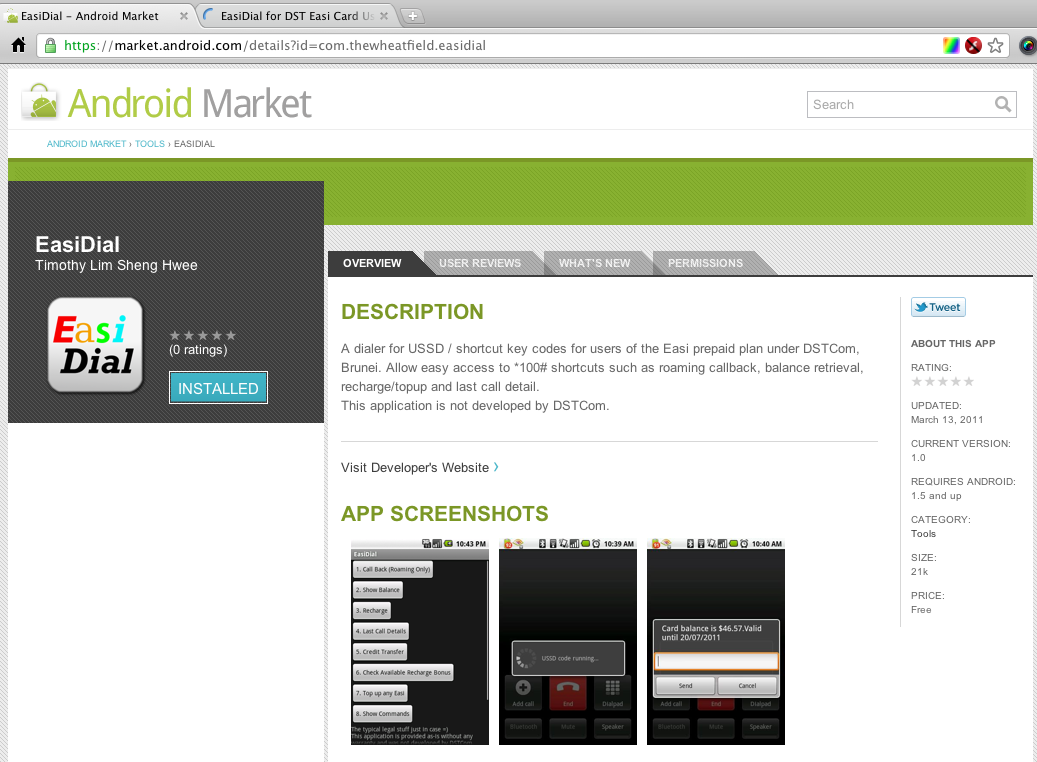
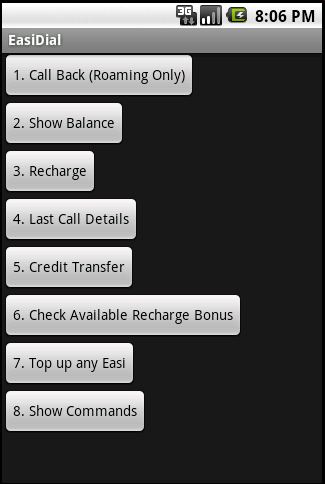
So after much time and effort (mostly making the graphics and trying to read the guidelines) my first Android app, EasiDial, is on the Android Market (or download the apk file). For more into abut EasiDial check out my original post about it. I hope to release more apps as I progress with Android development so stay tuned.
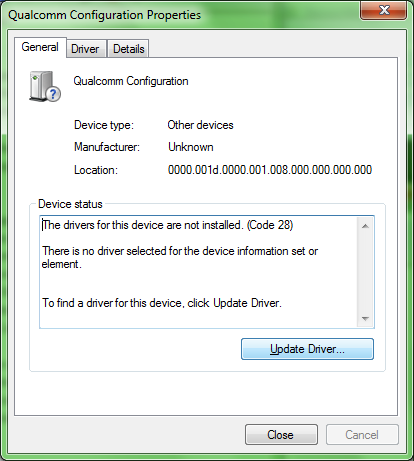
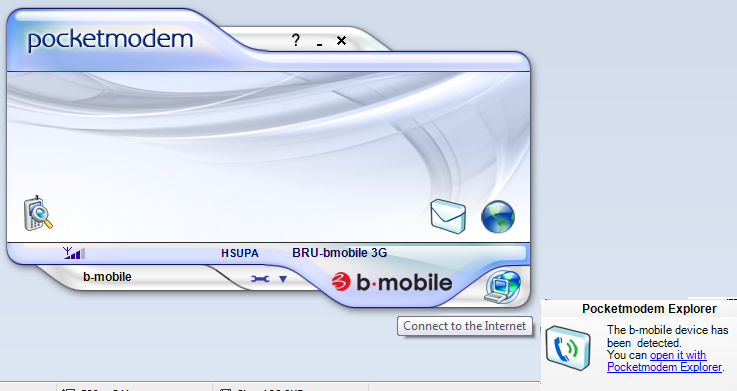
When you connect the b-mobile USB 3G modem (TechFaith Flying Angel) to a 64-bit Windows 7 computer, it does not seem to be detected / the drivers are not installed automatically. The drivers need to be installed manually after installation of the modem software as shown below.
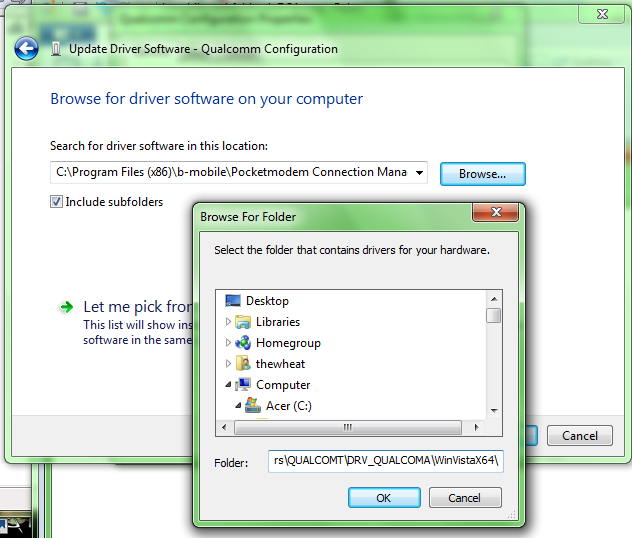
Summary: Use drivers located in “C:Program Files (x86)b-mobilePocketmodem Connection ManagerInstallDriversdriversQUALCOMTDRV_QUALCOMAWinVistaX64”. This worked in 64-bit Windows 7 Home Premium and should work in 32-bit Windows and other Windows 7 versions
Pictorial Installation Guide
Install Modem Software (SeamlessKeyLauncher.exe in CD drive that shows up when connecting the modem)
After installation, go into “Device Manager” (Control Panel > System and Security > System > Device Manager in the side bar)
Find “Qualcomm Configuration” under “Other devices” and “Mobile Connect” under “Ports (COM & LPT)”.
Right-click > “Properties” > “Update Driver”
Select “Browse my computer for driver software: Locate and install driver software manually” and then specify “C:Program Files (x86)b-mobilePocketmodem Connection ManagerInstallDriversdriversQUALCOMTDRV_QUALCOMAWinVistaX64” and click next to install the driver
Ensure that all unknown devices (I believe there are 3) and everything should work now. Connect to the Internet and be happy
@thewheat do you have DST mms settings working for Android OS?
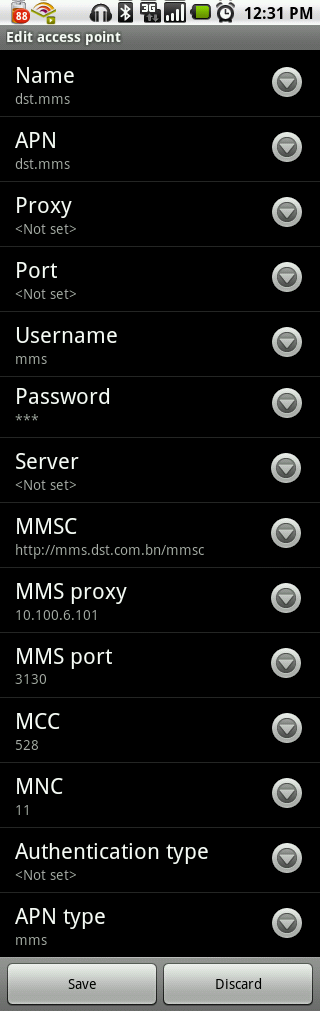
and so begun the quest to get MMS settings working on Android. Several months ago I tried configuring it on my sister’s HTC Desire, but unfortunately that fight was lost many a times. But today, triumphantly and after some fussing around I managed to get it working. Finally. Settings are below
b-mobile usersrefer here but I can’t guarantee that it works as I’m not in Brunei and don’t have a bmobile line to test
Internet APN:
Name: dst.internet
APN: dst.internet
Proxy: <Not set>
Port: <Not set>
Username: <Not set>
Password: <Not set>
Server: <Not set>
MMSC: <Not set>
MMS proxy: <Not set>
MMS port: <Not set>
MCC: 528 (for other carriers this should be different. this value was automatically set by the phone)
MNC: 11 (for other carriers this should be different. this value was automatically set by the phone)
MCC: 528 (for other carriers this should be different. this value was automatically set by the phone)
MNC: 11 (for other carriers this should be different. this value was automatically set by the phone)
Authentication Type: <Not set>
APN Type: mms
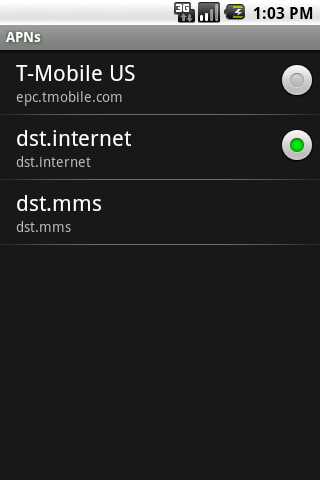
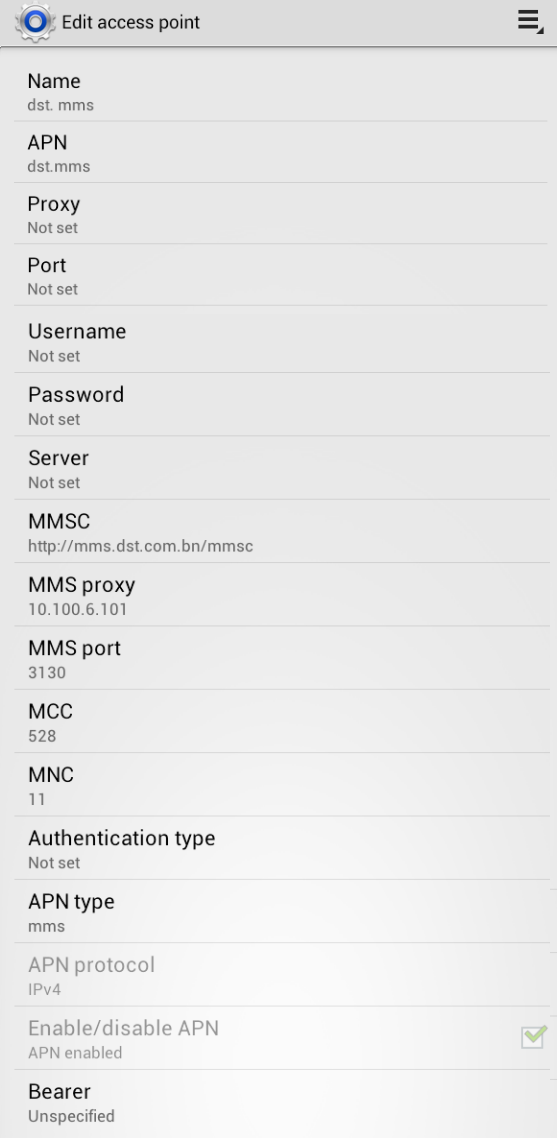
If all goes well, the APN screen will be as shown below, with only the dst.internet APN being selectable with the radio button on the right. This signifies that when mobile data is enabled, it will use dst.internet for Internet access. If APN Type of “mms” is not specified, there will be a radio button next to the dst.mms configuration which needs to be selected in order to send and receive MMSs. The problem with that is, the dst.mms does not provide Internet access so you will not be able to access the Internet unless you manually select dst.internet as the APN which is very inconvenient. This led me to find out the importance of the APN Type value that was found after trying some Googling and landing on Ausdroid’s APN page. So thanks to Ausdroid and hopefully this will help all those having trouble with their Android phone and MMS.
Full screenshot reference of APN configurations:
DST Internet SettingsDST MMS SettingsAndroid 4.x DST Internet SettingsAndroid 4.x DST MMS Settings
bmobile
I can’t guarantee these values work as I’m not in Brunei, so please test and let me know in the comments.
So yesterday I decided to do some Android development. I wanted to learn the basics of creating and app to be used for the SMARTER app that will be developed shortly. This idea for the app has been in my mind for quite a while and was spurred on when my brother who went on holiday outside Brunei asked me how to make phone calls using Easi when roaming. I knew that you couldn’t just do a normal call but had to dial a special USSD code to dial (the code being *101*Mobile Number#). Now, it’s not a hard thing to do, to jot the short code down but having a dedicated app lets you have some piece of mind knowing that it has what you need to make the call.
It’s not much: basically all that it is, is a graphical representation of all the *100# code functionality. Note that this is a beta application so there may be some issues. I have yet to try “1. Call Back”, “3. Recharge”, “5. Credit Transfer” and “7. Top up any Easi” but will try do so, in the next coming days to make sure they work. You can downoad the apk file here or get it on the Android Market (computer link)
So previously I had written about “Fixing BruDirect’s Grey Container of Emptiness” but it seems that the workaround of decreasing the font size does not work any longer (doesn’t work in Chromium / Chrome). So the BruDirect problem now has slightly changed: fro grey container of emptiness to the white box of nothingness as shown below.
You can install it in Chromium / Chrome by just clicking the link and installing as a user script (it can be later uninstalled from the Extensions page). Firefox users can use GreaseMonkey to install user scripts.
With respect to the previous post SMARTER Seeks Help to Develop App for ‘e-pad’, I did manage to meet with Malai, the founder of SMARTER, on Friday afternoon and have a discussion with him regarding my interest to volunteer for this project. I managed to detail out some specifications of the system and general information regarding their current systems. Do read the following and if you can contribute do comment below or tweet me @thewheat
Current Flipbook System
Currently SMARTER utilizes physical flipbooks in order to help autistic persons communicate. These are physical booklets that have to be brought around and can be cumbersome. The wish is to digitize this flipbook system and to be used on an Android tablet [there are 2 models currently in possession: one with a 7″ screen and the other an 8″ screen. (links are to similar Android tablets of that screen size)]
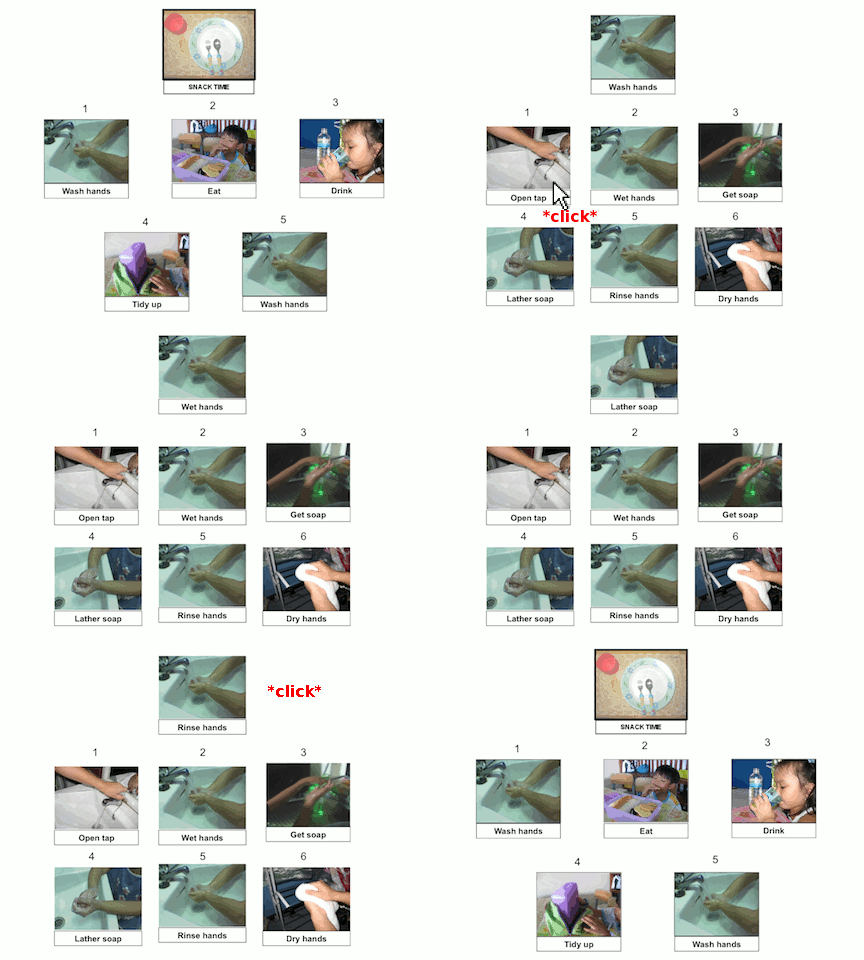
There is a self-made flipbook system using Microsoft Powerpoint that lets the user click on an action and be brought to a new slide showing the next task/action to take, but this requires a lot of manual effort in creating the flipbook and results in a large file size just for a single activity (17.7MB Powerpoint file for a 25 slide flipbook with 25 different actions/task). This is too cumbersome and needs to be improved Existing PowerPoint Flipbook
Flipbooks can be categorized into 2 categories
Non-sequential
Sequential
Current Flipbook Samples
Sequential types are used for activities such as “Washing Hands” which has a sequence which is shown below and other non-sequential activities such as “I want to go shopping”, or “I want to go home””Washing Hands” sequence:
Open Tap
Wet Hands
Get Soap
Lather Soap
Rinse Hands
Dry Hands
Flipbooks are customized per person (autistic people identify with photos if they in the photos performing that action/task)
Proposed Application Specifications:
The application should have a graphical representation of the possible actions / activities for the user to select
Each item may have sub-items (e.g. First item is “I want to go shopping”, sub-items can be “I want to go to The Mall”, “I want go to Hua Ho” or “I want to go Yayasan”)
Voice clips can be played back went an item is selected (e.g. TapToTalk which speaks the action such as “I want to go out”)
For sequential activities, there should be an indication of the “next action” to inform the autistic person that there is a pending action to do (during my discussion with Malai, he mentioned that if there is no indication of a next step they could spend all their time doing a current action/task)
Pictures and voices must be customizable and be able to be changed by the guardians of the user.
For the initial stage, I propose a web-based working demo due to the following reasons:
it will allow relatively quick changes and mockups
it will allow for discussion of features as the actual Android application is developed
it can serve as a replacement for the current Powerpoint flipbook system and thus have increased efficiency in creating new flipbooks
allow the Brunei community of web developers to play around with HTML and Javascript interactions to see what could work best for the system
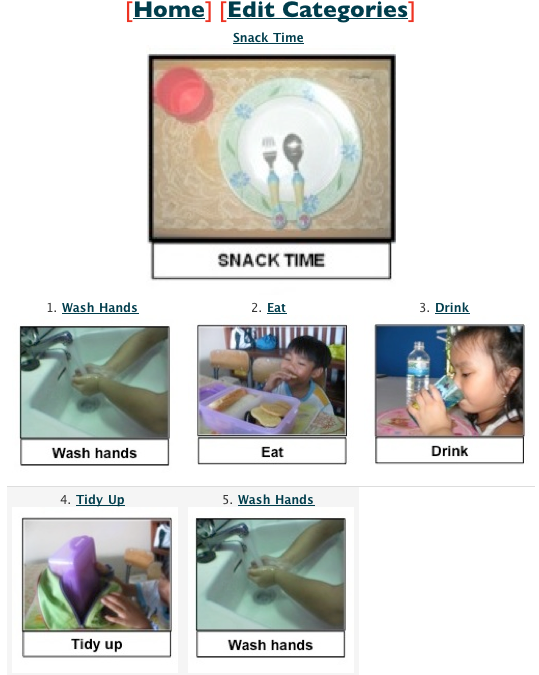
I have put together a working demo where users can add items (called categories) and specify sub-items to be displayed.
eCVS Demo SystemeCVS Demo System - Edit Category
How You Can Help
Do you have any HTML / Javascript know how? Try create a usable interface for system. I will try show them to the people at SMARTER and we can proceed from there
Perhaps when the system is more fully functional you can help will data population by adding categories, finding sample images, doing voice recordings.
Give some feedback or thoughts on anything that you see: there may be something that you have thought about that has not occurred to any of use. Knowledge sharing beneficial to all =)
If you have anything to contribute, do let leave a comment stating how you could help
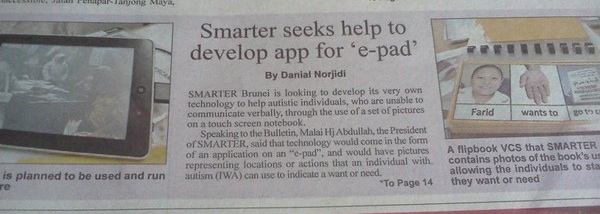
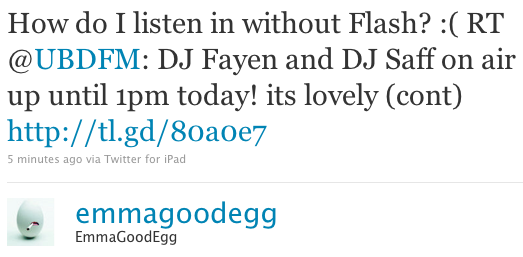
When I read this article about SMARTER Brunei seeking for help with regards to developing an e-Visual Communication System (VSC) to help their autistic individuals, I thought it would be a great opportunity for the community to help out. They plan to use an Android 2.2 tablet called an “e-pad”. I have pledged to code the application and am seeking out anybody else willing to help out in this project. So far there is some support from @emmagoodegg and @bahit. Anybody else interested do comment and specify what you can help out on.
Things to do in the near future: talk to the people in charge and get the specifications on the application.
It seems there is no easy surefire way to get the URL’s to play on all platforms. Some players recognize all URLs some recognize only some. The best bet is to try each one I’ve summarized most below:










 The Wheat Field