Quickstart: Git

Introduction

  • A distributed revision control system
  • Doesn’t require a central server to work
  • Download at: http://git-scm.com/
  • Command line tutorial below, execute code blocks in sequence
  • Lines starting with # are command line outputs or notes
  • Available on GitHub CornerGeeks/test-git

Configuration

git config --global user.name "John Doe"
git config --global user.email johndoe@example.com
git config --list

# user.name=John Doe
# user.email=johndoe@example.com
# -- other config

git config user.name

# John Doe
  • user.name and user.email is what is recorded in commit logs

Initialise

Go to a folder in command line and initialise it as a git repository

git init

# # Initialized empty Git repository in /Users/user/test_git/.git/

See current status and branch

git status

# # On branch master
# #
# # Initial commit
# #
# nothing to commit (create/copy files and use "git add" to track)    

Will show current branch and status of files in the folder

Save (Commit) files into the Repo

  • Create a file & add it to the staging area
    touch README
    git add README
  • See current status
    git status
    
    # # On branch master
    # #
    # # Initial commit
    # #
    # # Changes to be committed:
    # #   (use "git rm --cached <file>..." to unstage)
    # #
    # #    new file:   a
    # #
  • Commit the file
    git commit -m "Added README (C1)"
    
    # [master (root-commit) 93ecaa8] Added README (C1)
    #  1 file changed, 0 insertions(+), 0 deletions(-)
    #  create mode 100644 README
  • Can also commit with “git commit” then type in the editor and save

Status of Files

  1. Untracked: Will not be saved / commited into the repo (“git add filename” to stage”)
  2. Staged: To be saved into the repo (“git commit” to save into repo and make it unmodified)
  3. Unmodified: Previously committed. Currently has no changes
  4. Modified: Previously committed. Content has changed. Stage file (“git add filename”) in order to commit new version to repo
  • Cannot commit empty folders into git

Staging Files

  • A file needs to be staged before it can be committed
  • A staged file will stage the file at that point in time
    git status
    
      # # On branch master
      # nothing to commit, working directory clean 
    
    echo "line 1" >> README
    git status      
    
      # # On branch master
      # # Changes not staged for commit:
      # #   (use "git add <file>..." to update what will be committed)
      # #   (use "git checkout -- <file>..." to discard changes in working directory)
      # #
      # #    modified:   README
      # #
      # no changes added to commit (use "git add" and/or "git commit -a")
    
    git add README
    echo "line 2" >> README
    git commit -m "commits only line 1 (C2)"
    
       # [master 58001d6] commits only line 1 (C2)
       #  1 file changed, 1 insertion(+)      
    
    git status
    
      # # On branch master
      # # Changes not staged for commit:
      # #   (use "git add <file>..." to update what will be committed)
      # #   (use "git checkout -- <file>..." to discard changes in working directory)
      # #
      # #    modified:   README
      # #
      # no changes added to commit (use "git add" and/or "git commit -a")      
    
    git commit -am "auto stage tracked files and commit (C3)"
    
       # [master cbf5a24] auto stage tracked files and commit (C3)
       #  1 file changed, 1 insertion(+)

Viewing previous commit logs

git log
git log -2
git log --pretty=oneline
git log --pretty="format:%h: %s (%an)"

See previous commit states

-Checkout the state of the repo at any commit

# git checkout previousCommitHashShownInGitLog

git log --pretty=oneline

  # cbf5a24f41bb8a2f70527f5a96cea4fca411910b auto stage tracked files and commit (C3)
  # 58001d6d9c474a6e5b102cf53a1948b0f5fd213d commits only line 1 (C2)
  # 93ecaa8c1238b872827781f6136401e4b9e3849b Added README (C1)

cat README

  # line 1
  # line 2

git checkout 25555caa7589363b20b3e1b34bd7ba979c13ff57
cat README

  # line 1

git checkout master
cat README

  # line 1
  # line 2
  • Think of commits as chain of events linked to the previous commit
    C1 - C2 - C3 <-- master <-- head
  • master is the default branch and points to the last commit in the branch
  • HEAD points to you current location in the commit chain (changes when you checkout)
  • Checking out will move the head pointer and shows the state of the files at the point in time
  • “git checkout master” will point the HEAD back to master which is the latest commit
  • Note: All version of files are stored locally so you can git checkout without any network

Ignoring Files

  • Specify in .gitignore folder
    touch ignore_this_file
    git status
      # # On branch master
      # # Untracked files:
      # #   (use "git add <file>..." to include in what will be committed)
      # #
      # #    ignore_this_file
      # nothing added to commit but untracked files present (use "git add" to track)
    
    echo "ignore_this_file" >> .gitignore
    git status
      # # On branch master
      # # Untracked files:
      # #   (use "git add <file>..." to include in what will be committed)
      # #
      # #    .gitignore

Branches

  • When working on a new feature, create a feature branch, work on it and then merge it into the master branch

View Branches

git branch
    # * master

    # C1 - C2 - C3 <-- master <-- head

Create New Branch

git branch new_feature
    # C1 - C2 - C3 <-- master <-- head
    #           ^
    #           '---- new_feature

git branch
    # * master
    #   new_feature

Switch to new branch

git checkout new_feature
    # Switched to branch 'new_feature'

    # C1 - C2 - C3 <-- master
    #           ^
    #           '---- new_feature <-- head

git branch
    #   master
    # * new_feature

echo "new feature" >> README

git commit -am "new feature added (C4)"          

   # C1 - C2 - C3 <-- master
   #           |
   #           '---- C4 <-- new_feature <-- head

Merging Branches

  • Merge changes from new_feature into master
    git checkout master
    
      # C1 - C2 - C3 <-- master <-- head
      #           |
      #           '- C4 <-- new_feature
    
    git merge new_feature master
      # Updating e7578b4..13107de
      # Fast-forward
      #  README | 1 +
      #  1 file changed, 1 insertion(+)
    
      # C1 - C2 - C3 
      #           |
      #           '- C4 <-- new_feature 
      #               ^
      #               '---- master <-- head
  • As master has not been changed, the master pointer just “fast forwards”

Delete Branch after use

git branch -d new_feature

    # C1 - C2 - C3
    #           |
    #           '- C4
    #               ^
    #               '---- master <-- head

Merge Conflicts

  • Happens when conflicting changes happen between merges
      C1 - C2 - C3 - C4 <-- master
  • Create new branch and switch to it (shortcut)
    git checkout -b merge_conflict
    
    echo "merge_conflict_branch" > README
    git commit -am "one line README in merge_conflict (C5)"
    
      # C1 - C2 - C3 - C4 <-- master
      #                |
      #                C5 <-- merge_conflict  <-- head
    
    git checkout master
    echo "master add new line" >> README
    git commit -am "yet another line (C6)"
    
      # C1 - C2 - C3 - C4 - C6 <-- master  <-- head
      #                |
      #                C5 <-- merge_conflict
    
    git merge merge_conflict master
    
      # Auto-merging README
      # CONFLICT (content): Merge conflict in README
      # Automatic merge failed; fix conflicts and then commit the result.
  • Will now need to edit the README file manually to resolve conflicts
     cat README
    
       # <<<<<<< HEAD
       #  line 1
       #  line 2
       #  new feature
       #  master add new line
       #  =======
       #  merge_conflict_branch
       #  >>>>>>> merge_conflict
  • New file shows the changes between the branches.
  • Delete and clean the <<<<<<, =======, >>>>>> and text in between.
    • “<<<<<<<” : start of your current branch’s file
    • “=======” : end of your current branch’s file & start of the difference from other (merged) branch changes
    • “>>>>>>>” : end of other branch changesgit commit -am “merged merge_conflict with master (C7)”
       # C1 - C2 - C3 - C4 - C6 -C7 <-- master  <-- head
       #                |
       #                C5 <-- merge_conflict

Show changes

  • Changes that haven’t been staged
    echo "diff me" >> README
    git diff
    
      # diff --git a/README b/README
      # index 4b7c1e3..f6a1b72 100644
      # --- a/README
      # +++ b/README
      # @@ -4,3 +4,4 @@ new feature
      #  master add new line
      #  merge_conflict_branch
      # +diff me
  • Changes that have been staged
    echo "diff me again" >> README    
    git diff --cached    
      #
    git add README
    git diff --cached
      # diff --git a/README b/README
      # index 4b7c1e3..fbe856c 100644
      # --- a/README
      # +++ b/README
      # @@ -4,3 +4,5 @@ new feature
      #  master add new line
      #  merge_conflict_branch
      # +diff me
      # +diff me again

Unstage a file

echo "to be unstaged" >> README
git add README
git status

  # On branch master
  # Changes to be committed:
  #   (use "git reset HEAD <file>..." to unstage)
  #
  #    modified:   README
  #    

git reset HEAD README

  # Unstaged changes after reset:
  # M    README    

git status

  # # On branch master
  # # Changes not staged for commit:
  # #   (use "git add <file>..." to update what will be committed)
  # #   (use "git checkout -- <file>..." to discard changes in working directory)
  # #
  # #    modified:   README
  # #
  # no changes added to commit (use "git add" and/or "git commit -a")

Restore file to previous version

echo "these changes will be reset" >> README
git status

  # # On branch master
  # # Changes not staged for commit:
  # #   (use "git add <file>..." to update what will be committed)
  # #   (use "git checkout -- <file>..." to discard changes in working directory)
  # #
  # #    modified:   README
  # #
  # no changes added to commit (use "git add" and/or "git commit -a")

git checkout -- README
git status

  # # On branch master
  # nothing to commit, working directory clean    

Reset all tracked files to previous commit

git reset --hard
  • Deletes all changes since last commit
  • Only affects tracked files
  • Untracked files do not get deleted

Working with remotes

  • (e.g. GitHub, your own server, etc)

Push Changes to Remote

  • Add a remote to you bare repo
  • “git push repo_name branch_to_push”
    git remote -v
      # 
    git init ../git.git --bare
    git remote add my_repo ../git.git 
    git remote -v
    
      # my_repo  ../git.git (fetch)
      # my_repo  ../git.git (push)
    
    git push my_repo master
    
      # Counting objects: 24, done.
      # Delta compression using up to 2 threads.
      # Compressing objects: 100% (14/14), done.
      # Writing objects: 100% (24/24), 2.07 KiB | 0 bytes/s, done.
      # Total 24 (delta 1), reused 0 (delta 0)
      # To ../git.git
      #  * [new branch]      master -> master

Clone from a remote repo

  git clone ../git.git ../git_clone
  cd ../git_clone
  git remote -v
     # origin    /Users/user/test_git/../git.git (fetch)
     # origin    /Users/user/test_git/../git.git (push)      
  • “origin” is the default name of your git repo that you have access to

Download changes from a Remote URL

  # git fetch remote_name
  git fetch origin
  • Does not merge into your existing code, just downloads all changes locally so can merge / checkout

Merge Changes from Remote Branch

  git fetch origin
  git merge origin/master master
    #  **fix any conficts if needed and commit**
    # can also do "git pull origin"

Workflow for pushing to a Repo

  • Clone from Repo
    git clone url_to_git_repo
  • Go into directory and make changes
    cd url_to_git_repo
    echo "cloned" >> README
  • Commit your changes
    git commit -am "my changes"
  • Fetch and merge from origin
    git pull origin
  • Fix conflicts (if any)
    git commit -am "merged origin to masteR"
  • Push to origin
    git push origin master

GitHub Pull Requests

  • Fork a project
  • Clone locally
  • Add remote to project you forked from (typically called “upstream”)
    git remote add upstream git.repo
  • Make your changes
  • Make your commit
    git pull upstream/master master
    *resolve conflicts*
    git commit
  • Use web interface to create pull request
  • Go to your fork
  • Sidebar > Pull Request

Note: Markdown was a pain. It rendered the HTML but a mix of tabs and spaces and even manual spacing caused inconsistent behaviour.
ITLT: Ultrabook & the latest Intel HD Graphics

So I’m looking for a thin and lighter laptop like the Macbook Air and looking at all the ultrabook and it’s sad to see that it seems that only Apple combines the latest 4th generation Haswell Intel processor (with better battery life) with Intel HD 5000 Graphics (or above) at a reasonable price. The HD 5000 series have a pretty decent performance advantage over the 4000 series (also see notebookcheck.net stats).

Sony, Dell, Lenovo, HP, Asus and Samsung all seem to have Haswell CPUs but paired with the older 4000 series GPU instead of the latest 5000 series with a few exceptions in bold. (These are based on Australian sites and perhaps other countries may have different models)

So it seems there are only 2 non-Apple notebooks with HD 5000 series and both are high spec’d. Strangely the i7 model of the HP EliteBook Folio 1040 G1 with the HD 5000 doesn’t seem available and the one that i7 model with the HD 4400 goes for AU$3,199 (HP). The Asus Zenbook UX301LA model with the HD5100 seems to be super tricked out and is AU$2,865 (Scorptec) with the regular i5 version at $2,499 (AsusNotebook.com.au). The Airs start at AU$1,099  (11″) / AU$1,249 (13″) with a fully spec’d 13″ at AU$2,099 (i7, 512GB SSD, 8GB RAM). 

Even when ignoring the HD 5000 difference, I think all ultrabooks don’t meet the Air’s competitive price and spec combination (even when the Airs are configured with better RAM / CPU / storage). Hopefully with CES coming up, and the announcement of new ultrabooks, there may finally be a price competitive ultrabook to the MacBook Airs.


Note for personal future reference: 4th generation Haswell CPUs for each Intel Graphics series:

Forms and Trust

I was forwarded a link to BELIA BRUNEI BERBAKTI – “Wira Kebajikan” a.k.a. Devoted Bruneian Youth – “Heroes of Welfare” (thanks Brunei Times for the translation in this article) and it seems that they have a good intentions but after all the NSA prism stories and the general rise in privacy awareness, we should be careful about the data we give away.

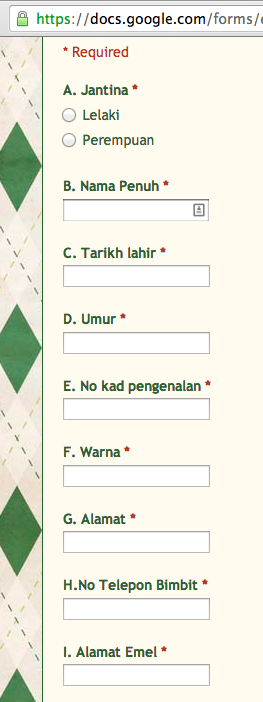
Part of their sign-up form is shown below and part of the required details are:

  • Gender
  • Full Name
  • Date of Birth
  • Age
  • IC Number
  • IC Colour
  • Address
  • Phone Number

Image

I’m personally not comfortable giving away so much details to an organisation that I know little about. But it also raises the question of why is all this information necessary? Perhaps some transparency as to why all these details are necessary. I under the reason for name, gender and contact details but not the rest.

I also wonder if I’m more averse to this because it is an online form. If it were a physical form, I think I would be more accepting (I possibly have even given up such details before in the past without thinking too much of it). Note to self: when organising future events be transparent with details.

MongoDB – Quick Start Installation and Usage

2 weeks back I attended yet another RHoK Melbourne event and ended up working on a project with NodeJS & MongoDB: both unfamiliar territories for me and thought it would be a good opportunity to create a quick start guide: here is the MongoDB one

Installing and Running the Server

  1. Get the binaries on the download page (http://www.mongodb.org/downloads) and get the necessary download for your platform (Windows/Linux/OS X/Solaris). Following commands will be based on OSX but similar actions can be one on other platforms
  2. In a terminal, navigate to where you downloaded the package and extract it
    cd ~/Downloads
    tar -zxf mongodb-osx-x86_64-2.4.8.tgz
  3. Create a folder to store your database
    cd mongodb-osx-x86_64-2.4.8
    mkdir db
  4. Start the server specifying the folder created
    bin/mongod --dbpath=db

Terminology coming from the typical relational database world

Relational Database MongoDB
Database / Schema Database
Table Collections
Row Record
Field / Column Field

Quick start of the MongoDB Shell

  1. Connect to the server
    Navigate to the folder where the files are extratcted, run the mongo Javascript shell  (which has tab completion)

    cd ~/Downloads/mongodb-osx-x86_64-2.4.8
    bin/mongo
  2. List / show databases
    show dbs
  3. Select a database (no need to created a database)
    > use unicorn
    switched to db unicorn
    > db
    unicorn
  4. Show collections (tables)
    show collections
  5. Inserting a record (row in a table)Collections do not need to be initialised, they are auto generated.
    Below shows the output of the Mongo shell. system.indexes contains indexes for collections

    > show collections
    > db.unicorns.insert({name: 'Aurora', 
       gender: 'f', weight: 450})
    > show collections
    system.indexes
    unicorns

    Mismatched fields

    db.unicorns.insert({name: 'Aurora', gender: 'f', weight: 450})
    db.unicorns.insert({name: 'Leto', gender: 'm', 
        home: 'Arrakeen', worm: false})

    Arrays

    db.unicorns.insert({
        name: 'Solnara', 
        loves:['apple', 'carrot', 'chocolate']})
  6. Listing / Querying records
    > db.unicorns.find()
    { "_id" : ObjectId("52b65132eb122da0e6dd19a9"), "name" : "Aurora", "gender" : "f", "weight" : 450 }
    { "_id" : ObjectId("52b6519127026146f128de90"), "name" : "Leto", "gender" : "m", "home" : "Arrakeen", "worm" : false }

    Items have _id auto generated. No need to set an auto increment field.

    Filtering and field selection

    db.collection.find(
       {andedFilters}, 
       {fieldWith1AsShow0asHide}
    )

    Search by name and show only name and worm  fields

    > db.unicorns.find({name: 'Aurora'}, {name: 1, worm:1, _id: 0})
    { "name" : "Aurora" }
    > db.unicorns.find({
        $or: [{name: 'Aurora'}, {'name': 'Leto'}]}, 
       {name: 1, worm:1, _id: 0}
    )
    { "name" : "Leto", "worm" : false }
    { "name" : "Aurora" }

    Paging and Limiting results

    db.unicorns.find().skip(1).limit(2)

    Record Counting

    db.unicorns.count()
    db.unicorns.find({'name' : 'Aurora'}).count()

    Distinct

    db.unicorns.distinct('name')
    db.unicorns.distinct('name', 
       {$or: [{'name' : 'Leto'}, {'name':'Aurora'}]})
  7. Query Selectors
    1. Comparison:
      1. $gt / $lt ($gte / $lte): Greater/Less than (or equal).
      2. $ne, $in / $nin: Not equal. In / Non in
    2. Logical: $or, $and, $not, $nor
  8. Updating:
    Update first matching record

    db.unicorns.update(
      { name: 'Aurora' }, 
      { $set : { weight: 10 } } 
    )

    Update all matching records

    db.unicorns.update(
      { name: 'Aurora' }, 
      { $set : { weight: 10 } },
      { multi: true }
    )

    Update matching record but insert if doesn’t exist

    db.unicorns.update(
      { name: 'Roooooodles' }, 
      { $set : { weight: 10 } } ,
      { upsert: true }
    )
  9. Deleting:
    Deleting all records:

    db.unicorns.remove()

    Delete all matching records

    db.unicorns.remove({name: 'Aurora'})

    Delete only first matching record

    db.unicorns.remove({name: 'Aurora'}, true)
  10. Drop collection
    db.unicorns.drop()

Other Considerations

  1. No joins. But has embedded documents
    > db.unicorns.insert({name: 'Aurora', gender: 'f', weight: 1450, owner: {'name': ['You', 'Me']}})
    > db.unicorns.find({'owner.name': 'Me'}, {'name': 1, 'owner.name': 1, _id: 0})
    { "name" : "Aurora", "owner" : { "name" : [ "You", "Me" ] } }

Further References

Brunei Geek Meet and RHoK (Random Hacks of Kindness) Brunei

Image

Today marks the first meetup of Brunei Geek Meet (http://www.meetup.com/BruneiGeekMeet/), a meetup where I hope to start fostering the meetup culture that I’ve been experiencing here in Melbourne. We aim to be run by the community for the community. I believe that everybody has something to share and I want Brunei Geek Meet to be a platform for people to contribute to the community as a whole: be it as a learner, as a presenter, as a mentor, as a discussion starter, etc. We are more technology oriented (but are open to geeks of any kind!) and we intend to have talks, code labs, hacknights/days and other events where people can attend, learn and contribute in their own ways.

I am also please to announce that we have a license to hold a RHoK event in Brunei. With the tagline “Hacking for Humanity” RHoK believes in providing a platform for people (particularly technologists) to do social good and make the world a better place.

Image

This is done by hackers working to solve a community problems which can be used in the region of the problem, and even to a bigger audience of the World. When I first attended RHoK, it brought me back to the days I was working on the SMARTER eCVS and I want RHoK Brunei to be of the same nature: for us to see a local need and for technologists to team up to work on a solution.

With that, I would like to extend an invitation to any individuals or organisations that are facing or know of problems that could use a technological solution to get in touch with me and so we can kick off some discussion on how the developer community of Brunei could help. My contact details are tim@thewheatfield.org / @thewheat. I truly hope that you can be a part of RHoK and help contribute to the betterment of the Brunei developer community by providing a real world problem that we, as a community, can get together and help solve.

Considering Android Development: A bit of basics and then some

Considering Android Development Slidedeck

This was the talk I gave at GDG Brunei DevFest 2013 and I aimed for the content to be basic and accessible with a workable app, so that the attendees could use it as a starting off point for the hackathon, should they want to learn how to build an Android app.

I should have published the APK on the Play Store before the talk so that people could have downloaded the app and see what I was building as part of the talk

Source code: https://github.com/CornerGeeks/GDGBruneiDevFest2013/

GDG Brunei DevFest 2013 – Hackathon

It was the 9th and 10th of November that GDG Brunei DevFest took place and I was lucky enough to be physically there to help run the event and Hackathon. It was a fun, and as with all things tech, there were technical difficulties but you live and you learn.

We split the hackathon into 2 sections: 1 for competing and 1 for learning. I tried to take the OpenTechSchool approach by giving them some resources and being around if they had any questions. I have to say that I really did enjoy going from table to table to see what people were working on and interact with them.

The hackathon document we shared is available at http://gdg.com.bn/hackathon_doc and is a work in progress. Below is some feedback I have for the teams that participated in the hackathon and I myself do welcome any feedback on the way we ran the event and the document shared.

RTB Connect

  • A good consolidation of links, but need to work on focus and polish (be more than just a collection of links to the website)

ITB+

  • Feature complete (minus the demo fail, given benefit of doubt that it works) and solves their problem at hand
  • Had good future expansion idea of using GCM for messaging
  • Suggestion to possibly use 3rd party logins (e.g. Facebook / Twitter / OpenID) as seemed like yet another login mechanism
  • Felt that the novelty and community aspects were lacking

Prograstinators : Foodish

Order Easy

  • A good use of WordPress as the CMS
  • Extra points from me for using the Raspberry Pi!
  • Seems like a good business solution but felt community aspect was lacking

Panda Codes

  • Would suggest trying to use some responsive web design frameworks like Twitter Bootstrap / Zurb Foundation to make it usable for mobile
  • I think I saw that if a user registered, they could see the entire user registration listing. Regular users shouldn’t see such information and that should only be shown to admins
  • -Presentation tip: prefill the form fields before hand. Took quite a while to fill in the form, and with a 2 minute presentation limit, it just wastes time

Find me Food

  • Good effort and hope you all learned how to build a web app. Keep at it and learn

MJL

  • A nice native Android app look
  • Liked the crowd sourcing nature to solve a problem which contributed to the novelty and community aspects
  • Obviously wasn’t fully complete but the finish and design did look nice and seems to be on the right track
  • Looking forward to seeing it on the Play Store

WTS

  • Nice use of GPS location and extracting data from Google maps
  • A good effort and the social good is there

If any of the participants would like to plug their own company / apps / on-goings, feel free to post a comment below. We also hope to have more events like this in the future, with a community aspect to it, so if you have ideas just throw them in and we’ll see what we can do! Hope to see you all at the next corner…

Melbourne Fringe Festival – Unofficial Offline Guide

Melbourne Fringe Festival Unofficial Offline Guide
http://thewheatfield.org/mff/

A couple of weeks back it was time for the Melbourne Fringe Festival again and I was keen to see some shows and there was a heck of a lot of events to go to that it was pretty overwhelming to search through and I had issues with actually looking for events. Thought it would be a good time to learn some Python and use Zurb Foundation.

Source Code available at https://github.com/thewheat/melbourne-fringe-festival

Image

Problems I faced when using the Melbourne Fringe Festival website

  • A lot of data 300+ events and with max items per page, there was still 9 pages
  • Searching relied too much of going to the event detail page, and having over 300 events, this would be very time consuming
  • Had to go to event detail page to view:
    • description of event (had to view page in order to find what the event is about: title and subtitle was not enough information)
    • dates
    • prices
    • venue
  • Couldn’t search by budget

Features of the Unofficial Offline Guide

  • Viewing all events on 1 page
  • Show all necessary info on list page (event description, dates, prices, venue)
  • Search by date, category, venue, cost
  • Offline access
  • Should work with lower end phones (pauses between searches)Image


Use your Android Phone as a Wireless Adapter for your Computer

So my Linux install going messed up somehow and I was left with no wireless driver installed. I know that you can use Android phones to USB tether mobile data (e.g. 3G/4G/LTE) but I didn’t know that you can do the same over WiFi!

Image

Image

Now while in OSX I’m pretty sure it worked out of the box previously, it seems that you need now need to download the HoRNDIS driver. With Linux (Ubuntu) it worked out of the box and in my previous usage of USB tethering, Windows should work automatically as well.
