Using your phone as a Bluetooth modem in Linux

Software Package Requirements:

  • wvdial
  • bluez
  • bluetooth

Install packages for Ubutun/Debian systems
sudo apt-get install wvdial bluez bluetooth

Steps to get your Bluetooth modem working

  1. Turn phone’s Bluetooth connection and set to discoverable mode
  2. Scan for your device:
    sudo hcitool scan
    Result:
    Scanning ...
    00:11:22:33:44:55 MyPhone
  3. Search device to see if supports Dial-Up Networking (DUN) for use as a modem. Look out for RFCOMM channel
    sdptool search --bdaddr 00:11:22:33:44:55 DUN
    Result:
    Searching for DUN on 00:11:22:33:44:55 ...
    Service Name: Dial-Up Networking
    Service RecHandle: 0x1000f
    Service Class ID List:
    "Dialup Networking" (0x1103)
    Protocol Descriptor List:
    "L2CAP" (0x0100)
    "RFCOMM" (0x0003)
    Channel: 4
    Language Base Attr List:
    code_ISO639: 0x454e
    encoding: 0x6a
    base_offset: 0x100
    Profile Descriptor List:
    "Dialup Networking" (0x1103)
    Version: 0x0100
  4. Bind the modem on the RFCOMM Channel to a device
    sudo rfcomm bind /dev/rfcomm0 00:11:22:33:44:55 4
  5. Dial and connect (ensure your wvdial configuration is correct, for sample see below)
    sudo wvdial dstbt
    Result:
    --> WvDial: Internet dialer version 1.60
    --> Cannot get information for serial port.
    --> Initializing modem.
    --> Sending: ATZ
    ATZ
    OK
    --> Sending: AT+CGDCONT=,,"dst.internet"
    AT+CGDCONT=,,"dst.internet"
    OK
    --> Modem initialized.
    --> Sending: ATDT*99#
    --> Waiting for carrier.
    ATDT*99#
    CONNECT
    ~[7f]}#@!}!} } }2}#}$@#}!}$}%\}"}&} }*} } g}%~
    --> Carrier detected. Waiting for prompt.
    ~[7f]}#@!}!} } }2}#}$@#}!}$}%\}"}&} }*} } g}%~
    --> PPP negotiation detected.
    --> Starting pppd at Wed Aug 19 23:45:04 2009
    --> Pid of pppd: 17558
    --> Using interface ppp0
    --> local IP address 10.84.2.128
    --> remote IP address 10.6.6.6
    --> primary DNS address 202.152.64.27
    --> secondary DNS address 202.152.64.28
  6. You’re connected! Surf and enjoy the Internet!

Sample wvdial configuration file

  • Stored in ~/.wvdialrc
  • Change “dst.internet” to your provider’s APN

[Dialer dstbt]

Modem = /dev/rfcomm0 # modem device
Baud = 115200 # 921600 / 460800 / 115200 / 57600

Init = ATZ # far card with no PIN
# Init = ATZ+CPIN=”0000″ # for card with PIN, replace 0000 with your PIN

# If you know your ISP’s APN, specify it instead of YOUR_ISP_APN below.
# There’s also an APN table at https://wiki.ubuntu.com/NetworkManager/Hardware/3G .
# use one of the following 3 options. change to your providers APN
Init2 = AT+CGDCONT=,,”dst.internet”
#Init2 = AT+CGDCONT=1,”IP”,”YOUR_ISP_APN”
#Init2 = AT+CGDCONT=1,”IP”

# Most services/devices dial with *99# . A few seem to require *99***1#
Phone = *99#

# These often suffice, but your ISP might require different details. They’re
# often dummy details used for all users on the ISP, frequently the ISP’s
# name, but some ISP’s do require you to use a real username and password.
# any details possible
Username = internet
Password = internet

PS: bmobile customers change APN to “bmobilewap”

App of the Day: OpenWithAdd

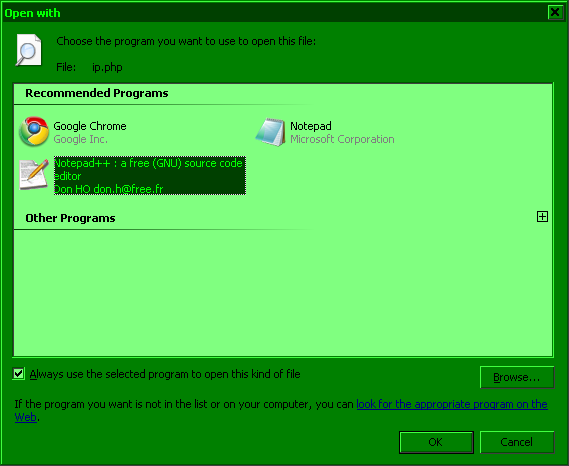
Have a problem registering an application with a file type? Selecting the application in the open with dialog box not working? That was my frustration with my Windows 7 install… until I found this cool application: OpenWithAdd

OpenWithAdd screenshot

To register a file type with an application:

  1. Open OpenWithAdd and select the application
  2. Click "Register"
  3. Go to Explorer, right click your file > Open with > Choose default program… (the application you added should now also be listed in the Open with submenu)
    Screenshot: Right click file > Open With > Choose default program...
  4. Select the program, check "Always use the selected program to open this kind of file" and click "OK"
    Screenshot: Select application > check 'Always use the selected program to open this kidn of file' > click 'OK'

Source: Vista: Cannot associate file with program, Default Programs problem

Kudos to the developer for making the application portable, just unzip and run!

Deleting Windows Services

In the process of installing MySQL I ran into a few errors leaving me with an added service that didn’t work. So now had to remove it:

In a command prompt (Start > Run > type "cmd", enter), type the following:

sc delete serviceName

Notes:

  • Ensure you use the Service Name, not the Display Name, i.e. in the

    Service Name vs Display Name
  • Ensure the service is stopped
    • Go to Service listing. This can be done in the following ways:
    • Start > Run > type "services.msc", enter

      or
    • Right click "My Computer" (XP) or "Computer" (Vista onwards)

      > Manage > Services and Applications (in left pane) > Services
  • Find the service and stop it
  • This was done on Windows 7 RC, thus item names may differ in XP / Vista

    Brunei.fm

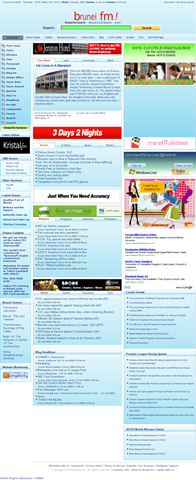
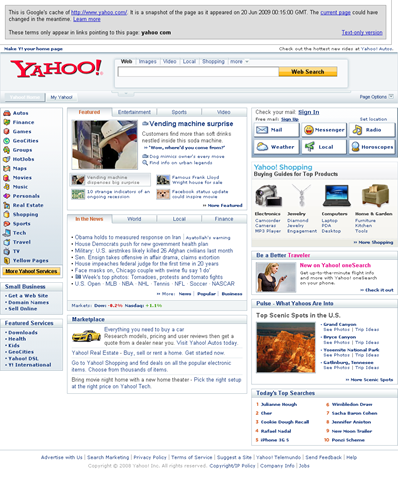
    I stumbled upon Brunei.fm one day on Twitter and was wondering what exactly they were up to. My brother mentioned it looked a lot like Yahoo before the current design change. A portal service as seen from the wealth/clutter of links, it was hard to understand what they are trying to do.

    Brunei.fm vs Yahoo Homepage:
    Brunei fm homepage screenshot Yahoo! homepage screenshot

    I guess the one of the main attractions of the site would be the Brunei search engine of local content. A huge feat to try to compete against the behemoth that is Google. I tried searching for a few terms such as "ministry of health", "ministry of education", "ministry of finance" and "anti corruption bureau" and found that Google provided much better results especially with the "pages from Brunei (halaman dari Brunei)" option.

    Brunei.fm Search Engine:
    Brunei.fm Search Engine banner ad

    Google’s Brunei content search:

    image

    Brunei.fm seems to be searching through a list of known Brunei websites which could be a good thing for Brunei websites with good content but not good Google Juice.

    Brunei.fm has a ton of features and some interesting ones are

    • Brunei Community Directory: a list of communities/organizations in Brunei
    • Yellow Pages: the yellow pages with ability to add your own entry
    • Your News: user submitted content
    • News: regular news stories nicely categorized
    • Online office: have your operating system / desktop with all your files available to you anywhere with Internet access, with ability for word processing and personal information management features

    Running on Joomla, WordPress (with Buddypress), eyeOS, Jamroom, osTube and possibly other solutions, Brunei.fm is making use of currently implemented technology to provide a wealth of features. The site as a whole is still pretty in an on-going process as I’ve seen many things that aren’t working either giving links to non-existent pages (404: Services > Contact Us) or non working features (Yellow Pages registration not working). Relying on different underlying technologies one hopes that they would unify the login process but alas this isn’t the case making Brunei.fm a portal of disjointed services, each requiring a login of its own. They need to try to implement OpenID authentication for each of the services.

    But all in all Brunei.fm is an interesting portal to keep an eye on to see what else they are going to be up to.

    LCISOCreator – Copy Protection Error

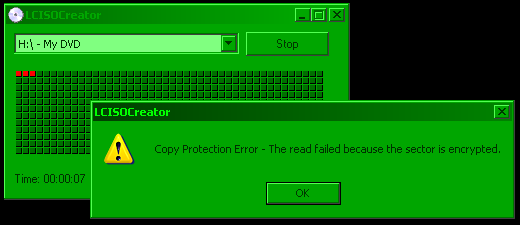
    I do not condone piracy however I believe in being able to create backup copies of CD/DVDs I have purchased. So I was doing a straight ISO copy of a DVD the other day using LCISOCreator and got the following error message: “Copy Protection Error – The read failed because the sector is encrypted”.

    image 

    So I thought to myself, that in order to actually play the DVD, the data (in the sector) should be decrypted and then sent on to the DVD playing software in order to render on screen. So I tried this…. playing the DVD and leaving it at the root menu and start copying using LCISOCreator. And it worked! Sweet!

    Mobile Internet (DST) in Ubuntu with a Nokia E51

    I heard about Ubuntu’s 3G support quite a while back, but yesterday was the first time I actually tried it out. This was done using a Nokia E51 connected via USB with a DST Easi card with Ubuntu 9.04. Please note of the importable troubleshooting note below

    1. Connect the phone and set connectivity mode to “PC Suite”
    2. A configuration wizard should pop up as shown below:

      New Mobile Broadband Connection - Welcome screen 

      If the wizard does not show, start it manually by following these steps:

      1. Go to the Ubuntu Menu: System > Preferences > Network Connections
      2. Go to the “Mobile Broadband” tab and click the “Add” button
        Network Connections - Add a new Mobile Broadband Connection
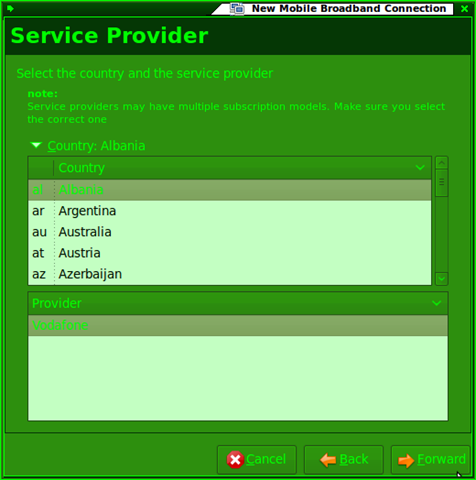
    3. Select the any setting as they will be manually edited later. For this example I chose Albania and Vodafone as the country and provider respectively as it has minimal configuration changes
      New Mobile Broadband Connection - Select Service Provider
    4. Give the connection a name: “dst.internet”
      New Mobile Broadband Connection - Name it / Summary
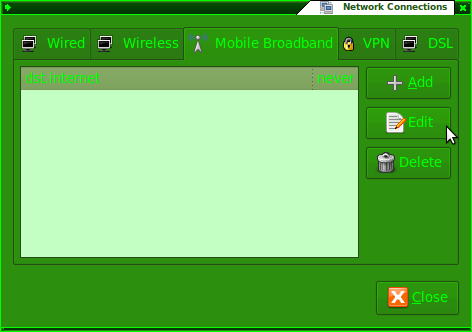
    5. Go to Network connections (System > Preferences > Network Connections) and edit the newly created connection
      Network Connections - Edit new connection
    6. Ensure the configuration is as follows:
      • Number: *99#
      • APN: dst.internet
      • Username and password can be left blank
      • If the Albania > Vodafone settings were used, only the APN needs to be changed

      Edit connection - Mobile Broadband Tab

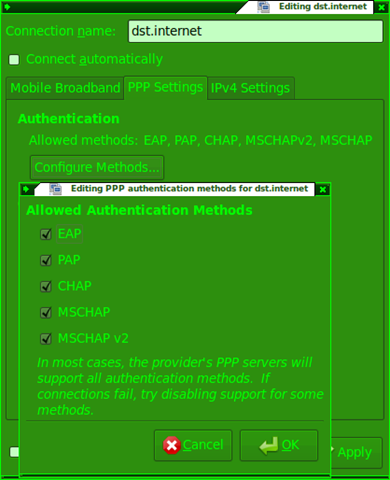
      Edit connection - PPP Settings Tab

      Edit connection - PPP Settings Tab - Configure Methods...

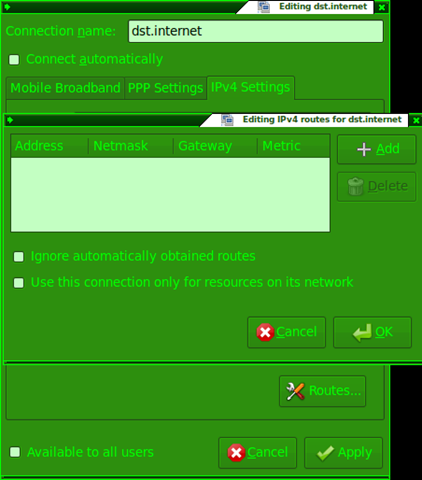
      Edit connection - IPv4 Settings Tab

      Edit connection - IPv4 Settings Tab - Routes 

    7. Left click the network manager applet and connect to the newly created “dst.internet” connection

      Connect to dst.internet via Network Manager applet

    8. Enjoy your mobile broadband =)
      Connection Information 

    Now I wonder if this works for the DST Go! and bmobile Zoom! modems….

    Troubleshooting Note

    If you have a problem connecting please note this bug that causes the connection to timeout if there is a shell running as root. So close all terminals open. It took me 2 hours to figure this out so I hope you won’t have to suffer the same.

    Don’t forget us humans

    Taken from critiques on Business Process Reengineering (BPR) from Wikipedia


    The most frequent and harsh critique against BPR concerns the strict focus on efficiency and technology and the disregard of people in the organization that is subjected to a reengineering initiative. Very often, the label BPR was used for major workforce reductions. Thomas Davenport, an early BPR proponent, stated that:

    “When I wrote about “business process redesign” in 1990, I explicitly said that using it for cost reduction alone was not a sensible goal. And consultants Michael Hammer and James Champy, the two names most closely associated with reengineering, have insisted all along that layoffs shouldn’t be the point. But the fact is, once out of the bottle, the reengineering genie quickly turned ugly.”

    Michael Hammer similarly admitted that:

    “I wasn’t smart enough about that. I was reflecting my engineering background and was insufficient appreciative of the human dimension. I’ve learned that’s critical.”


    “insufficient appreciative of the human dimension”: I think I suffer from this at times, many more than not

    More Lessons in Web Security / Best Practices

    So one day I was browsing the Brunet homepage and saw the link to Live Webcams around Brunei, interested I clicked the link only to be greeted with the following meaningless page in Firefox.

    Page view in Firefox

    So thinking they implemented some IE specific page I loaded up IE and was prompted to install an Active X control. I looked at the source code of the page to figure out what it was using and was interested in what I saw

        NV1.MediaSource   = "61.6.207.177" ;
        NV1.MediaUserName = "Admin" ;
        NV1.MediaPassword = "123456" ;
        NV1.Httpport      = 80 ;
        NV1.RegisterPort  = 6000 ;
        NV1.ControlPort   = 6001 ;
        NV1.StreamingPort = 6002 ;
        NV1.MulticastPort = 5000 ;
    
        NV1.ASEMediaSource   =  "202.160.45.35";
        NV1.ASEMediaUserName =  "Admin";
        NV1.ASEMediaPassword =  "123456";
        NV1.ASEControlPort   =  6001;
        NV1.ASEStreamingPort =  6002;
    

    IP addresses and user credentials… So decided to do some more exploring and found out the code is basically some copy-paste work done from ACTi documentation on their IP webcams. Found out they have freely available tools to interact with the web cams themselves. While some utilities only allow scanning web cams on the same network I found that the Snapshot utility allowed me to specify the IP addresses and user credentials and was able to generate snapshots at specific intervals. I wish they used this instead of the live streaming webcam option as it helps save on the bandwidth and makes it much more accessible from any browser that supports images, but then they’ll have to run the application on a Windows server. Oh well

    After some more poking around on the ACTi site and the documentation for their webcam’s API I found out that you could visit a specific URL (eg http://61.6.207.177/cgi-bin/system?USER=Admin&PWD=123456&SYSTEM_INFO) on the server and retrieve (and possibly even change) information on webcam. Also noticing the Httpport variable I tried visiting the webcam IP (http://61.6.207.177) and was greeted by the web configuration page as shown below.

    Web cam web configuration page

    Entering the Admin user name and password I was given full reign on the configurations of the webcam including specifying new users and even changing the password of the Admin user itself, thus rendering all the webcam pages useless. So I email the people over at Brunei via the contacts page and got no responses. Called them up the following week and the lady on the phone said she’d refer me to a technician and that I should just wait for a call from them. A few hours later I got a call from a technician seeking to clarify this problem I found and thanked me for my mail and the next day when I checked the webcam pages it was all rectified! Nice swift work people at Brunet. A round of applause.

    Lessons to be learnt:

    1. Change your default settings/password/user credentials: obvious as it is, quite a few places in Brunei that have free wireless, have not changed their passwords. Using a default passwords page found easily online can easily allow any unauthorized users to change settings and even deny users access to the service or possible DNS spoof users (meaning that even if your browser says you’re on paypal.com or facebook.com it could still be a malicious site that farms your user credentials as it points a different IP address altogether).
    2. Understand what you are doing and the security concerns that will arise. In this case, don’t just copy and paste code, see that all is working and be done with it. Analyzing the code clearly shows an administrator login. Understand that any visitor to the page can view the source and see this user credentials. I guess the fact that when people see that it works they can’t be bothered about fiddling with it, in fear of screwing things up. Another scenario would be when somebody wires up their wireless router, switches on the power and all of a sudden they can surf wirelessly they don’t care about setting a wireless password, let alone changing the router configuration password. The old saying “if it ain’t broke, don’t fix it”, just doesn’t work in security(software/ firmware/ hardware needs to be updated to fix security vulnerabilities)

    These are just a few simple lessons that we can learn but in the field of computer security there is so much more to be afraid of and we as users need to be more knowledgeable. Places you can start would be Security Now and for the slightly more enthused/technical PaulDotCom Security Weekly. For the more layman kind of person do check out Security Now transcripts, show notes and old episodes as they are very useful. Both these shows are podcasts which in essence is like recorded video or audio that you can watch or listen to anytime you wish: consume the shows you want, at your own viewing pleasure – anytime, anywhere. All you need is a computer, or for audio shows: an audio/MP3 player, for video shows: a video player. A misconception is that iPods are needed to listen/watch podcasts, and that is just plain WRONG. At the least you can use your computer to listen or watch them.