This Week in the Life of a Tech Curious Guy: Pilihan FM Online Streaming – Part 1

Hearing the calls of people wondering how to listen online to Pilihan FM 95.9, a national news radio station. Previously there was an online streaming feature but it seems to have broke. I managed to track down the website page that I presumed used to stream online but it just gave a Flash player that did nothing after pressing the “Play Radio” button. So being curious as I am, I took a look at the source of the page to see if there was any hints of the URL that they used for streaming. Sadly there was nothing, just the .swf Flash file, meaning that the Flash file itself has the necessary information to start the stream. What I needed was a Flash decompiler.

A quick Google search and I found flash-decompiler on Google code, which so conveniently is an Adobe Air application and thus is cross platform. Typically tools such as these are built for Linux or Windows, but I’m running OS X so at least I didn’t have to use another computer or boot up a Virtual Machine to use the tool. The decompiler was easy enough to use: just supply the location of the Flash file and click “Parse” and it greeted me with 3 tabs: “Header Section”, “Tags” and “AS3 Classes”. The “Tags” tab seemed to have quite a bit of information so slowly I took a look at it, trying to find what the play button did and if there was any URL that it processed. After a bit of search viola! mms://202.160.15.86/pilihan was found!

I tried to load the stream, but there was no response. So it seemed that this was a dead stream that no longer exists or that the streaming device / configuration just died. So this round 1 of exploration is deemed as a failure results-wise as the goal of being able to stream the radio online was not met.

So what do you do, when services provided by others don’t work? Well you roll your own solution! In the continuation post we shall learn how to stream audio from a device to the World thanks to the wonders of the Internet. Stay tuned!

USB Modem Lock-in: The Reason to buy a 3rd party 3G USB modem

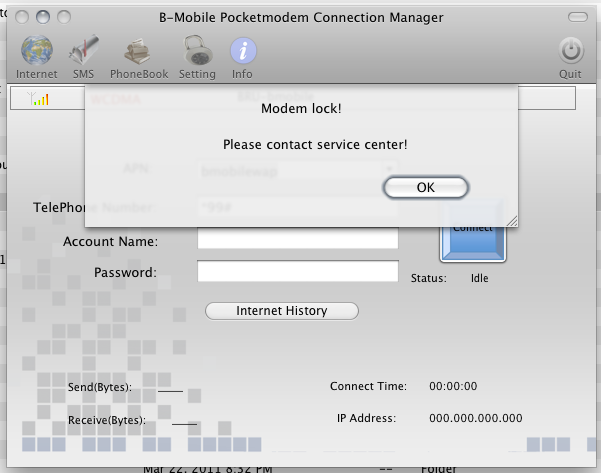
What happens when you put a DST SIM card into a b-mobiled branded TechFaith Flying Angel 46 USB 3G modem as shown below?

You get a bunch of fail as the modem is locked. This is a reason to buy a 3rd party 3G USB modem as it should support any SIM card and thus will be useful for bringing overseas as well. I contacted b-mobile who told me to contact the manufacturer. I tried to email but did not get any response from them. Perhaps it’s round 2 for trying to contact them or try to learn the inner workings for locking and unlocking modems.

LG Optimus One P500 Video Review

This is a long overdue video that has been sitting in iMovie for a long time. I decided to just publish it as I don’t think I have the time to do a ‘perfect’ video review. Will do a more complete text review in the near future.

Video mentions/shows:

  • Overview – Hardware / Experience
  • LG customizations
  • Angry Birds playability
  • Video playback
  • Office document support
  • PDF reading

A more complete full blog post and follow up videos will come in the due time. Overall it’s a great phone with the main shortcoming of the low/limited app storage space and some keyboard issues (to be detailed in follow-up text post)

Streaming UBDFM on iOS Devices

You can stream UBDFM natively, without installing any application, on any iOS device (iPhone / iPod touch / iPad) by

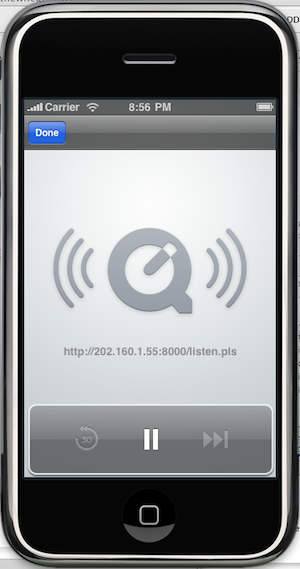
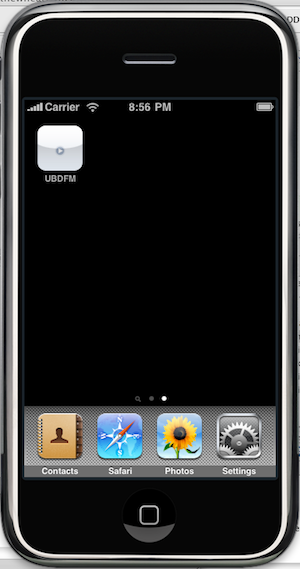
This is shown pictorially bellow and may not be a perfect solution, I heard that it does not play in the background but I’ve tested it on my sister’s iPad with iOS 4.2 and it seems to work flawlessly. Feedback is appreciated =)

Pictorial Walkthrough

  1. Open Safari and go tohttp://bit.ly/ubdfmbrunei or http://202.160.1.55:8000/listen.pls

  2. Add this page to the Home Screen

  3. Give the link a name

  4. Enjoy easy access to stream UBDFM on the homescreen

DST APN for Android: Set your Internet and MMS APNs easily

Ever have trouble setting up APN settings (or just being too lazy to type in all the configurations) for your Android device, especially for MMS? The DST APN app will help you out. Just install it, click a button and your APN settings are set and you should be able to surf via the mobile network as well as receive MMS’s.

Download links:

  • DST APN on the Android Market (web version for computers) (seems WordPress.com won’t let me put a link to the Android Market app link for Android devices, so you’re going to have to use this or just search the Market manually)
  • Direct APK download

EasiDial on the Android Market

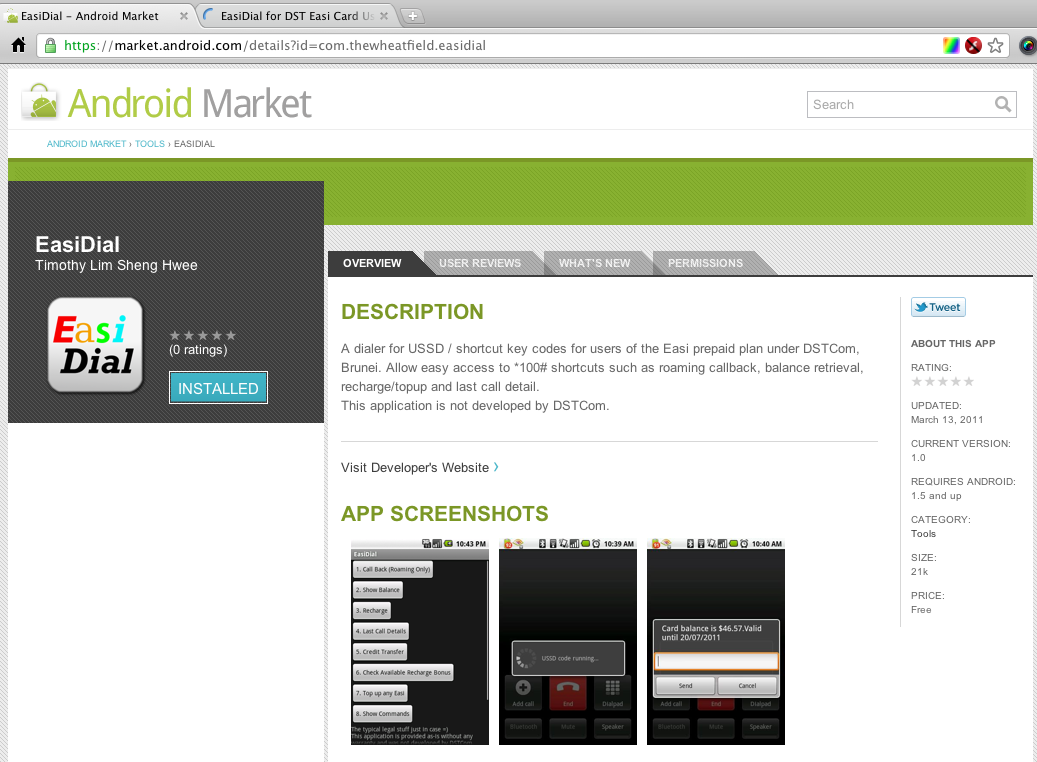
So after much time and effort (mostly making the graphics and trying to read the guidelines) my first Android app, EasiDial, is on the Android Market (or download the apk file). For more into abut EasiDial check out my original post about it. I hope to release more apps as I progress with Android development so stay tuned.

Brunei’s Mobile Network Code

This stems from a comment by faye. Seems that the phone usually detects the values from the SIM card as my Android phone auto populates the MCC and MNC fields but for some non-mainstream phones these values may need to be manually entered

A Mobile Network Code (MNC) is used in combination with a Mobile Country Code (MCC) (also known as a “MCC / MNC tuple”) to uniquely identify a mobile phone operator/carrier using the GSM, CDMA, iDEN, TETRA and UMTS public land mobile networks and some satellite mobile networks. The ITU-T Recommendation E.212 defines mobile country codes.
The following tables contain the complete list of mobile phone operators. Country information is provided for completeness, though this information is best obtained from theList of mobile country codes page, where ISO 3166-1 country codes are also cross referenced.
The MNC and MCC values within the table are decimal numbers.

Source: Wikipedia

UBDFM’s Interview with Bottlesmoker

For anybody who missed out UBDFM’s evening with Bottlesmoker, I managed to record it as a test of VLC‘s streaming and recording capabilities.


MP3 link (To save: Right Click > Save as)

PS: I had trouble uploading it to Archive.org so it’s hosted on Dropbox for the time being.

Getting the b-mobile Zoom! Modem to work in 64-bit Windows 7

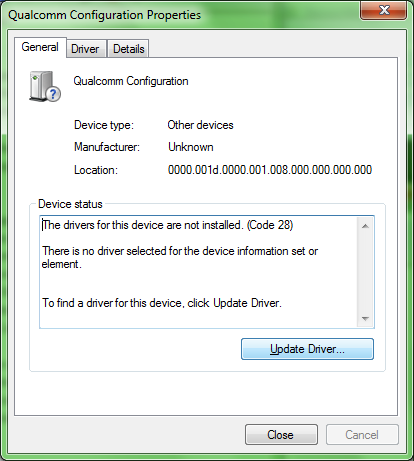
When you connect the b-mobile USB 3G modem (TechFaith Flying Angel) to a 64-bit Windows 7 computer, it does not seem to be detected / the drivers are not installed automatically. The drivers need to be installed manually after installation of the modem software as shown below.

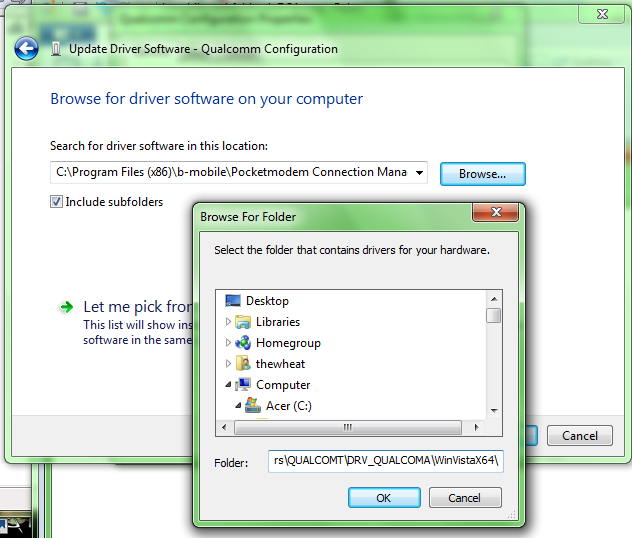
Summary: Use drivers located in “C:Program Files (x86)b-mobilePocketmodem Connection ManagerInstallDriversdriversQUALCOMTDRV_QUALCOMAWinVistaX64”. This worked in 64-bit Windows 7 Home Premium and should work in 32-bit Windows and other Windows 7 versions

Pictorial Installation Guide

  1. Install Modem Software (SeamlessKeyLauncher.exe in CD drive that shows up when connecting the modem)

  2. After installation, go into “Device Manager” (Control Panel > System and Security > System > Device Manager in the side bar)

  3. Find “Qualcomm Configuration” under “Other devices” and “Mobile Connect” under “Ports (COM & LPT)”.

  4. Right-click > “Properties” > “Update Driver”

  5. Select “Browse my computer for driver software: Locate and install driver software manually” and then specify “C:Program Files (x86)b-mobilePocketmodem Connection ManagerInstallDriversdriversQUALCOMTDRV_QUALCOMAWinVistaX64” and click next to install the driver

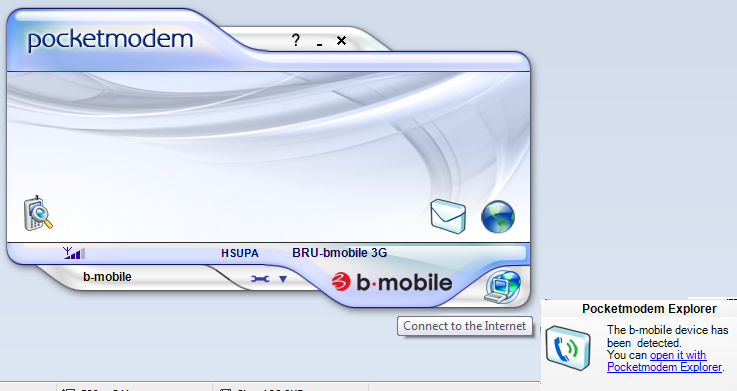
  6. Ensure that all unknown devices (I believe there are 3) and everything should work now. Connect to the Internet and be happy

Getting Android to play nice with DST’s Internet and MMS APNs (and bmobile too)

It all started off with a tweet from @marul69:

@thewheat do you have DST mms settings working for Android OS?

and so begun the quest to get MMS settings working on Android. Several months ago I tried configuring it on my sister’s HTC Desire, but unfortunately that fight was lost many a times. But today, triumphantly and after some fussing around I managed to get it working. Finally. Settings are below

b-mobile users refer here but I can’t guarantee that it works as I’m not in Brunei and don’t have a bmobile line to test

Internet APN:

  • Name: dst.internet
  • APN: dst.internet
  • Proxy: <Not set>
  • Port: <Not set>
  • Username: <Not set>
  • Password: <Not set>
  • Server: <Not set>
  • MMSC: <Not set>
  • MMS proxy: <Not set>
  • MMS port: <Not set>
  • MCC: 528 (for other carriers this should be different. this value was automatically set by the phone)
  • MNC: 11 (for other carriers this should be different. this value was automatically set by the phone)
  • Authentication Type: <Not set>
  • APN Type: default

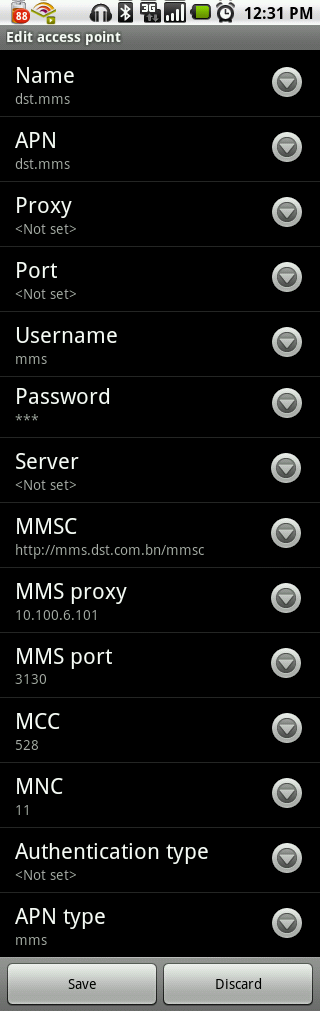
MMS APN:

  • Name: dst.mms
  • APN: dst.mms
  • Proxy: <Not set>
  • Port: <Not set>
  • Username: mms
  • Password: mms
  • Server: <Not set>
  • MMSC: http://mms.dst.com.bn/mmsc
  • MMS proxy: 10.100.6.101
  • MMS port: 3130
  • MCC: 528 (for other carriers this should be different. this value was automatically set by the phone)
  • MNC: 11 (for other carriers this should be different. this value was automatically set by the phone)
  • Authentication Type: <Not set>
  • APN Type: mms

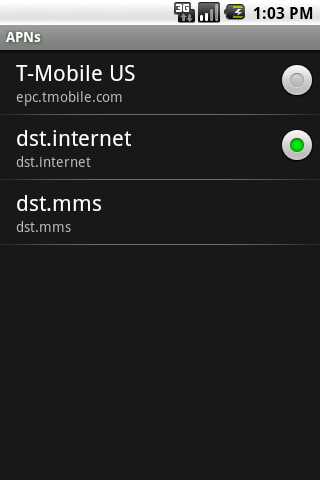
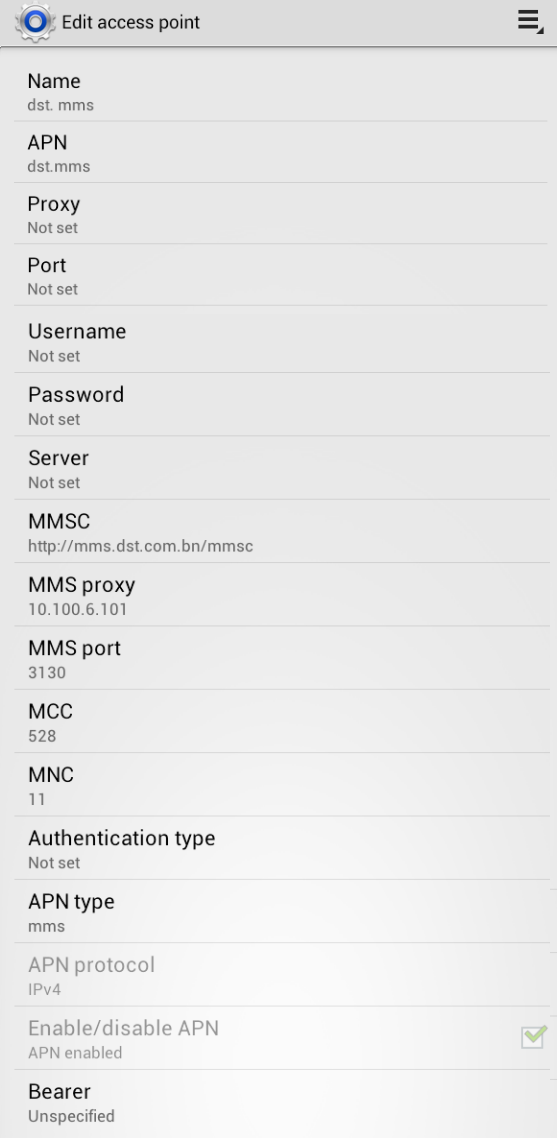
If all goes well, the APN screen will be as shown below, with only the dst.internet APN being selectable with the radio button on the right. This signifies that when mobile data is enabled, it will use dst.internet for Internet access. If APN Type of “mms” is not specified, there will be a radio button next to the dst.mms configuration which needs to be selected in order to send and receive MMSs. The problem with that is, the dst.mms does not provide Internet access so you will not be able to access the Internet unless you manually select dst.internet as the APN which is very inconvenient. This led me to find out the importance of the APN Type value that was found after trying some Googling and landing on Ausdroid’s APN page. So thanks to Ausdroid and hopefully this will help all those having trouble with their Android phone and MMS.

Full screenshot reference of APN configurations:

DST Internet Settings
DST MMS Settings
DST MMS Settings
ICS settings
Android 4.x DST Internet Settings
dstAPNICS2
Android 4.x DST MMS Settings

bmobile

I can’t guarantee these values work as I’m not in Brunei, so please test and let me know in the comments.

Internet APN:

  • Name: bmobilewap
  • APN: bmobilewap
  • Proxy: <Not set>
  • Port: <Not set>
  • Username: <Not set>
  • Password: <Not set>
  • Server: <Not set>
  • MMSC: <Not set>
  • MMS proxy: <Not set>
  • MMS port: <Not set>
  • Authentication Type: <Not set>
  • APN Type: default

MMS APN:

  • Name: bmobilemms
  • APN: bmobilemms
  • Proxy: <Not set>
  • Port: <Not set>
  • Username: mms
  • Password: mms
  • Server: <Not set>
  • MMSC: http://mms.bmobile.com.bn/was
  • MMS proxy: 129.9.10.20
  • MMS port: 6500
  • Authentication Type: <Not set>
  • APN Type: mms