So there’s a Windows 7 Home Premium Retail Version Promotion for B$168 that Concepts and Netcom seems to be offering. Today is Concepts last day while Netcom is only for order, you can’t pick it up now so you’ll have to wait if you do order. The following is one of these Home Premium retail pack. Notice that it is valid for Distribution and Activation in Southeast Asia only.
Netbooks have been in the market for about 2 years now and I believe they have been a game changer to many. In essence netbooks are smaller, lighter and cheaper compared to notebooks and run on a slower performing processor but get good battery life (4+ hours with some going for 9+ hours). Starting at a cost of ~B$500 they can go all the way up to over B$1,000. Netbooks aim to be a cheap and usable computer for consuming media and as the name suggests to use on the Internet and for cloud computing where you store all your data in the cloud (i.e. the Internet). While it may have started off with smaller solid state drives (SSDs) that didn’t have much drive space, thus forcing users to store they data in the cloud or a USB drive, it is no longer the case and they have regular hard drives similar to notebooks so this is a non-issue.
Processor
Netbooks currently mostly run on Intel Atom processors with some running Via C7 or Via Nano processor and future netbooks are being manufactured to run on ARM. While these processors may not be as fast as a Core 2 Duo or a Corei5, they are sufficient for most tasks but their performance will falter at anything CPU intensive, most notably HD Flash video playback / Photoshop filters / video encoding. For now I would say stick with Atom N Series processors (N280 is more preferable over the N270). The Z series were made specifically for Mobile Internet Devices (MIDs), similar to an iPod Touch, that needs to consume even less power to increase battery life due to their even smaller form factors. Z series Atom processors provide better battery life, but for the typical netbook it hinders performance.
Display
Netbooks typically have 10.1″ displays with a resolution of 1024×600. 1024×600 is a resolution smaller than the 1024×768 which could be considered the ‘lowest’ modern resolution which applications and webpages are designed for. So a typical netbook may have issues with applications that use too much of the screen space: a majority of applications are fine but may need some tweaking to free up more usable screen area by doing things like hiding toolbars. Websites are typically not designed for these smaller resolutions screens and you can find yourself getting frustrated with the small area of actual webpage content that you are able to see. There are ways around this as some netbooks have a feature to set the resolution to 1024×768 or higher but with the panning feature where you place the mouse cursor at the end of the screen and the whole desktop will move in that direction revealing the ‘missing’ resolution.
Screen Panning on a Netbook:
Some netbooks have 1024×576 displays and isn’t much different from the default 1024×600 but with a height of 600 pixels, users will already have screen/desktop real estate issues, and having 24 pixels less height will make this problem even worse. Quite a few netbooks come with the option to have a HD screen with a resolution of 1366×768 making applications and web pages much more usable at the expense of making the text smaller. Text size can be increased at a system level for applications; and for web sites, web pages can be zoomed and there are ways to optimize the browser for netbook use. I have an Acer Aspire One 150B with a 8.9″ screen with a resolution of 1024×600 and indeed the default system text is small thus I would recommend at 10.1″ display for a resolution of 1024×600. I think the Acer Aspire One 751h 11.6″ display with a resolution of 1366×768 is has a great display and resolution combination.
Keyboard
If you’ll be typing quite a fair bit on your netbook you will have to try the keyboard out. Sometimes it is not just the size of the keyboard that matters but the placement of the buttons. Look out for placement and size of the keyboard keys. The tilde (~) key is sometimes placed weirdly and the size of the comma (,), period (.) and slash (/) keys are sometimes made smaller and can be usability issues. On a Dell Vostro 12″ that my church has, which isn’t even a netbook, the comma, period and slash keys are smaller than the other keys and I cannot touch type properly at all. Even my Acer Aspire One 8.9″ has a bigger keyboard with keys of the same size. If you use the cursor keys, check the surrounding keys, some netbooks have “page up” and “page down” keys are on either side of the up arrow key, which leads to accidental presses instead of the left/right arrow keys.
Touchpad/Trackpad
Look for size, button placement and tactile feedback. The Acer Aspire One 8.9″ suffers from a small trackpad and weird button placement: left mouse button on the left of the trackpad and right mouse button on the right of the trackpad. Though it has a nice feature of being able to assign each corner of the trackpad to a different function (I have mapped the lower left corner to be recognized as a right mouse button press) it is just way too small for proper use. It also supports multi-touch pinching for zooming but due to the size of trackpad, the sensitivity from zoom is too high causing me to zoom in/out too much. Netbooks from Asus (I believe from all Eee’s 900 and up) have multi-touch that support even more functions as shown in the video below.
Asus Netbook Multi-touch Functionality:
Being able to press both left and right mouse buttons at the same time is also desirable as pressing them together can be recognized as a middle click, so stay away from those singular buttons that rock left or right for button presses. Good mouse button tactile feedback is desirable as it helps provide physical feedback that the button is pressed enhancing user experience.
Hard drive
Some netbooks give you and option to change out the regular hard disk drive (HDD) for a solid state drive (SSD) which will give you better reliability and performance but as SSD’s are newer technology they cost more and also they cannot store as much data as HDD’s. SSD’s have no physical moving parts thus it is less likely for failure and is resistant to possible drive damage from the mobility of a netbook. With any mobile device, users need to be careful not to make any sudden movements with the device, especially when in operation, as the hard drive head could damage platters that the data is stored on (when not in operation the HDD head should be parked in a safe place). If you choose an HDD, a faster spinning drive will help improve performance thus drives with 5400 RPM or higher would be desirable.
Battery
Some of cheap promotions of netbooks use a 3-cell battery instead of a 6-cell battery. This causes battery-life to be around 2 hours which is fine but if you want true mobility and use of your netbook I believe the added weight of a 6-cell battery is well worth it. Do check out Laptop Magazine’s website for their battery tests on any netbook you are looking at.
VGA Output
If you are planning to use the netbook for presentations a normal VGA output is necessary. Some netbooks have non-VGA outputs but have a dongle / connector to convert it to a VGA output, while it is good it is another thing you would have to remember and not lose. Just keep it simple and get a netbook with a VGA output. You don’t want to arrive at the presentation venue only to find out you misplaced your dongle and end up scrambling to get the presentation on another computer.
Media Playback
If you plan on playing some games and watching HD video, check out netbooks with NVIDIA’s ION chip in it. The HP Mini 311 is equipped with it and even has a HDMI output. While netbooks should typically be able to play most 720p video, NVIDIA ION lets it play 1080p video and games like Call of Duty 4 / Left for Dead / Counter-Strike Source. Game settings will have to be turned down but for light gaming it’s perfect. Note: 720p H264 MP4 files play a bit choppy on my N270 equipped Acer Aspire One, but the 720p WMV videos from Microsoft play fine.
NVIDIA ION showing 1080p media playback:
NVIDIA ION on a Netbook playing Call of Duty 4:
Flash Video
Let it be known that Flash video in HD (e.g. YouTube) by default will not work well on netbooks as Flash utilizes the CPU to process and play the video. A possible workaround to this is to download the Flash video and play it through a media application (e.g. Windows Media Player / Media Player classic) and it would provide smoother playback vs playing in the web browser via Flash. Good codec’s are also necessary to the optimal experience and CoreAVC is recommended for H264 video playback (e.g. YouTube HD video / most video podcasts). Flash version 10.1 (that isn’t released publicly yet) can utilize the graphics card via GPU acceleration and when combined with NVIDIA ION allows smooth Flash video (720p and 1080p) as shown below.
Flash 10.1 playing 720p YouTube HD:
Flash 10.1 playing 1080p YouTube HD:
Operating System
Typical users will stick to Windows and for the sake of performance (especially w/ multi-monitors), I would recommend Windows. Though I do love Linux, the performance of a standard Ubuntu Netbook Remix (UNR) install isn’t as good as Windows XP. Windows 7, although better and faster than Vista, is still slower than XP and performance-wise still edges out UNR.
Other
Bootable SD card slot: having an SD card slot that you can boot directly from is a great feature that lets you try different Linux distros at the change of an SD card and also makes a great recovery method. To make this even more usable, ensure that the SD card will be flush with the device when inserted and not sticking out.
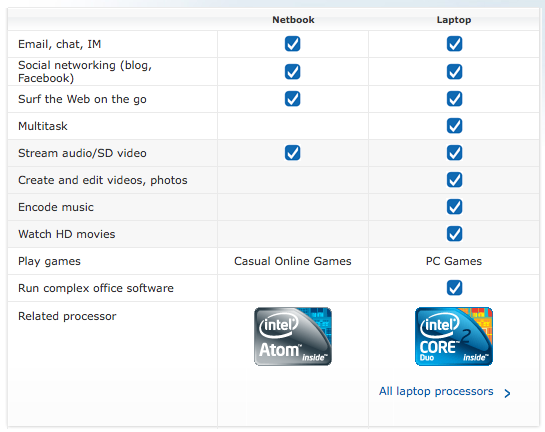
Don’t believe the FUD that Intel is spreading. Technically netbooks can do everything a regular laptop can do, but basically it has a slower processor leading to slower performance. One of the reason Intel could be doing this is to bring up market share of more expensive laptops with the more expensive Core 2 processor from Intel: basically netbooks are cannibalizing the laptop/notebook market and with netbooks having lower profit margins Intel has everything to gain by pushing more people to buy a laptop compared to a netbook.
Take a look at the comments over at JKK Mobile on this same chart. JKK himself says he has edited over 40 videos and all his photos on his Asus Eee PC.
I believe in user education and once users understand that Atom processors are just slower than you ‘average’ processor they should not expect everything out of it. There is no technical reason netbooks cannot multitask, create and edit videos, photos, encode music, watch HD movies or run complex office software as indicated by the absence of ticks in the netbook column. Basically Atom can do all these things just slowly or with conditions. With ION the “Watch HD movies” is out of the question; albeit this comparison was done before ION was generally available but 720p videos could still be viewed before ION thus you could still watch HD movies just not full HD. “Multitasking” is certainly do-able on a netbook and as with any computer / notebook today it depends mostly on the RAM and what types of applications you are running. Video and Photo creation/editing can be done on netbooks, though screen size may hamper it, and the processor may make applying filters/effects/transitions slower but again it can be done. HD video editing would be out of the question but normal VGA (640×480) video that most digital cameras record to should be fine. Encoding music: same thing, can be done but slower, but now with ION video and audio transcoding can be accelerated greatly. For the “Run complex office software” entry I just have to laugh at that, as how complex can office software get? Microsoft Office runs fine on a netbook. Open Office runs fine on a netbook. For most people I don’t think they do any CPU intensive actions on office documents so a netbook is still a good choice.
In Summary
The biggest thing about netbooks has to be their convenience factor: they are small, light and their good battery life makes them even more enticing to bring along with you wherever you go without weighing you down like a regular notebook would. What I love about netbooks is that it makes it even more accessible for people to user computers. No longer are the days that you need at least B$1000 to get a decent computer, these netbooks can cost half of that price and they are getting mobility and usability that hasn’t seen the day of light until now.
So to conclude, the following guidelines should be a great reference when buying a netbook:
Processor: Stick with Atom, preferably N280
Display: Minimum resolution of 1024×600. 1366×768 great for 11″+ screens
Storage: SSD for durability and speed. HDD are fine
RAM: At least 1GB
Battery: 6-cell battery for good battery life
Keyboard: Check for unusual layouts and smaller sized keys
Trackpad: bigger is better, multi-touch a nice bonus, good buttons
NVIDIA ION where possible, if games and HD media playback is important
With Windows 7 being released in Brunei tomorrow I tried contacting several computer shops here in Brunei (CF King, Concepts, Netcom) to ask about pricing and availability. It seems that they have no information and are waiting upon Microsoft distributor, Tech One Global for the hard information. The typical response from the retailers is that they are not sure on when they are getting the stock and will only known in the coming days of the price and availability.
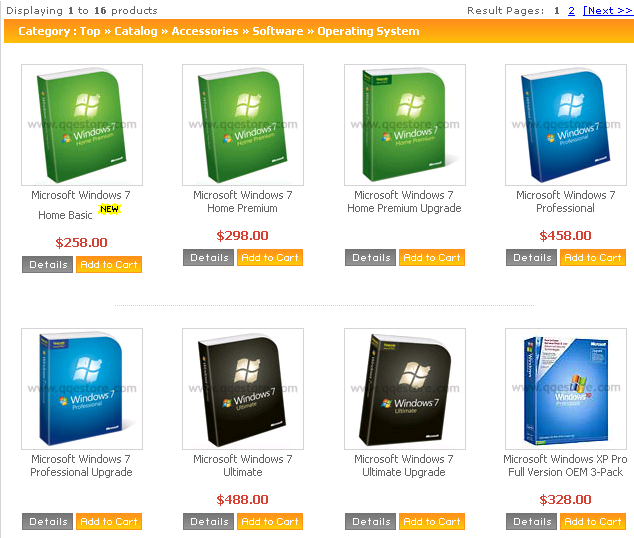
I called Tech One Global and was told that they cannot disclose any information yet as Windows 7 is not officially released yet. He said that there will be a standard pricing throughout Brunei and information will be giving to retailers starting tomorrow. There is no official event to launch Windows 7 so end users will just have to wait for the prices tomorrow. Will keep the Brunei community updated on any news regarding the prices and upgrade paths. But in the mean time check out QQeStore prices below (strange enough, when you click on the item there is no price available *shrug*):
Windows 7 Prices:
Home Basic: B$258.00
Home Premium: B$298.00
Professional: B$458.00
Ultimate: B$488.00
Update 1 [22nd Oct 1020AM]: Called Tech One Global and they mentioned that Home Basic, Home Premium, Professional and Ultimate will be available to end users. No family pack is available in Brunei and upgrades may come later. So consumers are left with the expensive retail prices for now (whatever they may be).
It seems that there was a briefing for retailers/resellers yesterday but as of this time Netcom, CF King and Concepts are still unsure of retail date and prices for Windows 7. Netcom did mention that there was a staff training on Monday which could mean they are selling it next week.
So does that mean the country manager is wrong as it states in the news article:
WINDOWS 7, the successor to Microsoft’s Windows Vista operating system (OS), will go on sale in the Sultanate in tandem with the official international release on Oct 22, the country manager of Microsoft Brunei said yesterday.
Update 2 [22nd Oct 1038AM]: It seems Yappe at least has the prices though it’s not available for pick up now, just on order basis. Prices are:
Home Basic: B$230
Home Premium: B$264
Professional: B$409
Ultimate: B$430
Update 3 [26nd Oct 11AM]: Seems that with Concept’s advertisement in the Borneo Bulletin today that the shops actually have Windows 7 available for pickup. Called them up and only Netcom is currently not selling Windows 7.
Windows 7 prices that are available to be bought now (prices in B$)
In all fairness after all my issues with OS X there are still things I like and even love about OS X.
Functional/Usable OS
When I talk about functional I’m comparing it more to Linux. The Windows operating system is pretty much mature to the extent of OS X but in all honesty Linux still has a fair way to go for the desktop market share. I say this as a Linux user for over 3 years now. Any long time (or even regular) Linux user can possibly tell you of issues they have with Linux. Multiple desktops or even getting video out on a projector can still be an issue for Linux users. This can be seen in the opening of the “Linux Sucks” by Bryan Lunduke from the Linux Action Show (now renamed to the Computer Action Show to cover a wider range of topics). MP3, DVD and other codec support has some licensing and legal issues. Installing applications can be an issue too. I have to say I love the way that OS X application installation is done, and I believe BSD is similar to this. For OS X, typically you have an installer (similar to application installing on Windows) or you just drag and drop the application to the “Applications” folder: simple and easy. With Linux there are various ways to install applications depending on your distribution. For Debian based applications you can have .deb files that you double click and it installs similar to installers for Windows, however if there are unmet dependencies the installation will fail. You will have to hunt for the dependency, install that before you can install your application. Now this process is simplified with “apt-get” or variations based on it via the command line or a graphical user interface such as Adept. “apt-get” is great that it brings all software into one searchable index but having a single installer file that requires just a double click to install and ensures the application will work on any single Linux platform is still missing, making it hard to distribute applications on any sneakernet or person to person.
Compared to Linux I believe the “Macs just work” tagline is mostly true, but there is a caveat in that they work according to how Apple wants you to use it. There a issues that I’ve mentioned and just some features you don’t even get. In Snow Leopard‘s enhancements it states that only now you can “Restore deleted items to original folders” and put “Date in menu bar”. Honestly that is pathetic considering Windows has had these features for years. Features that are missing may not be ground breaking but it can be annoying and somehow it feels that you are being forced to use your computer in a certain manner rather than having the freedom of actually using the OS.
More Hardware Compatibility
I compare this solely with Linux as Linux typically gets the least support from hardware manufacturers and I can understand that from a business level: there are not enough users to justify developing a Linux driver and with respect to the packaging problem with different distributions it makes it even more costly to get a general installer. Linux hardware support can be great and it can be bad; there are alot of (older) hardware that will work with current Linux distributions (e.g. Ubuntu) out of the box without the need for manual drivers installation. The same can be true for Windows but sometimes to a lesser degree. While Mac hardware support will never match Windows hardware support it is definitely nice to have manufacturer support for hardware available for the Mac that is not possible with Linux.
Anti-Viral
OS X and Linux really have a great one up over Windows as being more secure in terms of design making viruses practically non-existent. This is to regards to the typical user end viruses and malware (spyware, trojans) that users will get from opening unsafe attachments and visiting malicious websites or just inserting a USB drive in Windows. The lack of viruses is also due to the smaller market share of OS X and Linux compared to Windows. Sad to say that malware production is a business and the people behind them aim for the biggest and easiest targets: Windows users. Now take note that OS X will still not prevent things like phishing that requires user education. Educated Windows users would typically know the risks and take the necessary precautions when using a Windows system.
Great Software Applications
Apple’s iLife is great for the typical user. It makes things easy to do what you get out of them is nice looking: certainly much better looking that any typical Windows or Linux application. For the creative types or people being put in positions to make media content quickly, iMovie and iPhoto enable users to quickly make movies and slideshows without too much effort. GarageBand is great for musicians / podcasters trying to create their own content. iDVD makes burning DVD videos / slideshows simple and the end result looks spiffy. Linux suffers pretty severely in this aspect. Video editing is hard: there is no easy solution thus far that provides functionality similar to Windows Live Movie Maker or the older (some say better) Windows Movie Maker.
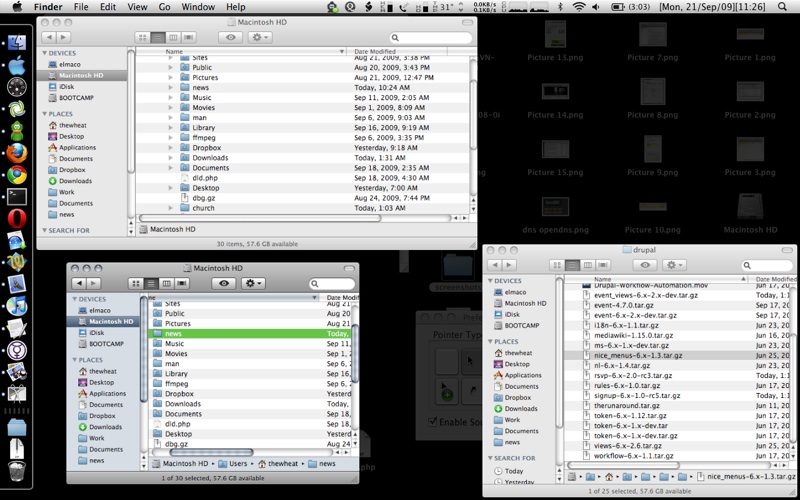
Other great software would be Expose, Spotlight, Quicksilver and Automator. Expose gives a nice looking overview of all windows open at the moment and is something the typical user would use all the time.
Expose in action on 3 Finder windows:
OS X indexing is a great thing as it enables Spotlight and basically OS X’s search to find documents, applications, emails and more quickly and easily. Spotlight is my default application launcher that lets me open applications straight from the keyboard: Command + Space, type in a few letters of the program, Enter > program starts. Need to look for a document or folder? Just type it it and you will see it in spotlight
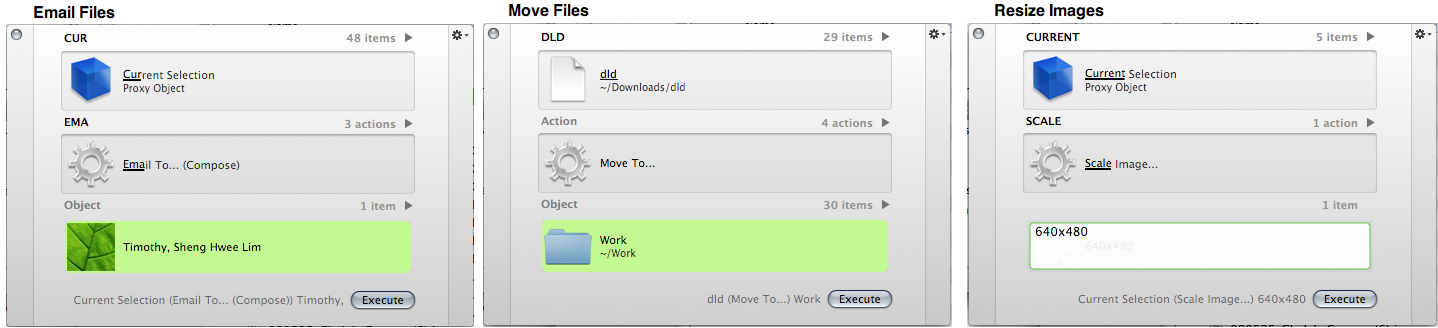
Automator is another great tool for power users and provides greater functionality of the OS so easily through user created Automator actions and if you can’t find an Automator action that does the task you want, you can create it easily through a simple graphical user interface. Resize all photos in a directory and save them elsewhere? Check. Renaming a bunch of files in a directory? Check. Categorize downloaded files into folders and add downloaded music to iTunes library? Check. Just like Quicksilver the applications are practically limitless. (Learn more: Getting Started with the Mac OS X Automator)
Multi-touch
Supporting multi-touch and having a multi-touch enabled trackpad is wonderful: it brings simplicity and functionality together with intuitiveness. Multi-touch is in many notebook trackpads but one of the earliest real uses of it, similar to OS X’s, is in the Asus EEE 900 netbook. Multi-touch trackpads are one of those things that once you have, it’s hard to go back to life without it.
Conclusion
OS X is a great platform. If viruses and malware don’t chase you away from Windows, the “things just work” (and work nicely) scenario just may bring you over to OS X. That being said, OS X technically requires a Mac computer which is something, myself included, dislike. This is where OSx86 Project, Hackint0sh.org and Hackintosh.com come in: they document hardware that is compatible with OS X and provide ways to install OS X on your regular PC without the need to buy Apple hardware. This is a legal gray/black area and may not get you a fully working version of OS X (I’ve heard EFiX provides a fully working OS X installation, including software updates, not sure about any other routes). All this hacking to get OX to run on a regular PC just shows how much people want to use OS X but just not on the limited/expensive hardware Apple offers. I guess it shows how much some people just love the OS.
Windows: provides the most compatibility with applications and hardware with the expense of having to know how to use the system carefully due to malware. (on a personal note, Windows is the most productive OS)
Linux: offers a sense of freedom that cannot be matched: free (as in beer and speech) applications that provide a completely non-restrictive environment with great stability but lacking in hardware manufacturer support and software areas (e.g. video editing). The most open platform.
OS X: great stable “that just works” operating system with restrictiveness in terms of hardware and software. The most closed platform
Nothing’s perfect and people use the computer for different reason and applications. The best is to use each operating system and see what works best for you. For Linux it’s easy: you can get live CDs, you can install them as virtual machines. Windows can be installed as a virtual machine and is generally available, however buying a retail version can cost you quite a bit (~B$300) and it may be better to just buy a cheap netbook that would be bundled with Windows XP (and soon to be Windows 7). To my knowledge OS X cannot be installed in a virtual machine and since it only runs on a Mac (legally) there is no choice but to borrow or buy a Mac to try OS X and thus is the hardest to test. So at the end of the day you’ll just have to pick you poison.
I was having problems converting recorded video from a Panasonic EH65 burned onto a DVD into an audio MP3 file using FFmpeg (Windows | Mac [Alternative: ffmpeg from ffmpegX, but did not work well for me]). The typical
I admit that the burning process of the DVD ran into issues but it seemed to have burned the DVD properly as I could play it. Really not sure what could be the cause of Error 1, perhaps metadata was not written properly, but for Error 2 it is because the VOB file is a combinations of 2 different titles of the video. The EH65 (and I think every video DVD burning software) creates VOBS of not more than 1GB. So if you have a 2.5GB MPEG2 video it will be split into 3 VOB files on the DVD. I was burning 2 separate recordings that was split in a total 3 VOBS, VTS_01_1.VOB was the first part of the first recording, VTS_01_3.VOB was the last part of the second recording and VTS_01_02.VOB (the middle file) was the last part of the first recording combined with the first part of the second recording. I believe ffmpeg has an issue at the joining points of these 2 recordings. Thus it is able to retrieve the last part of the first recording but is unable to retrieve the first part of the second recording.
So I ended up using Handbrake and it worked like a charm. I had to create a video file using Handbrake (setting video size to 0MB caused it to crash) so just used ffmpeg -i video.mp4 -vn -acodec copy output.mp3
to retrieve audio. FFmpeg will always have a place in my multimedia handling/transcoding workflows. I did try VLC (via the “Streaming/Saving” option) to do the transcoding but it just seemed to dump the entire output instead of creating an audio file (MP3/OGG vorbis). Some possible alternatives to FFmpeg are VLC command line transcoding and mencoder that I’m still trying to get a hold of, but FFmpeg is still a great piece of work =)
eSpeed’s Speed on Demand service is similar to the pay-per-view service on cable TV, Speed on Demand provides a pay per usage service for eSpeed users to increase their upload and download speeds for a period of time. The current offering allows users to boost their downstream bandwidth to 1Mbps or 2Mbps for a period of 1 hour. The typical eSpeed user would have eSpeed value surf plan which has 512kbps / 0.512Mbps download and 128 kbps upload speeds.
In order to activate the service, users will have to do the following
Sign into their account (username: telephone number, password: bill account number)
Select the appropriate package and confirm
The service should be activated and ready for the user to utilize it
Prices are:
B$0.90/hour : 1 Mbps download / 500 kbps upload
B$1.50/hour : 2 Mbps download / 600+ kbps upload
This service is great for the times when you need just a quick boost for instance to play online games, download things within a deadline, conference (video) calls and live streaming. I know this would have been great for my friends wedding streaming that I did 2 months ago.
A few things to note is that you can only activate the service in blocks of 1 hour. You will have to reactivate it every hour in order to extend the service. There will be no disconnection of any service when the time period expires, it will just but cut to the normal service. The username and password is far from secure. The username is the telephone number registered for the eSpeed service and the password is the account number that you get on your eSpeed bill. I would like to see something more secure than this as I believe this could be used maliciously to charge another persons eSpeed account. The account number is far from being a secure password as for payment of Telbru bills via online/telephone/ATM banking, the bill account number is used.
Note this service is currently offered to users that are using Alcatel Lucent modems, not the Huawei modems as of yet as mentioned in Starboykb’s post. If you do not use the Alcatel Lucent modem you will see a message saying “speed coming to you soon” and to call 121 for further details (as shown below), but no other added details.
This has led people, myself included, to believe that this Speed on Demand service is a big failure as in Starboykb’s post he mentions that he delayed his post for over 5 months waiting for Telbru to announce the service, and on announcement of the service it seems as if the website is down. There is no information that this is currently only available for Alcatel Lucent modem users. This in itself is bad on Telbru‘s public image as a majority of eSpeed Brunei users complain or have issues with their eSpeed service. My suggestions to Telbru would be to continually update their eSpeed Forum blog and/or provide means for people to ask questions and have an updated repository of FAQs. Even the advertisement in the papers gave the wrong URL for the website.
After calling 121 they informed me that if you are currently using a Huawei modem, you will have to switch to an Alcatel Lucent modem. However, in order to do this they need to switch a port on their side and that means that you will have to unsubscribe and resubscribe to the eSpeed service. The technician did mention that they will be conducting maintenance tomorrow night (Sunday 11th October) at 11PM and trying to upgrade the Huawei network to support this Speed on Demand service. So if all goes well Huawei modem users will be able to try this service on Monday. I asked the person for upload speeds of the 1Mbps and 2Mbps packages and I believe he tested it on the spot and reported them as 500kbps and 600+kbps respectively. It seems they don’t advertise the upload speeds for this service nor their current eSpeed service.
So all in all Speed on Demand seems like an interesting service with possibilities in the future for pay-per-view applications. Imagine Telbru having movies for rent that are accessible with this download speed, or something of this nature. This could lead to people trying to create content specifically for Brunei live streaming with pay-per-view licensing from Telbru. I for one will try this service out for any live streaming event that may come in the near future. The service itself opens up possibilities but I wonder if the PR itself will make more of a headline than the actual product.
Note: I would like to thank Hajah Ajijah Shanti (I hope that’s right) for allowing me to interview her at the Mall booth this afternoon
Update 1 (12/Oct/2009 am): From a Twitter conversation with tiongloong it seems that this service may be for subscribers on a different network to the older Huawei modem users. He says that he recently switched to an Alcatel Lucent modem 2 months ago but he can’t access the website. So perhaps Speed on Demand is only applicable for newer subscribers that are placed on a different network and since they are newer subscribers they have Alcatel Lucent modems. And to make things easier for the people at the roadshow the technical team just told them that it is for Alcatel Lucent modem users at the moment, not the Huawei modem users.
Update 2 (17/March/2010): Seems that only users with modem/router WAN IPs starting with 119 have access to the service
Update 3 (1/April/2010): I can confirm that the Speed on Demand page does load for 118.x.x.x, not sure about the 119.x.x.x as mentioned above. Perhaps the Telbru staff meant to say 118 but who knows maybe this is even a newer and different network. Review of Speed on Demand service will hopefully be done in a few days =)
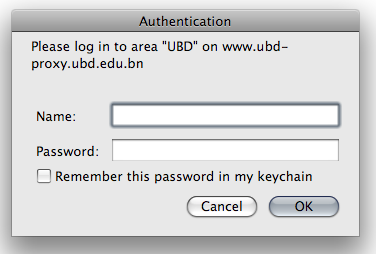
So I happen to be in UBD the other day and the typically open Guest@UBD wireless access point seemed to be proxied and requires authentication as shown below.
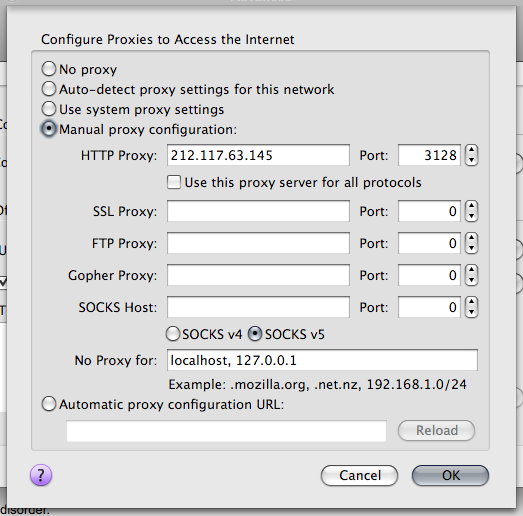
Normally it won’t ask for any authentication. Assuming that the access point is a legitimate one, a guest at UBD would not have any login credentials now would they? However I did notice that Twhirl did load some tweets (but gave the pop-up authentication dialog above) and that my Instant Messenger, Adium, was connected. So I tried a https connection to Gmail and it worked! Searched for an https proxy on my phone and found some here. Added a proxy to Firefox’s proxy setting (Preferences > Advanced > Network > Settings) and I’m back on the web.
In order to cover all network connections (e.g. via instant messenger, Adobe air applications) proxy settings will need to be changed in network settings.
Note: Online https proxies would be a temporary fix but that will only work in web browsers. They are best used to find the proper proxy settings and once the network settings are changed to use the proxy their job is done. Proxify (https://proxify.co.uk/) and Remainhidden (https://remainhidden.com/) are just 2 of many that you can find through Proxy.org (https://proxy.org/)
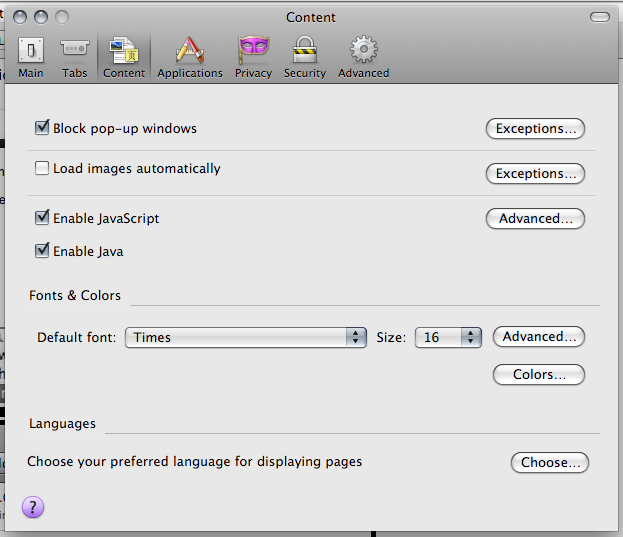
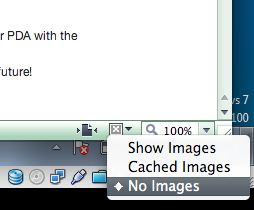
We all love the Internet. Many of us can’t live without it (or at least we think we can’t live without it). E-mail. Instant Messaging. Social Networking. Pick your poison. But as many of us know in Brunei, the Internet can sometimes be hard to get a hold of. Not that we don’t have Internet connections but more due to problems with our service provider Telbru e-speed service or rather it being a congested office network where co-workers are streaming YouTube and other bandwidth consuming services. Some solutions or workarounds I will suggest will basically reduce the amount of data that your browser will ask from the servers that it visits and basically that in turn will help you reduce your data bill. This is great for those with 3G modems without an unlimited data deal and just good to know for any phone-wielding-Internet-accessing user
Use Mobile Versions of the Website
Sites like Twitter have a mobile version of their site catered for phones that usually offers most of the features of the regular site. These pages are typically free from ads and superfluous images and Flash. Sites may not look as pretty and as fully functional as you like it, but you get the gist of the information.
Opera mini has always been a great browser for the phone and for users it lets them save on data costs because Opera mini uses a technology of proxying where you data is passed through Opera’s proxy servers (take note of the privacy and security implications of this). The proxying that Opera does on your data enables them to optimize the page for viewing on your phone and at the same time resize images so that you don’t have to download the full image which would cost you. Now the images will not look as clear and sharp as the original but it’s a good trade-off and there are even settings to let images load on “Low”, “Medium” or “High” qualities. Opera mini’s proxy server technology has also been brought to the desktop with Opera Turbo available for Windows, Mac, Linux and other platforms.
Skyfire is similar to Opera mini with regards to the proxying but the cool thing about Skyfire is that it lets you have the PC web browsing experience on your phone (Nokia S60 and Windows Mobile), meaning things like Flash (video) and Silverlight will work. This is a good way to get to watch your media fast and not have to wait for a regular computer web browser to load the video. The video is not as smooth and audio can get out of sync with the video and it can be hard to watch video on a small phone screen but for some things like live streaming, it allows you be a part of the experience rather than waiting in buffering/loading land.
All these contribute to the information downloaded to your computer and sometimes the loading of a particular piece of information stalls the whole page from loading.
If you have played around with any 2 of the 3 major operating systems (Windows, OS X and Linux) and start transferring files to and from external hard disk you will probably run into an issue with the type of filesystem you choose for your hard disk. Windows likes NTFS, OS X likes HFS and Linux likes ext. As you can see none of them are the same. Being different is not so much an issue, but being compatible and accessible to all is.
Based on default system settings:
NTFS is readable on all operating systems, but not writable on OS X. Most modern Linux distributions can write to NTFS drives
HFS is readable on OS X and modern Linux distributions, and not writable on Windows or Linux
ext is only readable on Linux and not writable on Windows or OS X.
or to put it based on operating system
Windows can only read and write to NTFS, nothing else
OS X can read and write to HFS and read NTFS
Linux can read and write to ext and NTFS and read HFS
Take note that there is also the older FAT32 filesystem that is fully supported for reading and writing by all operating systems but due to limitations of FAT32, I rather not consider this. Basically the main issues with FAT32 is that the maximum file size is 4GB and the maximum partition size is 32GB (actually Windows can’t format a FAT32 partition greater than 32GB but can read FAT32 partitions of more than 32GB. Use GParted or just filter this Google search to be able to create and format a partition of 32GB). If these are limitations you can deal with, for the sake for interoperability stick with FAT32.
Now to solve the problem of support for each filesystem in each operating system:
I’ve been using NTFS-3G in Linux for many years and haven’t had any problems with it and so far it’s working well with OS X too
On another note if the NTFS drive is not unmounted properly or there are some issues with the file system integrity, it is necessary to use Windows scan disk to rectify the problem. Thus this requires a copy of Windows to fix the filesystem.
I’ve had issues of only being able to mount an ext2 partition in Linux and it gave a mount error in Windows and OS X and was due to an inode issue as new Linux distributions create the file system with inodes of 256 bytes but Ext2 fs only supports the older version with 128 bytes. And the only solution is to back up the files, and reformat partition with inodes of 128 bytes (-I 128) and restore the files.
Filesystem integrity issues should be able to be fixed with “fsck” from a Linux distribution / live CD. The great thing about this is that you can get a Linux distribution for free and this recovery can be done with out any strings attached.
Note: I have not personally tested these so I cannot give first hand experience of how well it works or what issues can be had with this.
I believe that HFS+ journal
I would believe any filesystem repairs would have to be done in OS X (similar to NTFS and Windows) and if so this enforces that you have OS X at hand, and in order to have OS X you must have Apple hardware or a Hackintosh either way this is very restrictive.
So it is pretty easy to get full read and write support of all 3 default file systems on the 3 major OS’s but there are issues. So far I’m inclined to stick with ext2/ext3 just due to the fact that it has no restrictions in terms of filesystem repair. I’ve had many NTFS issues related to damaged filesystems that required Windows and the inconvenience of taking the drive out of my box to find a Windows box was too much.








 The Wheat Field