Manually editing Quicksilver Trigger Shortcuts (remap log out)

So I managed to disable command + Q to close applications via Quicksilver, but next I wanted to create an easy shortcut to close the application and Command + Shift + Q came to mind. Then I found out it was mapped to logging out of my current OS X session. But as any enthusiast, who want’s to be a rebel and fight against the machine (I honestly loved that bit of Jason Calacanis’ message to Apple Fanboys and Girls), I delved deeper. Knowing that the information had to be stored somewhere on the system I looked for the configuration file and found it at

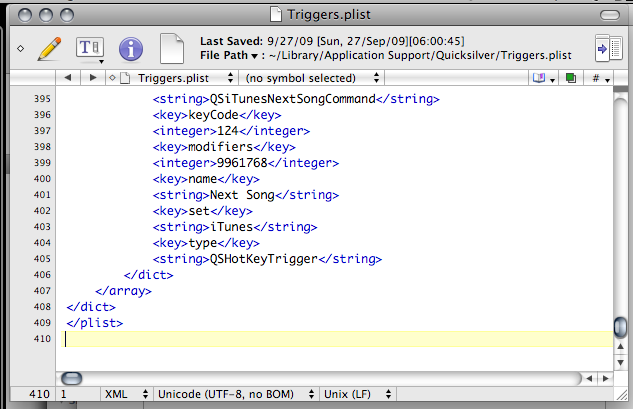
~/Library/Application Support/Quicksilver/Triggers.plist

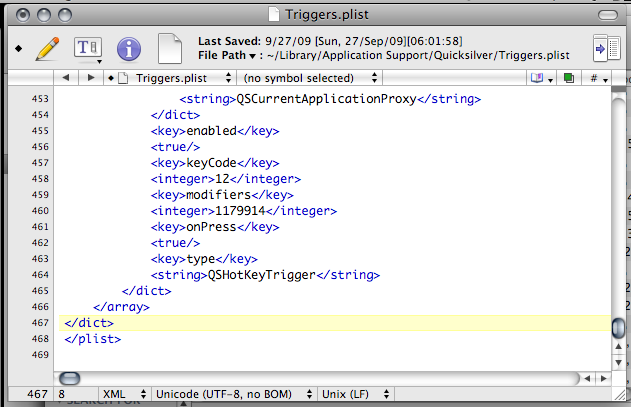
For those unfamiliar with the “~”, it is the home directory of the user, which should be found in Finder’s “Places” section in the sidebar with the name of your user. Open that up in any text editor (TextEdit, nano in Terminal or my current text editor TextWrangler) and add the following before the line that says </array>, then restart Quicksilver


<dict>
    <key>ID</key>
    <string>58C26ADF-2CEB-4E49-A530-B386CEF537FB</string>
    <key>command</key>
    <dict>
        <key>actionID</key>
        <string>AppQuitAction</string>
        <key>directArchive</key>
        <dict>
            <key>class</key>
            <string>QSProxyObject</string>
            <key>data</key>
            <dict>
                <key>qs.proxy</key>
                <dict>
                    <key>icon</key>
                    <string>GenericApplicationIcon</string>
                    <key>name</key>
                    <string>Current Application</string>
                    <key>providerClass</key>
                    <string>QSProcessMonitor</string>
                    <key>types</key>
                    <array>
                        <string>NSFilenamesPboardType</string>
                        <string>qs.process</string>
                    </array>
                </dict>
            </dict>
            <key>properties</key>
            <dict>
                <key>QSObjectChildrenLoadDate</key>
                <real>274987421.89515197</real>
                <key>QSObjectDetails</key>
                <string>Proxy Object</string>
                <key>QSObjectIconName</key>
                <string>GenericApplicationIcon</string>
                <key>QSObjectName</key>
                <string>Current Application</string>
                <key>QSObjectObjectID</key>
                <string>QSCurrentApplicationProxy</string>
                <key>QSObjectType</key>
                <string>qs.proxy</string>
            </dict>
        </dict>
        <key>directID</key>
        <string>QSCurrentApplicationProxy</string>
    </dict>
    <key>enabled</key>
    <true/>
    <key>keyCode</key>
    <integer>12</integer>
    <key>modifiers</key>
    <integer>1179914</integer>
    <key>onPress</key>
    <true/>
    <key>type</key>
    <string>QSHotKeyTrigger</string>
</dict>

Before:
before add

After:
after add

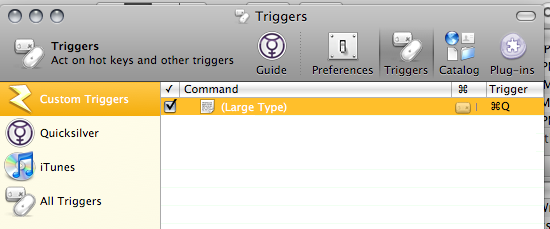
Trigger pane showing Command Shift Q

Alternatively you can add a shortcut to Command + Shift + W, open the configuration file and search for the new command created and changed the keyCode field to 12.

Die Command + Q die

One thing that immediately annoyed me about the Mac was that the shortcut to close the application is Command + Q. This is just way too close to Command + W, the shortcut to close a tab/window. Being fast with the fingers I will tend to press Command + Q at times closing the entire program together with the documents I’m working on / tabs I’m browsing / IMs chats I’m having. Now for some applications there are work arounds, e.g. for Cocoa based applications (e.g. Safari, Mail) you can assign another shortcut to the menu item in the Keyboard Shortcuts tab in the Keyboard & Mouse preference pane

  1. Click on the “+” button
  2. Select the application (e.g. Mail.app)
  3. Type in the quit menu item text in the “Menu Title” field (e.g. for Mail.app it would be “Quit Mail”)
  4. Enter your keyboard shortcut

keyboard shorcuts change cocoa based applications quit shortcut

Now this would be nice to have for all applications but due to the fact that for each application the menu item to close the application is based on the application itself (e.g. Mail = “Quit Mail”, Safari = “Quit Safari”), it is plain to see there is no easy way to cover all applications. Also, as mentioned, it works only for Cocoa applications, so this wont work in applications like Firefox. Also some applications like NeoOffice will still respond to Command + W. So had to search for other alternatives.

For Firefox you can configure Firefox to prompt to confirm closing if there are multiple tabs open and there are probably extension that may help prevent the closing of the browser, but I wanted to find a complete solution. So after much Googling I finally found this blog post on disabling Command + Q with Quicksilver by using triggers.

In Quicksilver’s Triggers page:

  1. Add a trigger by pressing the “+ button” then selecting “Hotkey” (a new row should be created)
  2. Click the empty space under the “Command” column of the newly created row
  3. In the “Select an item” field, press . to enter text mode and clear any text that appears
  4. In the “Action” field, enter “Large Type”
  5. Leave the “Target” field blank and click save
    trigger command disable quit

  6. Now to create the keyboard shortcut by click the “None” field under the “Trigger” column
  7. A drawer will pop out and in the “Settings” Tab, press the “Edit” button in the “Hot Key” field and press Command + Q
  8. In the “Scope” Tab, ensure it is “Enabled in all applications” (any other option does not seem to work even though I specify the correct applications. possibly a bug)
  9. So now the Command + Q shortcut is disabled as long as this trigger is enabled
    disable command q trigger

So now when you press Command + Q the application no longer closes and gives you an little beep indicating no action is assigned to the shortcut. What if you still want a shortcut to close it? Just add another trigger!

  1. Add new Hotkey trigger
  2. Select an Item: Current Application
  3. Action: Quit
    trigger command quit
  4. Select your appropriate shortcut and be happy =)

So go download Quicksilver. It can do a heck of a lot more than just this with the great plugins it has: resize images, open bookmarks, move files and add. Check out the Lifehackers’ top 10 Quicksilver plugins or the tutorials and start delving into the world of Quicksilver

Jason Calacanis’ Message to Apple Fanboys and Girls

Message to Apple Fanboys and Girls:

We spent 30 years of the industry trying to make an open system, the Internet. Applications. Everything’s open. The reason why there is such colossal growth…. is because of an open platform.

There is no reason why Apple cannot make the iPhone a little more open. And the argument of “Oh we have to make the Apple platform so easy to use that you, the person who paid for the phone, the person who pays for the data plan, is such a smuck that you can’t decide what applications you run and you can’t decide how you use your data minutes.

That is absurd.

You’re a bunch of sellouts to the open Internet and technology. Technologist are supposed to be rebels. We’re supposed to fight against the machine and you guys are a bunch of sellouts and drunk on the Apple kool-aid

You are fighting for the wrong cause. The cause of the mighty and the just is an open platform where everybody can excel. If Steve Jobs wants to keep the whole thing closed, okay fine, ease of use I’m with you. Just a little button on the old iPhone that says “Allow experimental applications unverified by Apple”

Apple fanboys equal technology sellouts

The whole idea was you were supposed to be enabled and freed by the technology,
not constrained. Technology is supposed to be a net benefit to the planet, to society, to freedoms.

Anyway, Steve Jobs is great, I love Steve Jobs. He’s awesome and he does the greatest product in the world and that’s why we, and that’s why this whole thing is an issue is because we actually really care.

While I don’t agree with everything he says, I do be believe that technology should be open and being a Mac user for over a month now I utterly dislike the seemingly “Apple way or the highway” mentality of Apple products. OS X is superior to Windows and Linux in many ways but it also falters against them in other ways. The iPhone has revolutionized the smartphone market and is probably more usable for tasks than other smartphones out there. Why can’t Apple be more open?

Witch for the Mac

Ever want to be able to switch between windows quickly at the flick of a keypress? Yes you can do it with the Command + Tab shortcut that is build into OS X, but the problem is that it shows all applications not all windows open. Luckily there is Witch that fills in the gap.
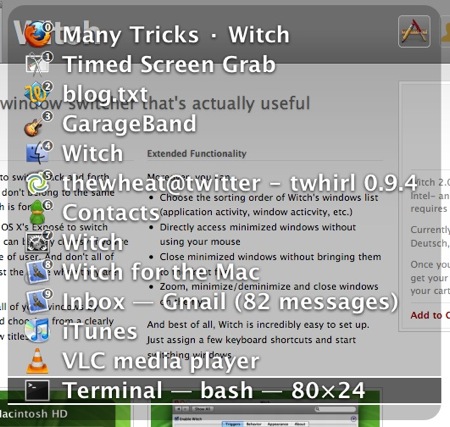
witch keyboard shortcut badges

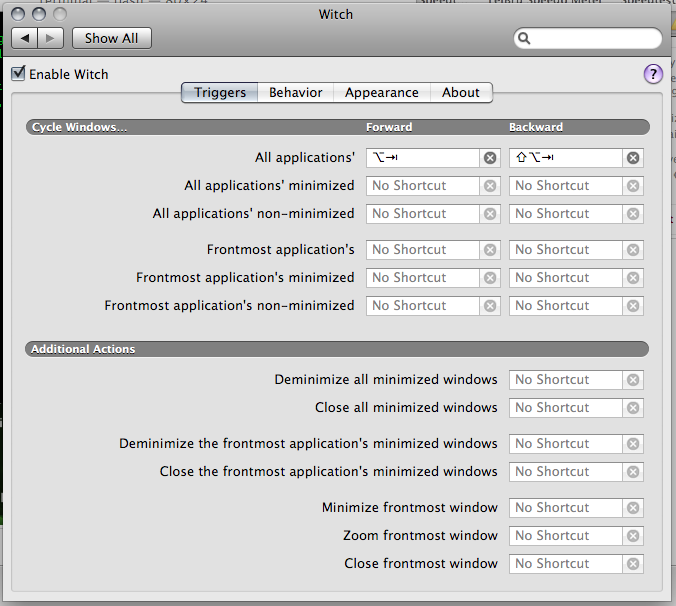
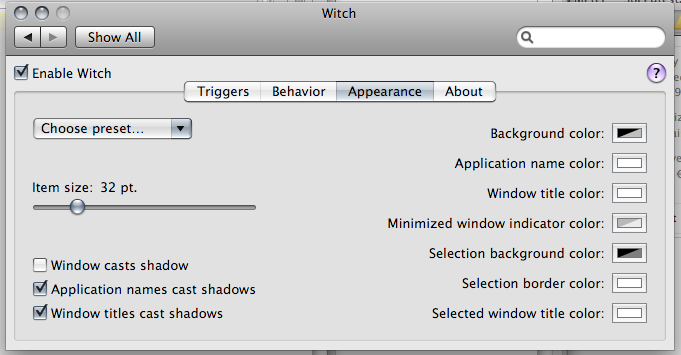
Witch installs as a preference pane in System Preferences and has quite a few configurations shown in the screenshots below. You can configure the shortcut used to activate Witch, however it can’t be remapped to replace the default OS X’s Command + Tab application switcher. Windows can be organized by application or window details (name / launcher / activity order) thus you are not constrained to a single configuration. Shortcut badges, is a nifty feature, as it adds a keyboard shortcut to the Witch menu. A badge with a number will show up next to the application window and show in the screenshot above, and a single number can be pressed to activate the appropriate window: an added shortcut and time saver.

Cons
On the down side, the application costs €9.95 (~US$15 / ~B$21), doesn’t show all windows and performance issues. While the application does not cost that much, it does annoy me that in order to get OS X to work the way I want it to, it seems I have to fork out more money for some application to fix the problem that shouldn’t even be there in the first place. With regards to Witch now showing windows, I notice the help dialog (e.g. Finder > “Mac Help” menu item) and Google Chrome both don’t show up in the Witch menu. I think the Help dialog could be an OS X issue because it is not accessible via default OS X application switcher (Command + Tab) nor through any windows switcher (Command + `). Seems like the Chromium / Chrome issue is known and it’s strange as it does show in Command + Tab. With regards to performance issues, I find that if I don’t use Witch all the time (sometimes I still use Command + Tab), when activating the Witch menu it takes a while to appear and sometimes it doesn’t appear at all.

Verdict

Witch provides a feature that OS X sorely lacks for keyboard users. However due to it not providing full keyboard access to any window in OS X, it defeats the purpose for me to buy it, especially since I use Chrome quite a bit. Maybe the next time around

Preference Pane Screenshots – Triggers
witch pref pane triggers tab

Preference Pane Screenshots – Behavior
witch pref pane behavior tab

Preference Pane Screenshots – Appearance
witch pref pane appearance tab

Update 1: Seems that X11 windows are not recognized either so GIMP users are left out in the cold by Witch too =(

Post by Email on WordPress.com

By getting a Mac and using OS X I’ve lost the ability to use Windows Live Writer which has to be the best blogging software out there offered free by Microsoft. So with that loss in mind I had to find an alternative way to blog and found out about the ability to post by email.

Steps to enable Post by Email on WordPress.com

  1. Dashboard > My Blogs
  2. Click on “Enable” on the appropriate blog (this will generate an email address for your to send your posts to)
  3. Email to the address generated
Ensure that you keep this email address private as anybody who mails to this address will be able to post on your blog

Typical bold, italics, links and images work without issues. Multiple images can even be combined into a gallery. Shortcodes enable configuration of meta data and post settings. They are short pieces of text that can be put anywhere in the post and are listed below.

  • [category x,y,z]
  • [excerpt]some excerpt[/excerpt]
  • [tags x,y,z]
  • [delay +1 hour]
  • [comments on | off]
  • [status publish | pending | draft]
  • [password secret-password]
  • [slug some-url-name]
  • [title Your post title]
  • [end] – everything after this shortcode is ignored (i.e. signatures)
  • [nogallery] – disables the auto-gallery and displays all images inline

This is great as it allows you to compose an email using the mail client of your choice and use your mail client’s rich text editing features too. As WordPress is pretty strict on the tags you use, take note that not all your rich text formatting will be transferred to WordPress.com’s strict HTML tag policy, thus it may be useful to submit the post as a draft and preview it in your dashboard before publishing it.

Brunei Times E-paper Downloader

Update (2010/08/10): It seems that The Brunei Times has changed their online newspaper to use SWF files instead of JPG files so you can’t easily view the files anymore =(. The download script has been changed to download SWF files
——————————————————–
So I love the fact that The Brunei Times has a great looking website, started Twittering, had video news and most importantly has an E-Paper which is an exact replica of their actual newspaper available online. It’s great that they allow people to read the papers in such a way, but my distaste for Flash led me to be curious of how to get the actual images displayed for offline reading. While looking in Firefox’s web cache I found the URL of the pages:

Page 1 default view: http://www.bt.com.bn/e-paper/images/page1.jpg
Page 1 zoomed in: http://www.bt.com.bn/e-paper/images/page1_zoom.jpg

Armed with that knowledge I started building a script that would let me download these files onto my computer for reading at a later time and possibly even copying the files to my phone and reading it there.

Requirements:

Usage:

  • Double click the download script to download the news for the day. This will download the news into a folder of the given date
  • Open the folder and read the news

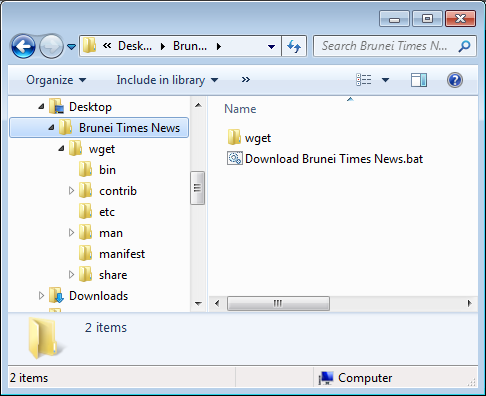
Screenshot of downloaded files

My OS X Issues

So I recently got a 13″ Macbook Pro and after month with it as my full time operating system, here are my issues with the Mac OS X as a heavily keyboard dependent user who has been in a Windows and Linux (Ubuntu/Debian) world for many years.

Command + Tab Application Switcher

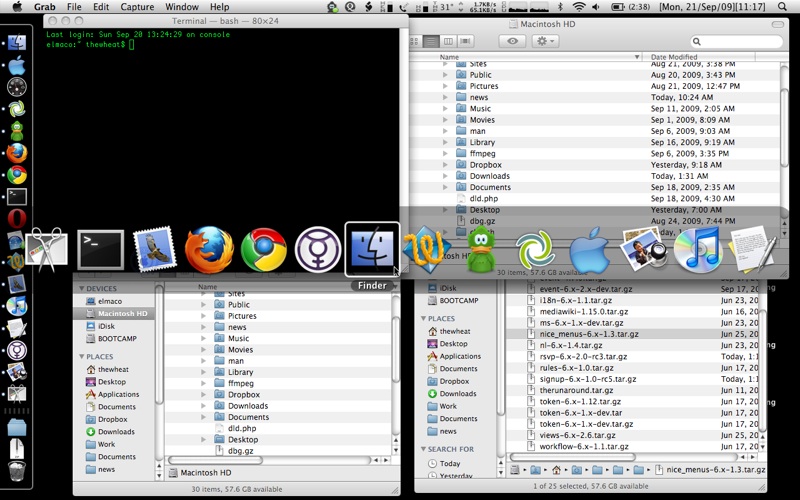
One of the things apparent to me when I used a Mac previously was that when you Command + Tab (Mac’s version of Window’s Alt+Tab) to switch between open applications, it won’t show all the current windows open, just the applications. So, for instance, if you have 3 Finder windows open, when I Command + Tab I will only see one icon as show below.

3 Finder windows, 1 Finder icon in the application switcher
3 finders 1 icon

I can see the rationale for this as it doesn’t clutter the application switcher screen but I personally do not like it. There is a way to switch between multiple windows of the same program (Alt + `)(Command + `) which is good that it is accessible but still the inconvenience of having to switch to the application before switching to the right window. This is detrimental to my workflow and productivity on a Mac. I guess to combat this, expose was created for window selection. Expose nicely lays out all open windows on one screen for the user to select and bring to the foreground, and it is even keyboard accessible. However it is not as efficient as alt+tabbing on Windows because each time expose launches, you would have to search for the correct window on the screen before clicking it and proceeding. Witch solves this problem but it will cost you (€9.95) and I’m actually surprised at how few people want this option (current score is: -21).

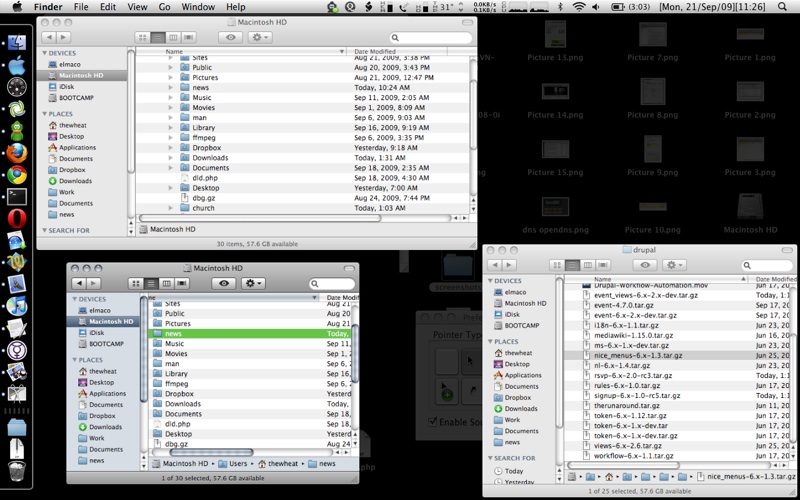
Expose in action on 3 Finder windows:
expose finder

Finder

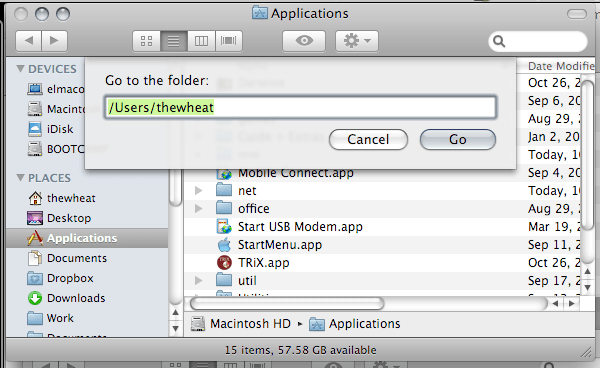
Finder is the equivalent to Window’s Explorer used for file management. One thing that became apparent to me when moving between OS’s is that OS X likes to create hidden files on USB drives and these files are never show in Finder. You simply can’t show hidden files in Finder. I also like to go to the folders by typing in the location using the address bar in Windows. This is something I also cannot do easily with Finder: the “Go To Folder…” dialog box has no auto complete and just does not offer the flexibility of a address bar where I can type and search on the fly.

OS X’s “Go to the folder” dialog instead of an address bar
finder go to folder

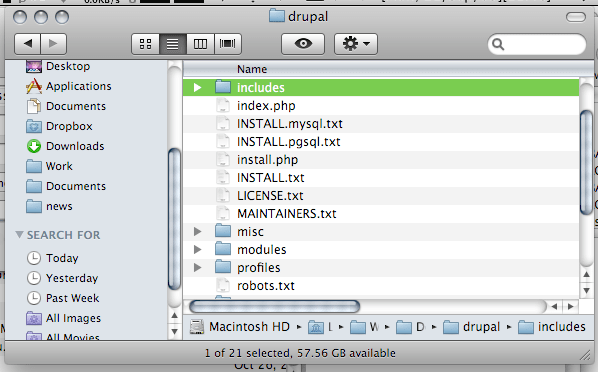
In Finder you cannot list directories first. Thus if you’re trying to access a folder that is deep in your folder hierarchy, you are just searching the sub directories of a folder, you will find yourself searching for the folder among the files. There really needs to be an option for this.

Folders sorted together with files instead of before
finder folders and files mixed

Cut and Paste
No copy and paste but cut and paste. Yes there is cut and paste in a text editor but there is none for file management in Finder. This is a big deal for me as I will use cut and paste very heavily in file management as it allows me to do all my file management via the keyboard. With Finder you’re forced to use the mouse to move files by dragging the folders into the necessary location. This ends up to be a huge time waster. It seems some 3rd party file managers (Path Finder and RAGE Macintosh Explorer) do implement cut and paste feature but if you cut files and forget to paste them (or you interrupt your cut with a copy and paste elsewhere) you can lose the files you previously cut. Windows and Linux has had cut & paste for years and here is Mac OS X without it. I find that hard to believe and also that only now in Snow Leopard you can restore your (accidentally) deleted file to the original location.

Replace not Merge
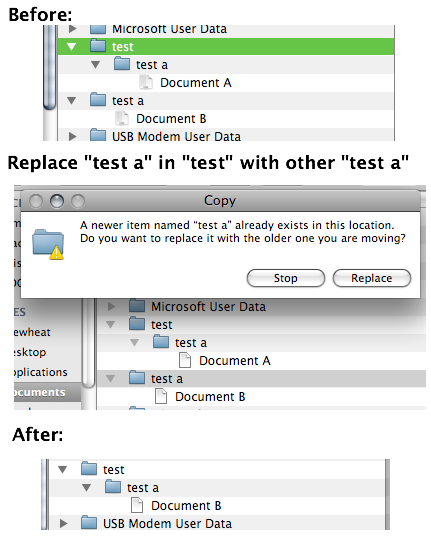
Take note that if you have 2 folders (A and B) of the same name and try to replace one folder with the other (drag folder A to folder B’s enclosing folder) do take note that it will replace folder B with folder A and not merge the 2 folders into one. Thus any files in folder B will be lost. This is very important and I can forsee a lot of cursing and swearing if this concept is not understood. For the record Windows merges the 2 folders giving the user with a folder containing files from both of the folders.
finder replace not merge

Menu Bar

So on a Mac the Menu Bar is always on the top and menu items change dynamically based on which application is currently in focus. The problem here is that you have to select the application first before being able to access any menu. So if you have another application window besides the current window you are using you cannot just access the menu item of the other window, you will have to click on the other window, move your mouse back up to the top of the screen where the menu bar is and file the item. Another time waster. You also cannot navigate menu items like you can in Windows. In Windows you can simply press the Alt key and menu bar is selected and thus you can use the navigation keys to move around the menu. Quick and simple. You can even use shortcuts to access menu items by pressing the key for the letter underlined in the menu. While you can place focus on the Menu bar in OS X using an awkward shortcut of Ctrl + F2 (am trying to find a way to mimic the single button Alt keypress in Windows) , there is no possible quick navigation of the menus.

On the right side of the menu bar there are icons/text that act as shortcuts to certain fuctions (e.g. wireless, bluetooth, volume control) or just for information display. The problem is that some programs have enough menu items to hide some of these icons and there is no way to view these icons in the hidden state. The only way around this is to remove functionality/information from the menu bar itself, preventing me from using it the way I want to. Windows has a feature to hide system tray icons and there is a toggle button to show them all. OS X needs a feature like this.

Menu bar in Mail – hiding some icons

menu bar mail
Menu bar in Finder – revealing hidden icons
menu bar finder

Window Menu

In Windows you can access the window menu by pressing Alt + Space. You can do things like maximize, minimize, restore and close the current window. You can even resize and move the window just by using the keyboard. That is just great and helps productivity. For OS X there is no window menu. You have to use the mouse to move and resize the window. Worse yet you can only resize the window my using the resizer in the bottom right of the window; you can’t resize from any other corner, ONLY the bottom right. I found that Afloat allows moving and resizing windows via the mouse as well as “always on top” and transparency features that I get with Compiz in Linux.

Zoom / (Smart) Maximize

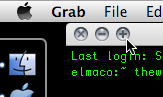
In Windows the title bar has 3 buttons: minimize, maximize and close. In OS X you also have 3 buttons (on the left rather than the right), close, minimize to dock (-) button and zoom (+) button. Zoom does a ‘smart’ maximize that maximizes the window to occupy the optimal space, not the full screen. I can see that makes sense because when you maximize windows sometimes you get a lot of whitespace or useless space, but the issue with this is that it is inconsistent between applications and gets frustrating at times. So I found RightZoom that makes the Zoom button do a maximize like Windows and better still adds a shortcut to this.

OS X’s zoom button: love it or hate it
zoom button

Home and End

If you work with any kind of text in Windows I believe the Home and End buttons are your friends as they are mine. It seems these friends have had a change of heart in the Mac world. I’m using a standard (Windows) keyboard with and when I press the Home / End buttons they bring me to the start / end of the document I’m editing instead of the start / end of the line that I’m used to. I know there is the Command + Left / Command + Right to do this but call me lazy if I think an extra button to press too much inconvenience. Thankfully I found DoubleCommand which allows the Home and End keys to work as I expect them to.

Inaccessible window/dialog box that float on top

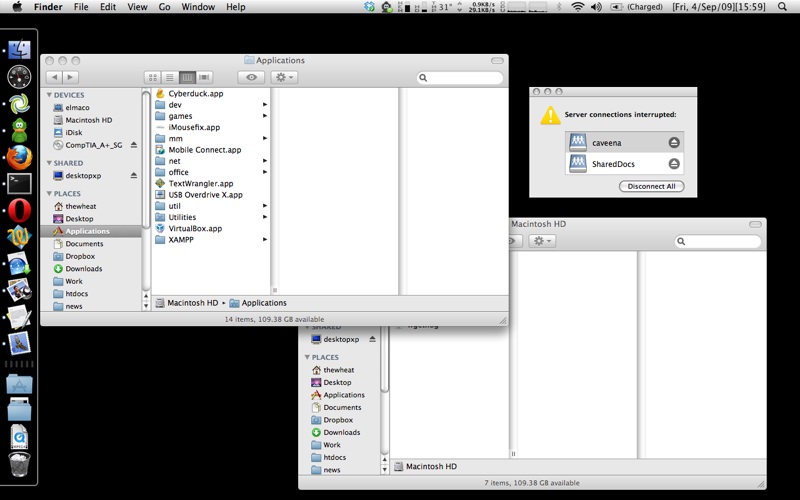
I found that there are some windows/dialog boxes that cannot be accessed via the keyboard application switcher (Command + Tab) or window switcher (Command + `). Open TextEdit (though I think it works in all applications), in the Menu bar > Help > TextEdit help. The window that appears is now inaccessible by the standard keyboard window selector shortcuts mentioned but can be accessed via expose. The worst part is that the window floats on top of everything you’re doing forcing me to reach for the mouse or find the window in expose. This can also happen if a samba share goes offline and you have it mounted

Mac Help window inaccessible via Witch (which is supposed to show all opened windows)
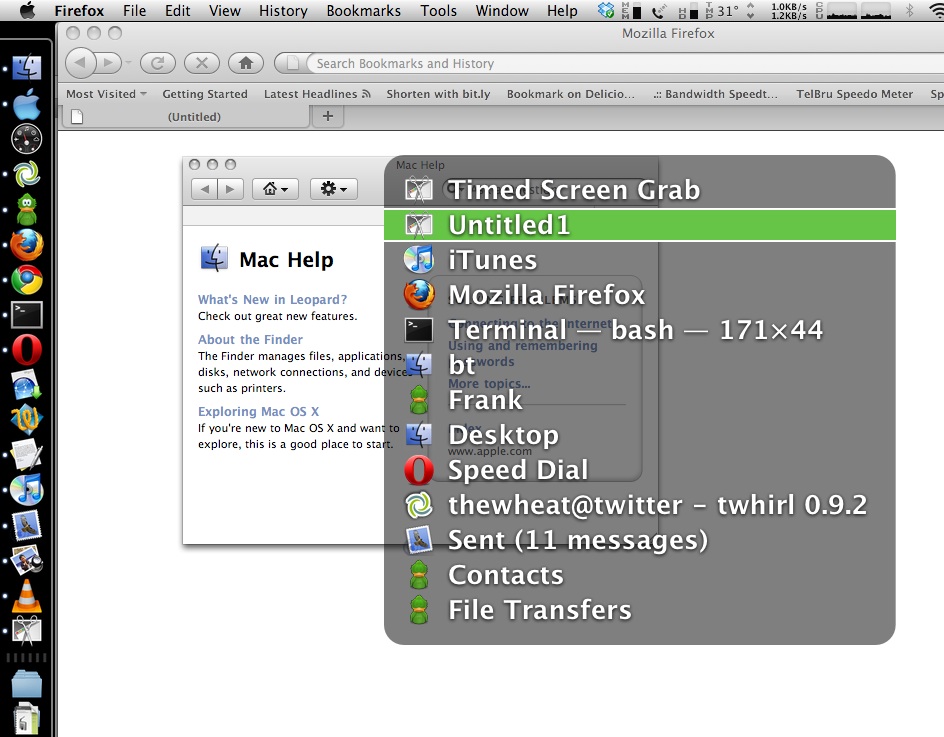
inaccesible help window

Keyboard inaccessible dialog box / help window
no selecteable dialog box same with help filepicture 1

Conclusion

These are my main issues with OS X and there are several other (minor) issues. As you can see there seems to be people with similar situations to mine as there are 3rd party applications developed to overcome these issues. After using a Mac I have realized that Macs jeopardize (my) keyboard skill portability due to the use of the command key instead of ctrl key for many functions and also due to the fact that Apple keyboards have a different layout. I guess the same can be said for long time Mac users in the Windows / Linux world but the fact that Apple not only dictates OS X’s the software but the Apple hardware and both ‘offend’ my quest for keyboard shortcut portability. Just as how Opera changed their new tab shortcut to Ctrl + T from Ctrl + N many version ago for consistency among the other tabbed browsers I can only hope and dream that Apple would give an option to make OS X shortcuts work like they do in Windows.
Mozilla Service Week is upon us

In the last post I mentioned about Mozilla Service Week which officially starts today here in Brunei. Current schedule as follows:

Monday: Blue Eden (Map) 2pm onwards
Tuesday: CoffeZone at Gadong Properties (Map) 9am onwards

As you can see I have only 2 places confirmed and am waiting for confirmation from the other places I asked. If I don’t get formal approval or confirmation I may just go ahead anyway and hope not to be chased out from their premises =P If you know a good place to go to / are offering a place let me know. The only requirements are power and an Internet connection =)

So once again if you’ve got any technology or computer problems/questions come on over. Free tech support at your service =)

Note: Services offered are free of charge. Hardware and (paid) software upgrades will not be given. Formatting will be offered if you bring your legitimate install CDs/DVDs and license keys / if there is a legitimate restoration partition on your drive.

Mozilla Service Week + Software Freedom Day

Next week (14th-21st September) will be Mozilla Service Week. In the midst of it is Software Freedom Day on the 19th and Mozilla’s One Web Day. I’m planning to serve/participate in all these events by placing myself in different locations in Brunei each day and just being available to help anybody with their web/technology issues/problems.

Below are just a sample of the many things that can I intend to provide assistance for:

  • How to configure your phone to access the Internet
  • How to transfer Youtube videos to your computer / phone
  • How set up a website
  • How to customize your website
  • Trying out Linux
  • Getting legal free software
  • How to create videos
  • How to get free legal shows online

Basically to paraphrase Tekzilla‘s intro:

“If you’ve got a question, We’ve got an answer for you. And if we don’t we’ll track down somebody who does”

I have approached some places and to get approval from them to utilize their place for Mozilla Service week. So far I’ve got a green light from Foodzone (Gadong Properties) and Blue Eden/Inderaloka Biru (Kiulap) and I’m trying to get a place in Delima/Serusop (Easyway?), Gadong central (Coffeebean? Mall food court?), Lambak (Wywy?) and Bunut Area (Wywy?). Basically all I need is a place to sit down with an Internet connection, power sockets (for me and anybody else who comes along) and accessible to people.

I know this may not be much but I’m trying something new and hope to continue doing something like this as a weekly event as a contribution back to the community of Brunei. If you have any suggestions do comment or tweet me @thewheat. I’ll post latest info via twitter but will hopefully have a proper schedule by Sunday so if you’re free do drop by and say ‘hi’. Feel free to come join me and help out too =)

blogAd

P.S. I have to thank @jidah for mentioning Mozilla Service Week and OneWebDay as that’s where I learned about it and thus led to this.

Badas Tree Project

We all live on this Earth and we should be responsible for it in some way, shape or form. Whether it be using reusable bags while we shop (kudos to Supasave for being first, if not one of the first, to promote such a lifestyle) to not switching on the air-conditioning 24 hours a day, 7 days a week to going out less. There are many ways to go green if only you search for it

What is the Badas 50,000 Trees Project?
An initiative by ISB’s Million Trees Project in collaboration with the Ministry of Industry & Primary Resources to re-plant trees in the Badas Forest Reserve, Kuala Belait in support of the Heart of Borneo initiative.

Launched in 2008, the 1000th tree was planted by HRH The Prince of Wales while the 1001st tree was planted by HRH The Crown Prince of Brunei.

The target is to have planted 50,000 ‘Agathis Bornensis’ trees by 31st October 2009.

Taken from BIBD’s website

So help the World and the future generations by donating a tree at B$5 per tree. The donations close on the 30th of September so just head down to any BIBD and do a cash deposit over the counter or via the ATM. Further details can be obtained at BIBD’s website.