Unlocker / lsof / ps is your friend

So you go about your business using your computer and you want to safely remove or unmount a USB drive or SD card and you get the following message:

Windows: “Problem Ejecting USB Mass Storage Device” The device ‘TheNameOfYourDrive’ cannot be stopped now. Try stopping the device again later
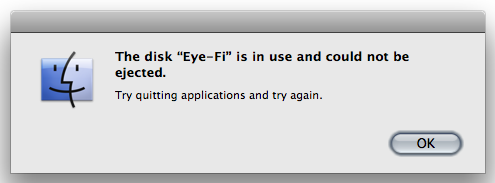
OS X: The disk “TheNameOfYourDrive” is in use and could not be ejected”. Try quitting applications and try again.
eye fi is in used dialog box when unmounting

Windows: the solution is relatively simple: download Unlocker. So when you get the error message just right click > Unlocker > Unlock All
OS X: As the OS X dialog box suggests, you should try quitting applications but you don’t want to just willy-nilly close all applications, just the one causing the problem. To identify the application, open Terminal and type the following:

lsof | grep TheNameOfYourDrive

lsof output

It should display the current usages of the drive. The first name on the left is the application that is using the drive. Close that application and try unmount the drive again and it should work.

I used a similar tip to identify why I couldn’t replace my GIMP installation: I tried copying the application into the Applications directory and just got an error message saying that “The operation cannot be completed because the time libexpat-1.5.2.dylib is in use”. Fired up terminal and instead of “lsof” I used “ps -e” and saw that there processes using it. I killed those processes with “kill -9 processID” (process ID is the leftmost/first column in the “ps -e” output) and was able to copy it without a problem
gimp libexpat 1 5 2 dylib in use ps -e

Installing/Using Boot Camp on unsupported versions of OS X

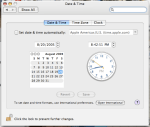
So I installed Boot Camp when it was still in the beta versions on an OS 10.4 MacBook about 2 years ago but never install a Windows partition. Recently I tried to install Windows, so I started Boot Camp Assistant only to be greeted with a message that it had expired. As with most Apple stuff, there isn’t much support if you don’t upgrade (and in the process pay Apple more money). After some searching I found this forum post which basically states to change the date to 2005 (System Preferences > Date & Time) and ensure “Set date & time automatically” is unchecked.

I can verify that it works with OS X 10.4 on 20th August 2010 (Note: Boot Camp Assistant was previously installed so I just needed to run it, not install it. I can’t seem to find any download links to old Boot Camp versions either)

HSBC Phishing Email

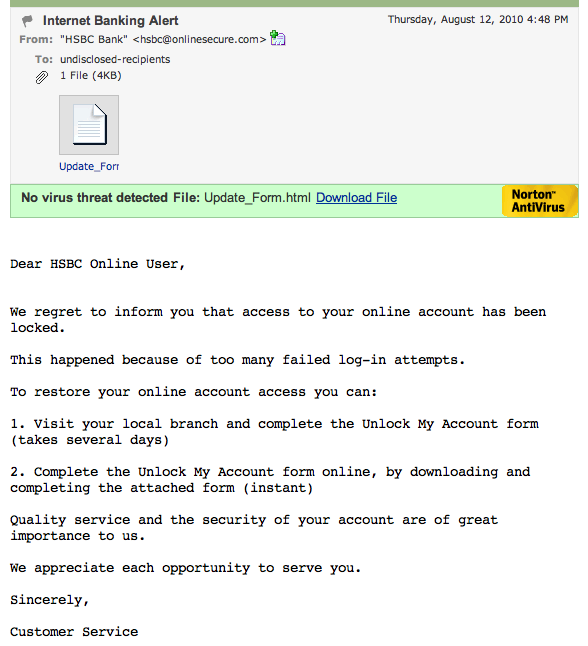
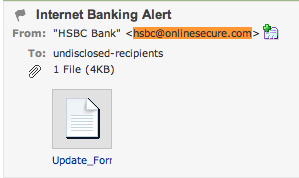
A few days ago I got an email from HSBC Bank regarding my online Internet Banking account, saying that it was locked and that I could go down to a branch to unlock it or fill in the online form to unlock it. Initially I didn’t think much of it until I was about to go to HSBC and I decided to check whether my Internet Banking account was locked. I logged in without issue and grew suspicious of the email I had received earlier. I re-read email I found that it was a phishing email trying to steal my login credentials via the online form that was attached to the email. Below I will detail a few things that help you identify phishing emails or forms

Below is the received phishing letter and the accompanying update form. Now email with an attached form is always suspicious because you can never really trust anything you receive.

HSBC Phishing Email
HSBC Phishing Email
HSBC Phishing Email's Update Form

Now to inspect any HTML file or even a website you should always view the source code of the file. Search through the menu items and look for the “View Source” menu item. Below shows how to view source in Google Chrome (For Firefox: View > Page Source)

HSBC Phishing Email - Update Form - View Source

Viewing the source code will show you what makes up the webpage you are viewing. For any form that you fill in you should look for the “FORM” tag and in particular the “action” attribute/value as the “action” attribute/value dictates where the data will be sent. The screenshot below shows the source of the ‘Update Form’ attached to the email and as you can see the website that the data is being sent to (yuvalla.com) doesn’t seem to be a website that has anything with HSBC. Another thing to take note of is that the url has no “https” in the address that it is sending the form. All banking sites should be sending data via https (e.g. https://hsbc.com.bn/ibanking/processing.php not http://hsbc.com.bn/ibanking/processing.php) as HTTPS connections are encrypted (HTTPS server certificates must also be originating from a trusted source, e.g. the bank itself, in order to ensure that the encryption is between a trusted source and not a random malicious hacker’s computer/server).

HSBC Phishing Email - Update Form Source - Action Field

Some other notifications that the email was suspicious:

  1. The phishing email “from” field is different from the regular HSBC “from” field (correct: HSBC Brunei, fake: HSBC Bank)
    HSBC Phishing Email - Fake Name
    HSBC Phishing Email - Fake Name

  2. The email they used does not original from HSBC.com or HSBC.com.bn (and going to the website gives a non-existent website)
    HSBC Phishing Email - Fake Email
    HSBC Phishing Email - Fake Email

Note: these 2 notifications can actually be faked to look like the real thing and if they are correct they are not an indication that the email is authentic.

Ways to prevent being a victim of phishing emails

  1. Never blindly trust any emails you receive
  2. Do not fill in any forms without first checking it out properly (view source to make sure it is sending data to a trusted location, ensure https so the data is encrypted and cannot be sniffed)
  3. Do not click any links in an email as a link can display a URL direct you to another (e.g. http://google.com this link should go to Bing.com not Google.com)
  4. Manually type in the bank’s website to go to the Internet banking website (try using https in the address rather than http)

Now despite all this, there can always be security issues that enable hackers to exploit to make things even harder for us to identify fake websites / phishing emails. These tips are not a surefire way to ensure you do not get phished but hopefully the information I’ve shared will help you identify some characteristics of phishing emails so you can protect yourself and help inform others

I believe Brunei Times is messing with me

So the day of my wedding, Brunei Times decides to migrate to a new E-Paper implementation leaving my Unofficial Lite Edition more useless to mobile devices as they have switched to rendering the pages in Flash (in .SWF format) rather than a picture format (previously it was JPEG file). On the positive, the file sizes are smaller so it should be a quicker download for those using the official E-Paper site.

I guess I shall have to find ways to implement what I want. I just wanted a way to be able to view the full Brunei Times newspaper from mobile devices (e.g. phones) that don’t support Flash and also to be able to download and read the papers easily but I guess that is not meant to be. You can still download all the Flash files via the downloader script. Will work on a way to view the files easily

Customer Service

A few weeks back I had a food tasting session at Orchid Garden and we were happily enjoying the food until the final dish when we were greeted by a entree that we did not specify. It was supposed to be Chinese pancake with sesame covered balls filled with red bean but we got some layered cake and pandan puff (pandan filled curry puff). The unwanted dish was among the initial list of dishes that they would normally serve by them, but my mother/’aunt’ had told the guy in charge, several weeks back, that we wanted to change it to the Chinese pancake and sesame balls.

As the dish that was presented before us wasn’t one we wanted, we informed the (head?) waitress and she said that she understood but since this is a food tasting session we can always change it at the actual dinner. How are you supposed to conduct food testing when the food you want to test isn’t served? I wasn’t satisfied with her answer and apparently neither was my mother or aunt and they managed to ask the chef out of the kitchen to discuss this matter (there wasn’t anybody else in the restaurant so I hope and I guess that did not inconvenient any customers). Seems that there was some confusing or lack of communication and our request was not listed but in the end the chef did prepare the dishes we had wanted.

Around the same time I had a hankering to buy a webcam to try out some stuff. I managed to get an ProLink PCC8020A which is an auto focusing webcam that has ability to record at 1280×1024 (Windows only though) for B$37 from Oregon Systems (located next to Rejoice Chicken Rice in Gadong). Anyway I was playing around with it and swiveled it left and right and managed to break it. Now I didn’t anything that was intended to break it nor did I do anything that it wasn’t designed to do. I took it back and they were kind enough to give me a replacement webcam without any questions asked after I explained to them what had happened.

Recently my brother got a car and when he picked it up, it was handed over by a person who wasn’t the salesman he was dealing with. The car did not have a full tank of petrol but a couple of days later the salesman that he was dealing with called him up and offered to refund him the money for the full tank of petrol. How good is that?

Customer service is important and I believe here in Brunei we need a great improvement. I’m not just talking about when people have complaints but even as a normal customer asking questions: be attentive and courteous. Treat them as how you want to be treated. A bad customer service experience is what will put people off from coming back. Anybody care to share there customer service experiences in Brunei? Please try to be as constructive when giving these feedback as we are all here want Brunei to be a better place =)

I’m Getting Married!

So I should be getting married tomorrow 10am if all things go according to plan and in the process of getting ready for tomorrow and the event, I had a few tech ideas: some which made it and some which didn’t I guess. I’ll talk more about them after I’m back from my honeymoon. Just hope to share and give ideas to others for their own events.

But for now, the live stream is done via the uStream service using uStream Producer client application that utilizes an EasyCap USB dongle (Amazon, DealExtreme) connected to the church cameras =)

timothyandruth.com

A look at the ePad

After hearing BIT Computer had an ePad (a slate/tablet device like an iPad, but running Android) I was curious to take a look as I’ve been looking for a cheap Android reader. Watching videos online with all these cheap Android tablets I knew not to expect much. So I managed to play with it and did come back with a few nice features that I wish other Android phones / tablets would implement.

The ePad has a 7″ screen with a resolution of 800×480 and thus is smaller than the iPad in terms of size and screen resolution. It also has a big bezel close to that of an iPad making it quite big for a smaller device. It has a single microSD card slot for expansion, a single 3.5mm headphone jack and a single micro USB port. It also has a front facing camera and a few other buttons on the side (power, volume up/down) and a ‘home’ button on the front (like the iPad). It is also equipped with standard wireless (presumably 802.11g) and even has an option for ethernet connection (I saw a PPPoE item in the settings).

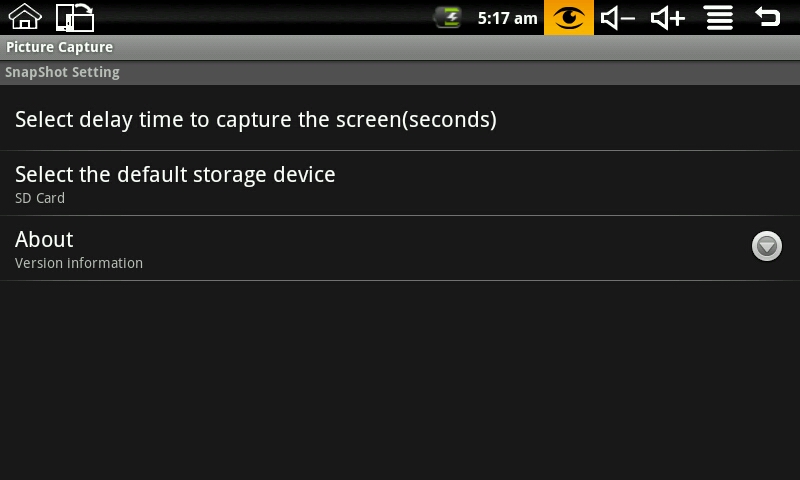
There is a cable included with the device that converts the micro USB port to standard female USB port which can be used to attach a standard USB keyboard. I personally love this feature as I brings about possibility of using the device as a productivity tool to do regular word processing (Documents To Go is included with the device). I forgot to ask if you could attach a USB drive and have USB On-The-Go just like upcoming Nokia N8 which would allow you to transfer files to and from a USB drive making it more like a mini computer. The webcam seemed to auto focus and I guess it was taking a 320×240 snapshot, the screenshot application was not optimized for the screen resolution and thus had a weird layout (camera output was in a little section on the left and the ‘take picture’ button was all the way on the right of the screen).

Now the device is very unresponsive/sluggish. It was much hard to use than any of the cheap Android tablet videos I’ve seen online. I knew it would be slow and pretty hard at first but it was worse than I expected. After playing around with it, I found the touchscreen sensitive in certain locations but insensitive in others. Pressing the ‘back’ button in the top right corner was pretty hard but selecting input boxes and typing on the keyboard seemed pretty responsive.

The device has a custom toolbar on the top of the screen with custom buttons, most particularly a rotate screen and a screen snapshot button. A screenshot utility is something that no stock Android phone/device has even until now. You can install screenshot application only if you root your device which is not something I would recommend a typical user to do. This leads me to believe that this device could be running as root or that they have done quite a bit of customization.
Android 1.6 is running on the device and it has the Google Market Place among other APK managers/installers in order to install applications. It also has a full license of Documents To Go allowing you to view and edit documents. PDF viewing is done through Documents To Go but I was not able to view PDFs as it was requesting registration of the product in order to proceed. I was not able to test and video playback or web browsing as I did not have any videos on hand or Internet access. So I cannot comment on the abilities or speeds in those areas of the device. I will try go back to test them and take screenshots of all the applications installed.

While this tablet is far from perfect and isn’t a device I could really recommend, I like to see the possibilities that could arise. This device usability is a nightmare due to the unresponsive screen, but this is not an Android problem: it is just that the combination of the touchscreen technology used in this device and a slower processor is causing it. Recently Shanzai showed off a USD$200 Android tablet which seems to be pretty snappy, so it isn’t Android that is to blame. Check out Shanzai for more videos on tablets and at Deal Extreme for reviews by users with these devices. The Eken M001 is one of the cheapest tablets and firmware updates have sped up the device but still is underwhelming in terms of battery life (3 hours max). Another similar tablet would be the US$199 Archos 7 Home Tablet which actually looks better than any of these cheap tablets as it has a more polished product but has it’s own issues (720p playback, good battery life 5+ hours, but no Market Place and iffy touchscreen). Give me an improved version of the Archos 7 Home Tablet with a better touchscreen and slightly better battery life and I would be perfect. While the iPad is a very good product, I still don’t think it’s worth the price and I personally do not like the environment of iOS: I can’t even develop and test applications on my own device without jailbreaking the device or paying Apple for the developer program. I do not like those barriers of entry to a platform. So here I will be waiting for a better Android tablet
Creative Zen V (as a Line-In Recorder) Review

Finally got this review done. Basically I got the Creative Zen V to record sermons at church via direct line-in when connected to a mixer. There are not many line-in recorders these days; Creative had quite a few devices that allow this but they have seem to stopped making them (possibly due to the hiss in the recordings?). Got a good deal at ~B$100 for 2 of them (1GB model, including shipping). Check out the video review

Details of the Creative Zen V

  • Capacity: 1GB / 2GB
  • Audio Support: MP3, WMA, IMA ADPCM, WMA DRM
  • Weight: 43.5g
  • Battery Life: Up to 15 hours for continuous audio playback
  • In-built battery (charges via USB)
  • Voice & Line-In recording supported
  • Line-in recording: 160kb/s, stereo 44.1KHz WMA (66.2MB for 76 min)
  • Microphone recording: 32kb/s, mono, 8KHz WAV (5.9MB for 25.5 min)
  • Monitor recording via
  • Visual level meters
  • Headphone output

Mini-USB connection and connects as an MTP device

  • Windows: no issues
  • Linux: depends on distro but works in recent version of Ubuntu
  • OS X: not supported natively, requires 3rd party application: e.g. XNJB

Main Issues:

  • Buzz/Hiss in line-in recorded audio (check out the video 4:07)
  • Takes relatively long to switch on (~15 seconds)
  • Records to WMA (may need conversion)
  • Possible permanent dimming of screen after extended use (several months)

Windows 7 – Touch Gestures

Ever since the iPhone came out there seems to be a resurgence with touch technology and in particular multi-touch technology. From full all-in-one PC systems like the HP TouchSmart that I’ve seen in Netcom and the MSI WindTop to now the Acer T230H Touch Screen Panel monitor (seen at both Concepts and Netcom). Not knowing what Windows 7 with offered in terms of touch features I looked it up and came across “Using touch gestures” on Microsoft’s Windows 7 microsite (“My favorite ways to use Windows Touch” by John Swenson is also a good read for those considering using a touchscreen)

The main features are:

  • Flicks: basically navigating a page by flicking your finger upwards or downwards as normally seen on iPhones
  • Press and hold: press and holding down on the screen will act as a right click and it will pop-up the context menu
  • Windows Touch Gestures: Pan, Zoom, Rotate, Press and Tap. The first 3 are all similar to Apple’s trackpad multi-touch trackpads gestures but the “Press and Tap” gesture seems new and interesting. In order to activate “Press & Tap” you have to “Press the item with one finger, then quickly tap with another finger, while continuing to press the item with the first finger.”: if you just tap the shortcut menu will appear, if you tap and hold it will be treated as a right click. I’m not sure how well this works in usage and how helpful the shortcut menu is but it is something new and worth exploring
  • The last feature is related to the taskbar: tap the icon in the taskbar and flick upwards and it will show the window menu and jump list

Basically these features aren’t all that great to me, and I feel most of them work on devices with smaller screens and not so much with larger screens. But to all touch enthusiast this should be a good starting point for Windows. Most manufacturers will make their own touch software that runs on top of Windows and provides a more touch friendly experience but they will most likely stick to a multimedia focus or just for goofing around and nothing too productive